MCP Server
Enrichment inside your AI tools
Connect the SalesQL MCP to Claude, ChatGPT, Gemini or Cursor — authorize once, no key to paste — then prospect, reveal verified emails and check credits without leaving the chat.
https://mcp.salesql.com/mcpConnect your client
Every client points at the same endpoint, and most of them can authorize themselves against it — you approve a consent screen and never handle a credential. An MCP key stays available under each client's advanced section, for tools that can't do OAuth. Jump to yours:
Claude
OAuthThe easiest path, and no key involved. Claude reaches the server from Anthropic’s cloud, so one connector works on claude.ai, the desktop app and Cowork — and in the mobile apps once it’s added.
- Click Add to Claude. It opens Customize → Connectors with the name and URL already filled in — check they read SalesQL and https://mcp.salesql.com/mcp, then click Continue. (By hand: Customize → Connectors → + Add → Add custom connector.)
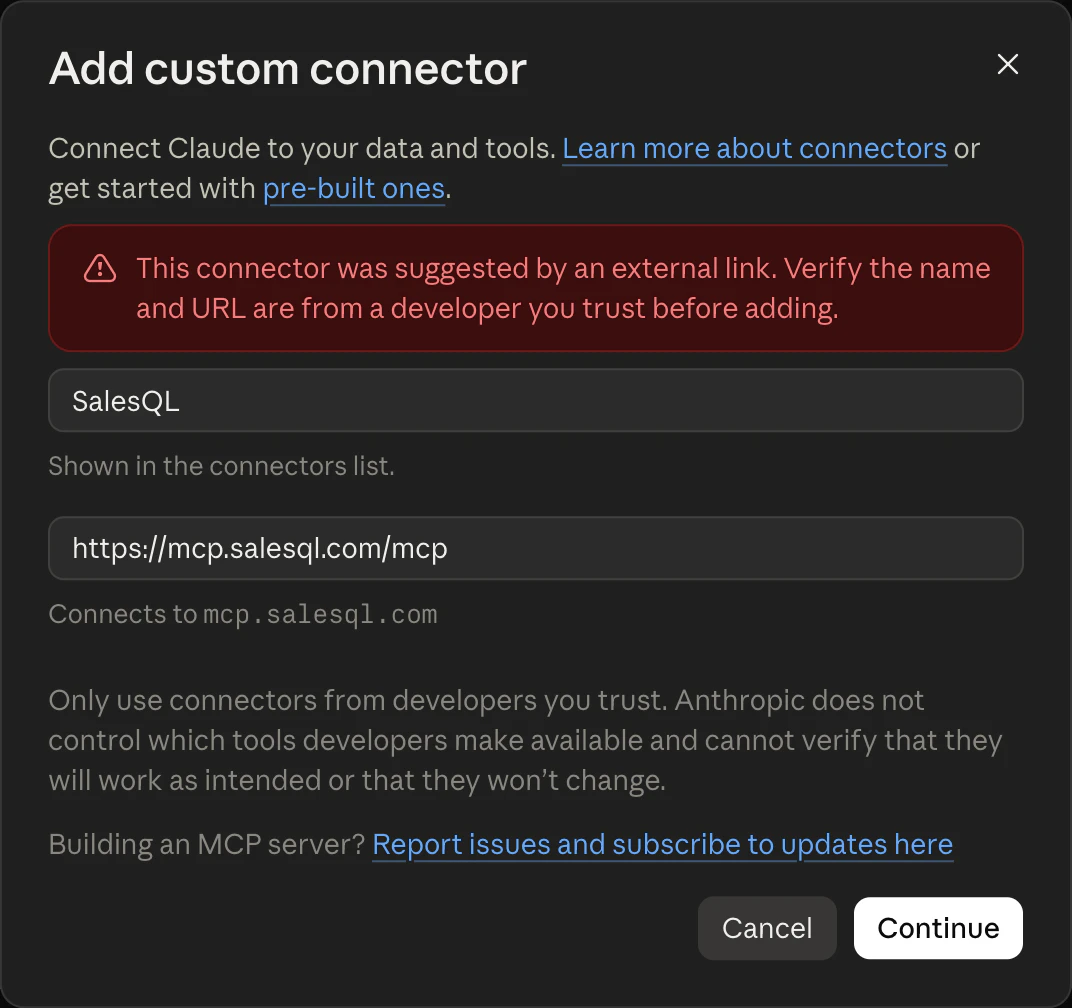
- Leave the detected sign-in settings — Sign in now and Register automatically — and click Add. There is no client ID, secret or key to fill in.
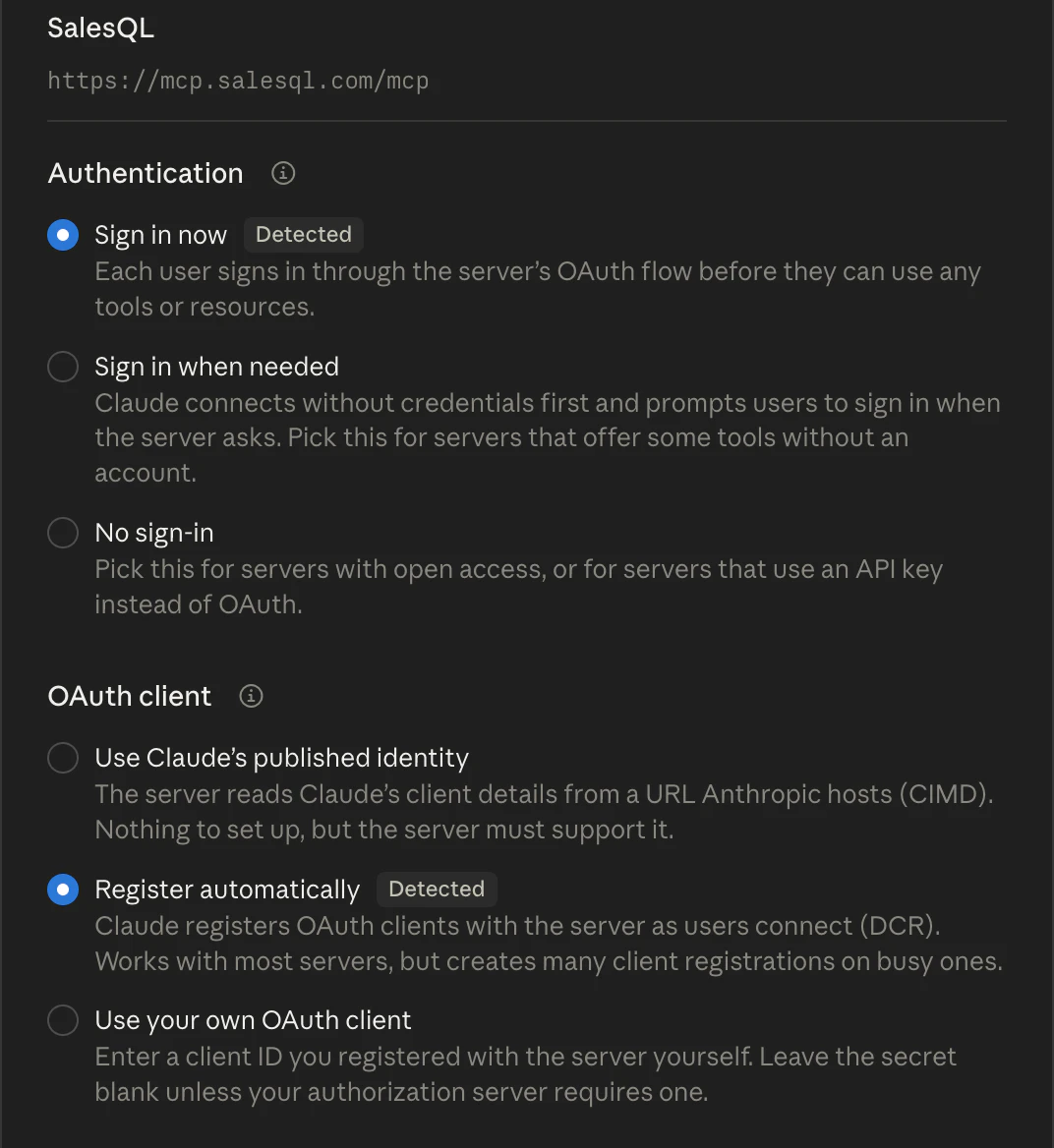
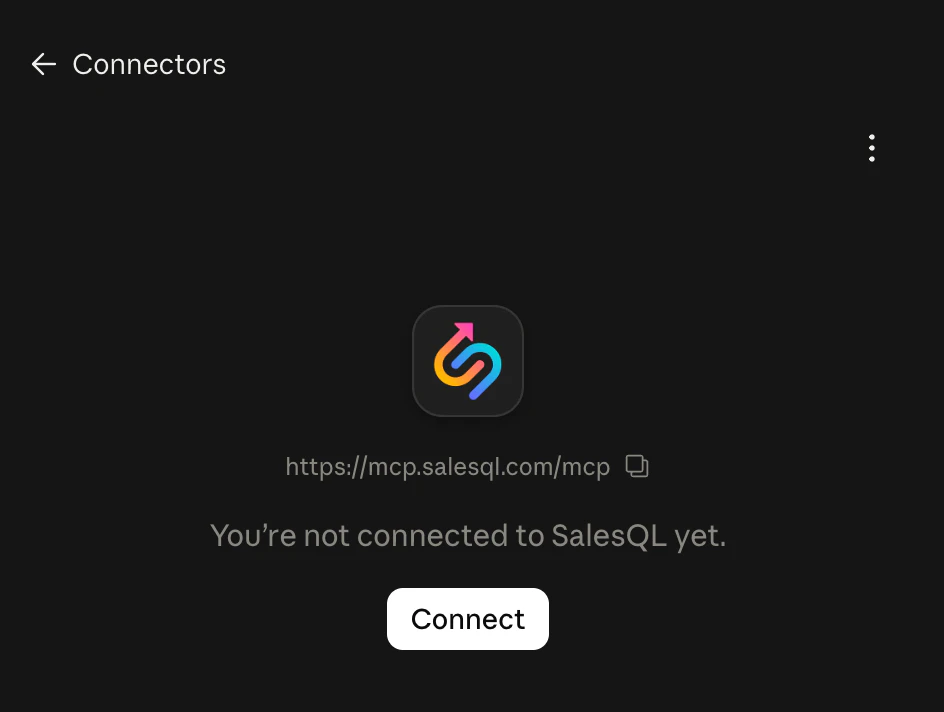
- On the SalesQL connector page that opens, click Connect.
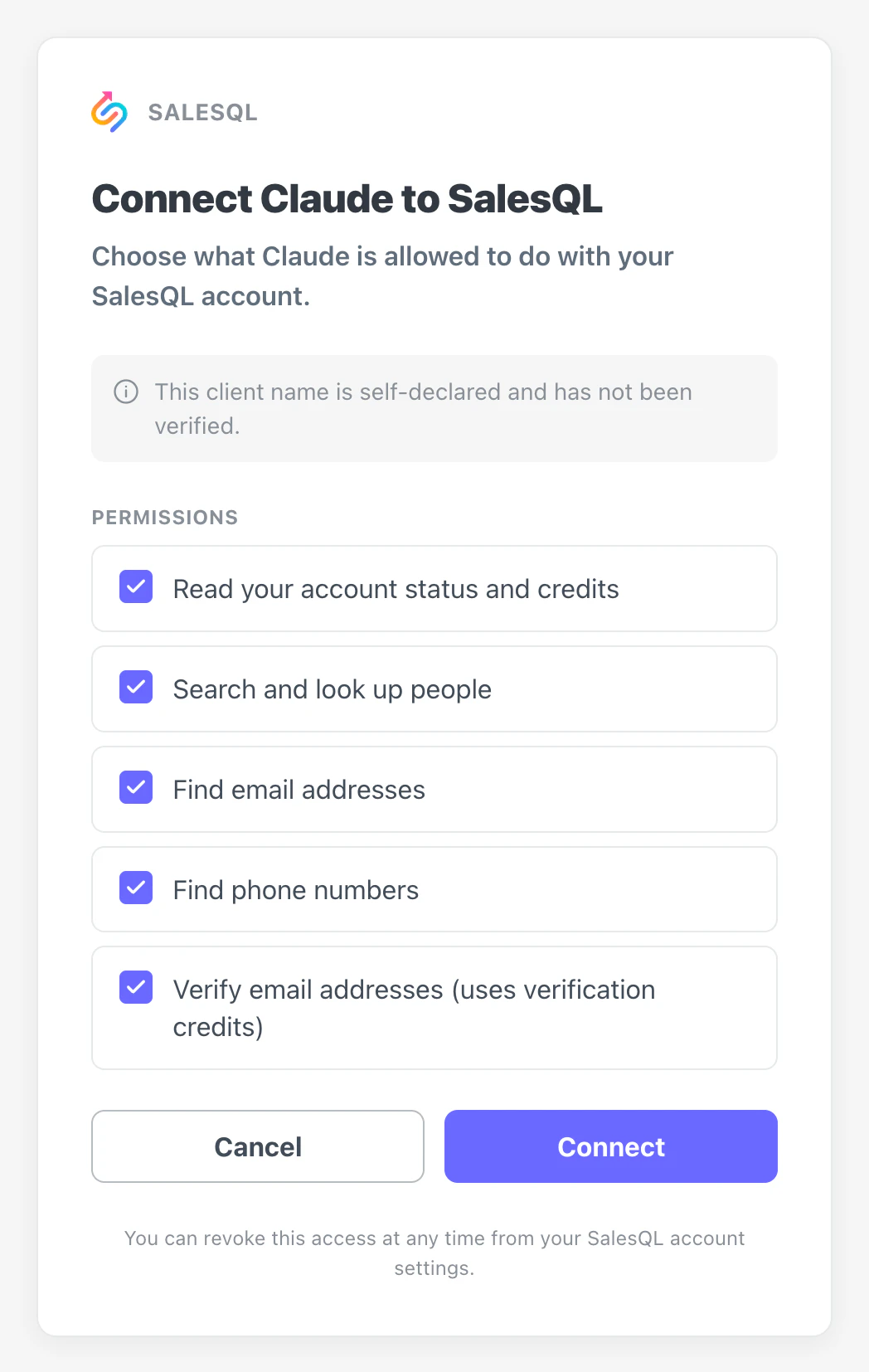
- On the SalesQL consent screen, keep the permissions you want Claude to use and click Connect. You can revoke the access at any time from your SalesQL account.
- In a chat, open + → Connectors and make sure SalesQL is switched on.
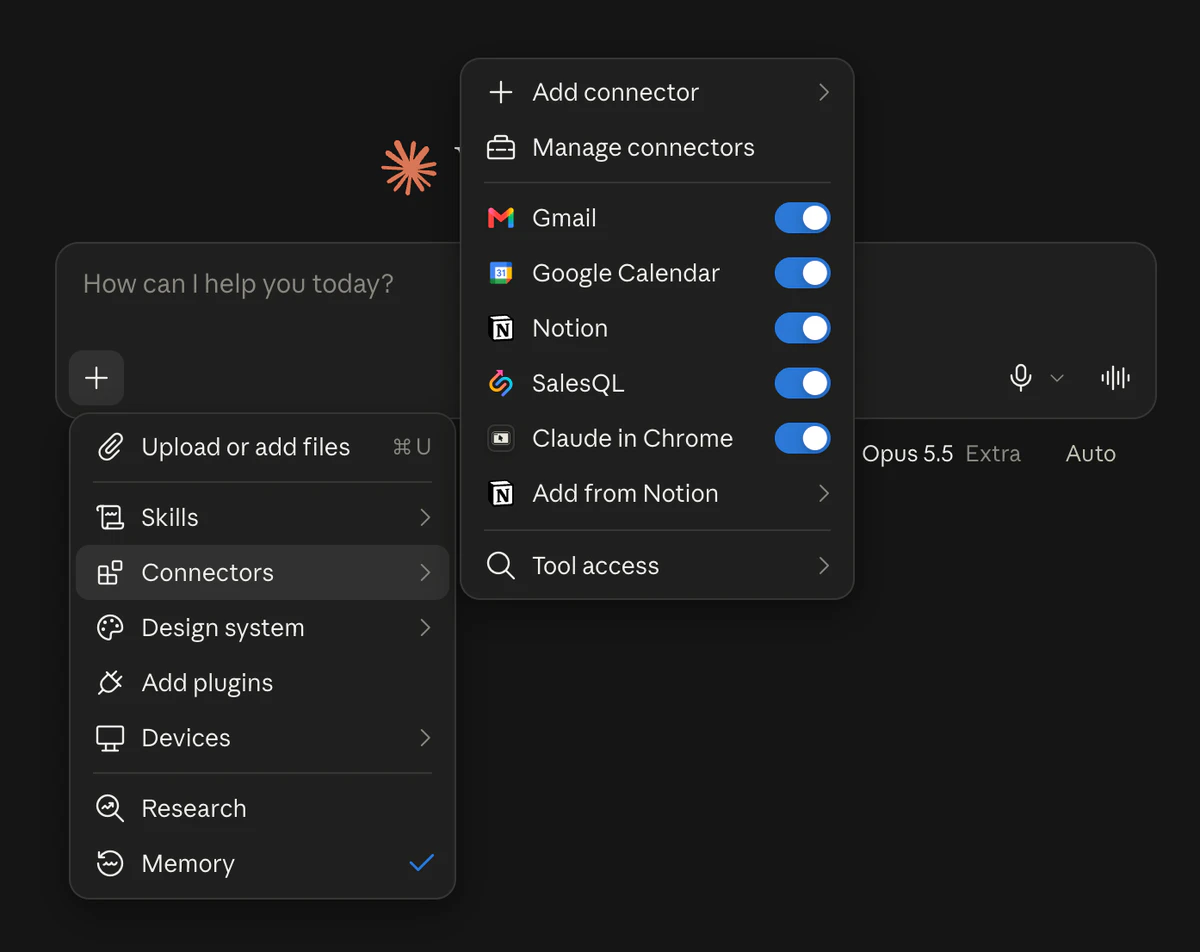
On Team and Enterprise, an Owner adds the connector once for everyone (Organization settings → Connectors → Add → Custom → Web); members then just click Connect on it under Customize → Connectors. Free plans can add one custom connector.
Or let your assistant do it
Paste this in and it will walk you through authorizing, then read your plan and credits back so you know the connection works.
Help me connect the SalesQL MCP server to Claude. The server URL is https://mcp.salesql.com/mcp and it uses OAuth, so there is no API key to paste anywhere. Walk me through it step by step for Claude specifically, including where to approve the SalesQL consent screen. When it reports connected, call get_account_status and read back my plan, remaining credits and next refresh date so we know the connection really works. Then run one free search_people query as a smoke test — don't spend credits.
Manual setup with an MCP key (advanced)
Only needed if you want a long-lived key instead of a connection you can revoke per client. Claude Desktop reads this file at startup; it bridges to the HTTP server through mcp-remote, which needs Node 18+.
{
  "mcpServers": {
    "salesql": {
      "command": "npx",
      "args": [
        "-y", "mcp-remote",
        "https://mcp.salesql.com/mcp",
        "--header", "Authorization: Bearer YOUR_MCP_KEY"
      ]
    }
  }
}
Check with node -v and which npx; a stale nvm default is the usual cause of "Server disconnected". Fully quit Claude (Cmd+Q) and reopen after editing.
ChatGPT
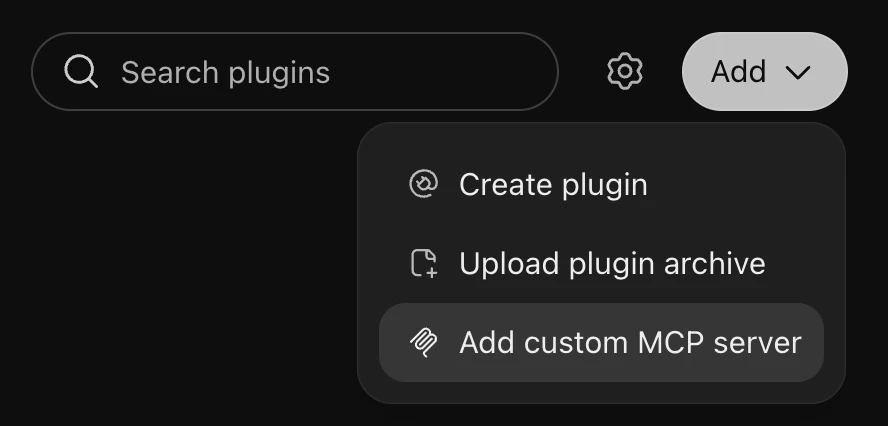
Web onlyOAuthAdd SalesQL as a custom MCP server from Plugins. Developer mode is no longer needed — ChatGPT shows a risk warning for each server instead.
- In ChatGPT on the web, open Plugins in the sidebar, click Add and choose Add custom MCP server.
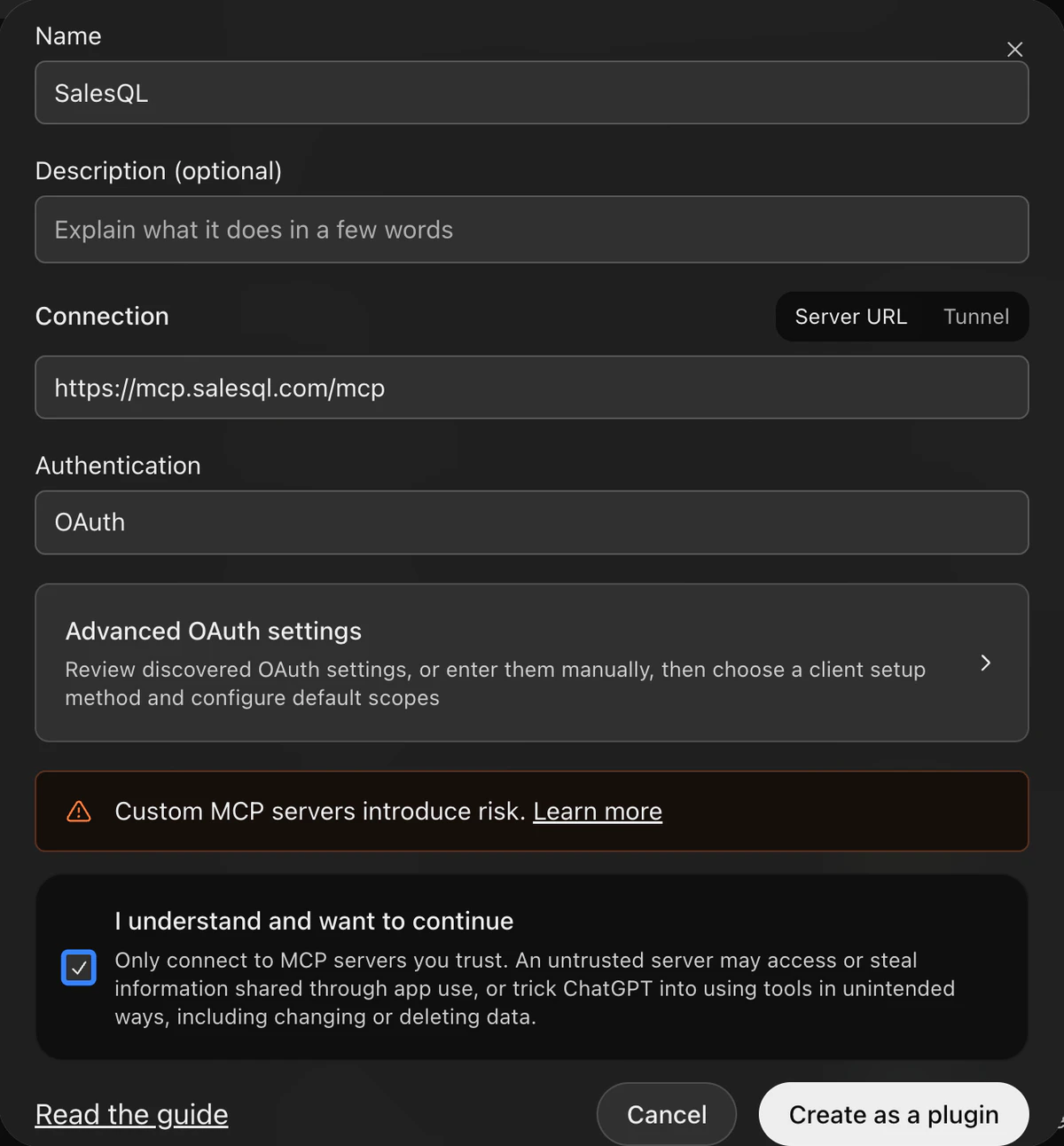
- Name it SalesQL, paste https://mcp.salesql.com/mcp under Connection and set Authentication to OAuth — there is no need to open Advanced OAuth settings. Tick I understand and want to continue, then click Create as a plugin.
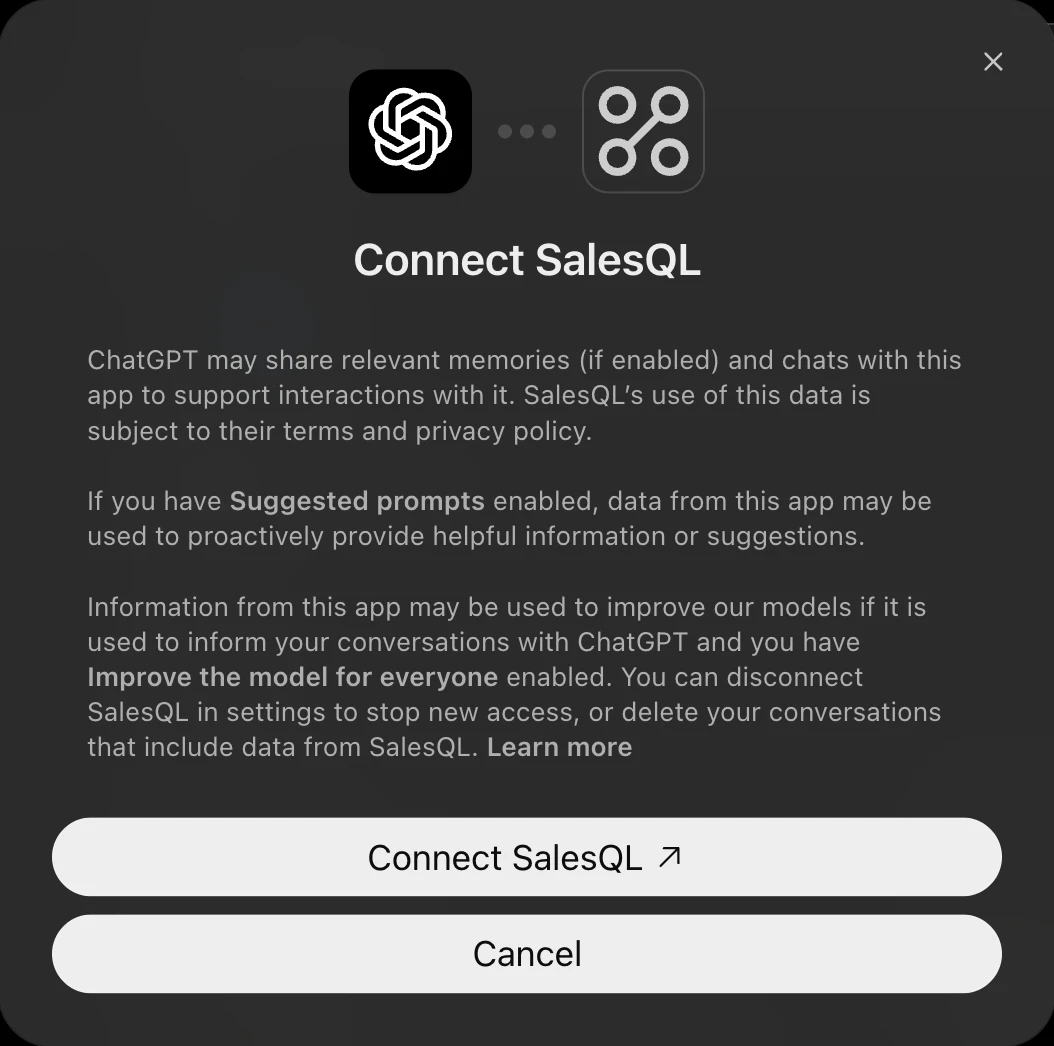
- Click Connect SalesQL. (In a Business or Enterprise workspace where an admin has already approved SalesQL, the button reads Continue to SalesQL.)
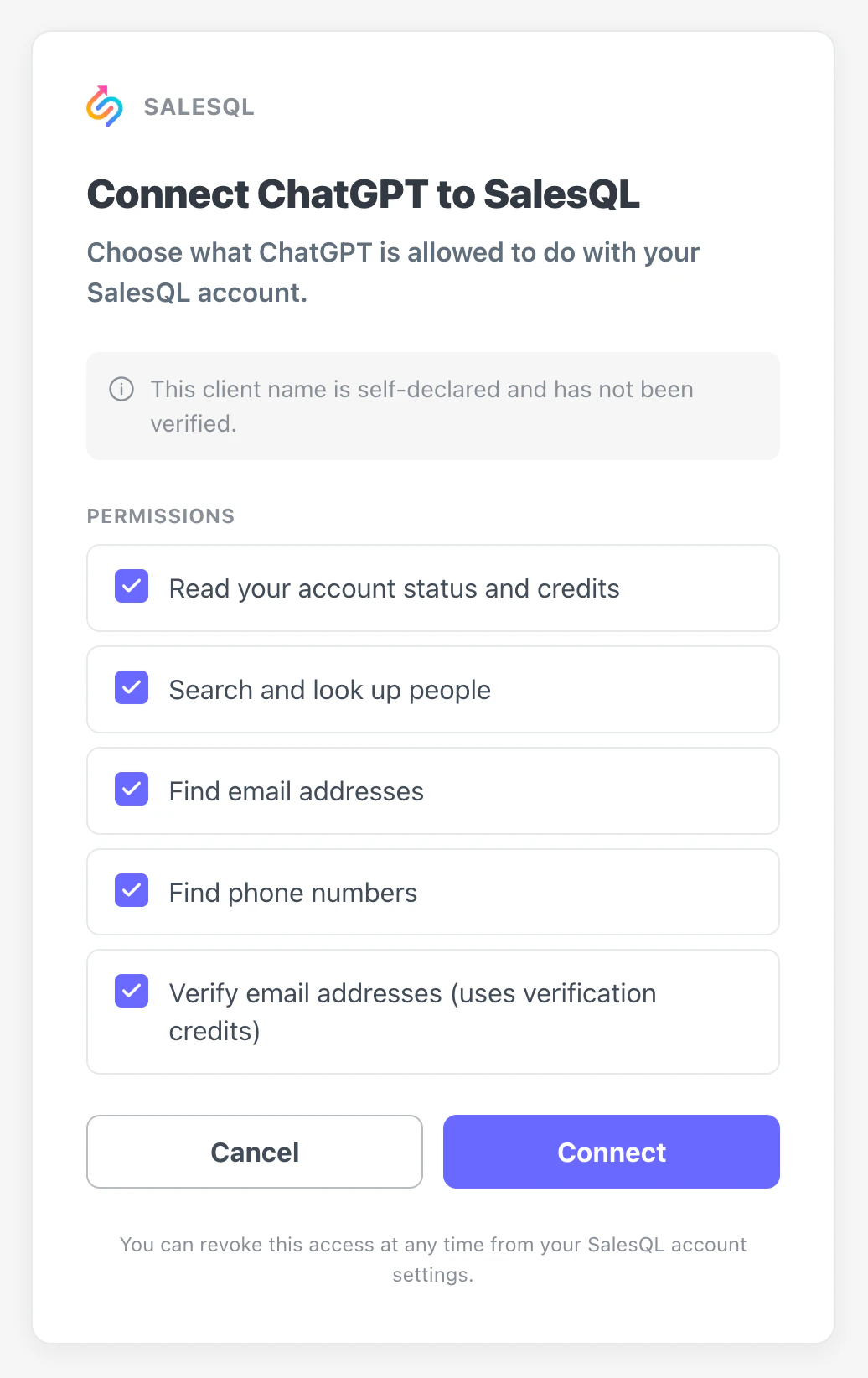
- On the SalesQL consent screen, keep the permissions you want ChatGPT to use and click Connect.
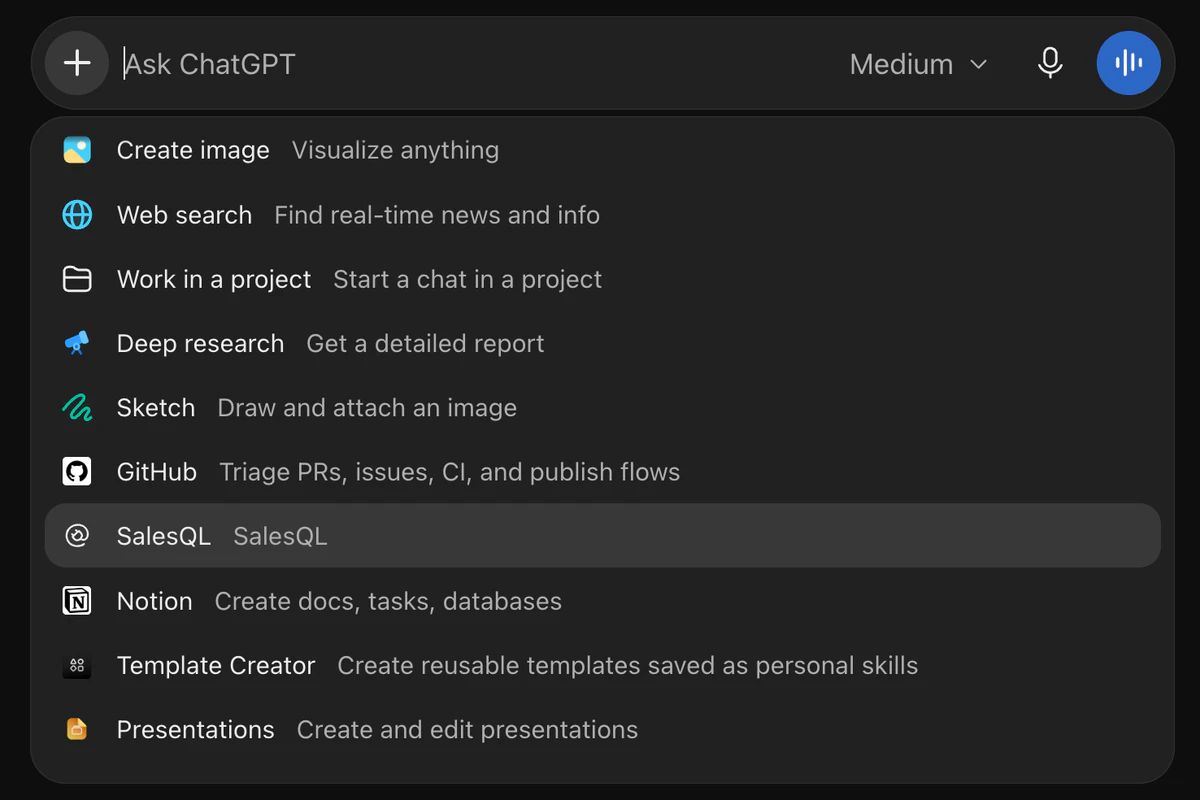
- In a new chat, type @ (or click +) and pick SalesQL. Pick it again whenever a follow-up needs fresh data — the selection applies to one message.
Works on personal accounts — Free included — and in workspaces, on ChatGPT on the web only. In a Business or Enterprise/Edu workspace, only admins and owners can add one unless an admin grants you Create plugins with MCPs. Don’t see Plugins yet? Use Settings → Apps → Advanced settings → Developer mode, then Apps → Create.
Or let your assistant do it
Paste this in and it will walk you through authorizing, then read your plan and credits back so you know the connection works.
Help me connect the SalesQL MCP server to ChatGPT. The server URL is https://mcp.salesql.com/mcp and it uses OAuth, so there is no API key to paste anywhere. Walk me through it step by step for ChatGPT specifically, including where to approve the SalesQL consent screen. When it reports connected, call get_account_status and read back my plan, remaining credits and next refresh date so we know the connection really works. Then run one free search_people query as a smoke test — don't spend credits.
Manual setup with an MCP key (advanced)
If you would rather authenticate with a key, pick API key instead of OAuth when you add the server.
# Plugins → Add → Add custom MCP server
Name:  SalesQL
URL:   https://mcp.salesql.com/mcp
Auth:  Bearer YOUR_MCP_KEY
Claude Code
OAuthOne command, then authorize in the browser. Keep --transport http — it is the only transport that carries OAuth — and --scope user, so SalesQL is there in every project instead of just this folder.
claude mcp add --transport http --scope user salesql https://mcp.salesql.com/mcp- Run the command above.
- Type /mcp inside Claude Code, pick salesql, and choose Authenticate.
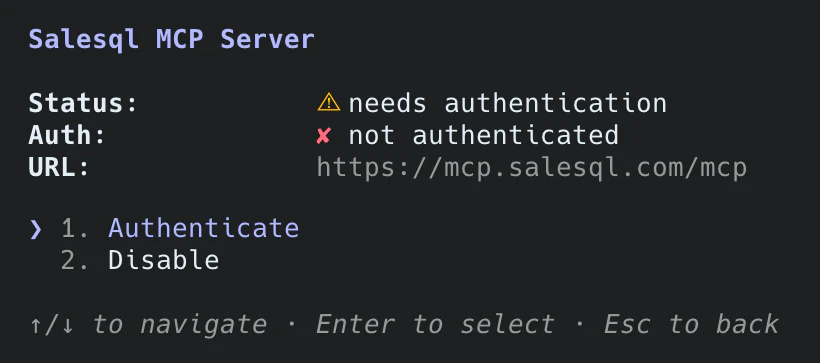
- Approve the scopes in the browser tab that opens.
Already added SalesQL on claude.ai? If you sign in to Claude Code with that Claude account, the connector shows up there on its own. Tokens are stored securely and refresh by themselves; the same /mcp panel has Clear authentication when you want to disconnect.
Or let your assistant do it
Paste this in and it will walk you through authorizing, then read your plan and credits back so you know the connection works.
Help me connect the SalesQL MCP server to Claude Code. The server URL is https://mcp.salesql.com/mcp and it uses OAuth, so there is no API key to paste anywhere. Walk me through it step by step for Claude Code specifically, including where to approve the SalesQL consent screen. When it reports connected, call get_account_status and read back my plan, remaining credits and next refresh date so we know the connection really works. Then run one free search_people query as a smoke test — don't spend credits.
Manual setup with an MCP key (advanced)
Pass the key as a header instead of authorizing — useful in CI, or on a machine with no browser.
claude mcp add --transport http --scope user salesql \
  https://mcp.salesql.com/mcp \
  --header "Authorization: Bearer YOUR_MCP_KEY"
Codex
OAuthRegister the server once and sign in from the terminal. The Codex CLI, the IDE extension and the desktop app all read the same ~/.codex/config.toml, so this covers all three.
codex mcp add salesql --url https://mcp.salesql.com/mcp
codex mcp login salesql- Run the first command to add SalesQL to ~/.codex/config.toml.
- Run codex mcp login salesql and approve the scopes in the browser tab that opens.
- Start a new Codex session — the SalesQL tools are available.
Prefer clicking? In the desktop app open Settings → MCP servers, or in the IDE extension the gear menu → MCP servers; choose Add server → Streamable HTTP, paste the URL, save and restart.
Or let your assistant do it
Paste this in and it will walk you through authorizing, then read your plan and credits back so you know the connection works.
Help me connect the SalesQL MCP server to Codex. The server URL is https://mcp.salesql.com/mcp and it uses OAuth, so there is no API key to paste anywhere. Walk me through it step by step for Codex specifically, including where to approve the SalesQL consent screen. When it reports connected, call get_account_status and read back my plan, remaining credits and next refresh date so we know the connection really works. Then run one free search_people query as a smoke test — don't spend credits.
Manual setup with an MCP key (advanced)
Read the key from an environment variable so it never lands in the config file.
[mcp_servers.salesql]
url = "https://mcp.salesql.com/mcp"
bearer_token_env_var = "SALESQL_MCP_KEY"
Then export SALESQL_MCP_KEY=YOUR_MCP_KEY in the shell that starts Codex.
Cursor
OAuthPoint Cursor at the endpoint and let it handle the handshake — OAuth 2.1 with PKCE, registering itself as it goes.
{
  "mcpServers": {
    "salesql": {
      "url": "https://mcp.salesql.com/mcp"
    }
  }
}- Add the block above to ~/.cursor/mcp.json — or .cursor/mcp.json to scope it to one project.
- Open Customize → MCPs (in Cursor before 3.9: Settings → MCP) and click Connect next to salesql.
- Approve the scopes in the browser.
No client ID or secret to fill in: the server registers Cursor dynamically.
Or let your assistant do it
Paste this in and it will walk you through authorizing, then read your plan and credits back so you know the connection works.
Help me connect the SalesQL MCP server to Cursor. The server URL is https://mcp.salesql.com/mcp and it uses OAuth, so there is no API key to paste anywhere. Walk me through it step by step for Cursor specifically, including where to approve the SalesQL consent screen. When it reports connected, call get_account_status and read back my plan, remaining credits and next refresh date so we know the connection really works. Then run one free search_people query as a smoke test — don't spend credits.
Manual setup with an MCP key (advanced)
Header auth, for a machine that can’t open a browser.
{
  "mcpServers": {
    "salesql": {
      "url": "https://mcp.salesql.com/mcp",
      "headers": { "Authorization": "Bearer YOUR_MCP_KEY" }
    }
  }
}
VS Code
OAuthFor GitHub Copilot agent mode. VS Code notices the server wants OAuth and opens a browser to sign you in — the file holds no secret, so you can commit it.
{
  "servers": {
    "salesql": {
      "type": "http",
      "url": "https://mcp.salesql.com/mcp"
    }
  }
}- Save the block above as .vscode/mcp.json — or run MCP: Add Server from the Command Palette, choose HTTP and paste the URL.
- Start salesql from MCP: List Servers, or just ask Copilot for a SalesQL tool.
- Approve the scopes in the browser window VS Code opens. The sign-in then lives in the Accounts menu.
Because there is no key in it, this file is safe to commit — every teammate authorizes with their own SalesQL account.
Or let your assistant do it
Paste this in and it will walk you through authorizing, then read your plan and credits back so you know the connection works.
Help me connect the SalesQL MCP server to VS Code. The server URL is https://mcp.salesql.com/mcp and it uses OAuth, so there is no API key to paste anywhere. Walk me through it step by step for VS Code specifically, including where to approve the SalesQL consent screen. When it reports connected, call get_account_status and read back my plan, remaining credits and next refresh date so we know the connection really works. Then run one free search_people query as a smoke test — don't spend credits.
Manual setup with an MCP key (advanced)
Header auth works too, but it puts a live credential in a file people commit by accident.
{
  "servers": {
    "salesql": {
      "type": "http",
      "url": "https://mcp.salesql.com/mcp",
      "headers": { "Authorization": "Bearer YOUR_MCP_KEY" }
    }
  }
}
Gemini CLI
OAuthAdd the server with one command, then authorize once from inside the CLI. No token in your settings file.
gemini mcp add --transport http --scope user salesql https://mcp.salesql.com/mcp- Run the command above. It writes the server to ~/.gemini/settings.json (without --scope user, only to this project).
- Run /mcp auth salesql inside the CLI.
- Approve the scopes in the browser.
Gemini CLI discovers the OAuth endpoints from the server itself. Tokens are cached in ~/.gemini/mcp-oauth-tokens.json and refreshed automatically — re-run /mcp auth if they ever expire.
Or let your assistant do it
Paste this in and it will walk you through authorizing, then read your plan and credits back so you know the connection works.
Help me connect the SalesQL MCP server to Gemini CLI. The server URL is https://mcp.salesql.com/mcp and it uses OAuth, so there is no API key to paste anywhere. Walk me through it step by step for Gemini CLI specifically, including where to approve the SalesQL consent screen. When it reports connected, call get_account_status and read back my plan, remaining credits and next refresh date so we know the connection really works. Then run one free search_people query as a smoke test — don't spend credits.
Manual setup with an MCP key (advanced)
Send the key as a header instead. Anything in this file is stored in plain text, so prefer OAuth on a shared machine.
{
  "mcpServers": {
    "salesql": {
      "httpUrl": "https://mcp.salesql.com/mcp",
      "headers": { "Authorization": "Bearer YOUR_MCP_KEY" }
    }
  }
}
Perplexity
Pro & upOAuthAdd SalesQL as a custom remote connector and let Perplexity discover the rest.
- Open Plugins in the sidebar (older layout: Customize → Connectors), then Add custom → Connector → Add MCP connector, and choose Remote.
- Name it SalesQL, paste https://mcp.salesql.com/mcp as the MCP Server URL, and set Authentication to OAuth and Transport to Streamable HTTP.
- Tick the acknowledgement and click Add.
- Click the SalesQL card to sign in and approve the consent screen.
Leave Client ID and Client Secret empty — the server supports dynamic registration, so Perplexity registers itself. Remote connectors need a Pro, Max or Enterprise plan; on Enterprise an admin may have to allow custom connectors first.
Or let your assistant do it
Paste this in and it will walk you through authorizing, then read your plan and credits back so you know the connection works.
Help me connect the SalesQL MCP server to Perplexity. The server URL is https://mcp.salesql.com/mcp and it uses OAuth, so there is no API key to paste anywhere. Walk me through it step by step for Perplexity specifically, including where to approve the SalesQL consent screen. When it reports connected, call get_account_status and read back my plan, remaining credits and next refresh date so we know the connection really works. Then run one free search_people query as a smoke test — don't spend credits.
Manual setup with an MCP key (advanced)
Choose API key instead of OAuth when you add the connector.
# Plugins → Add custom → Connector → Add MCP connector → Remote
Name:  SalesQL
URL:   https://mcp.salesql.com/mcp
Auth:  Bearer YOUR_MCP_KEY
Any client
OAuthAny client that speaks Streamable HTTP and the MCP authorization spec can connect unaided: the server publishes its own metadata and accepts dynamic client registration, so there is nothing to pre-register and no secret to exchange.
Endpoint:   https://mcp.salesql.com/mcp
Transport:  Streamable HTTP
Auth:       OAuth 2.1 — authorization code + PKCE (S256)
Discovery:  https://mcp.salesql.com/.well-known/oauth-protected-resource/mcp
Or let your assistant do it
Paste this in and it will walk you through authorizing, then read your plan and credits back so you know the connection works.
Help me connect the SalesQL MCP server to Any client. The server URL is https://mcp.salesql.com/mcp and it uses OAuth, so there is no API key to paste anywhere. Walk me through it step by step for Any client specifically, including where to approve the SalesQL consent screen. When it reports connected, call get_account_status and read back my plan, remaining credits and next refresh date so we know the connection really works. Then run one free search_people query as a smoke test — don't spend credits.
Manual setup with an MCP key (advanced)
Or send a key on every request.
Endpoint:  https://mcp.salesql.com/mcp
Header:    Authorization: Bearer YOUR_MCP_KEY
Prompt library
Copy a playbook, or open it straight in your assistant. Searching is free, so most of these start by shaping a list before spending a single credit.
"Here is my website: acme.com. Propose an ideal customer profile — job titles, industries, company sizes and countries — then resolve those filters with lookup and show me how many people match."
"Find 25 Heads of Talent at software companies with 51–200 employees in Spain who have a verified work email. Show them first, and only enrich the ones I pick."
"Map the marketing team at acme.com — group them by job title, most senior first. Enrich only the top two."
"How many VPs of Sales are there in fintech companies in Germany with 201–500 employees and a direct phone on file? Just the count and a sample — don’t spend credits yet."
"Find RevOps leaders who started their current role less than 12 months ago at US SaaS companies — new leaders are the ones changing tools."
"Find people who used to work at Stripe and are now heads of engineering somewhere else in Europe."
"Who is behind jane.doe@acme.com? Give me their full name, title, company and LinkedIn."
Available tools
Person enrichment consumes credits. Searching, company enrichment and account checks are free, so you can search and size a list before spending anything:
lookupsearch_peopleenrich_organizationenrich_organization_bulkget_account_status| Tool | What it does | Cost |
|---|---|---|
lookup | Resolve the exact filter values (company_size, company_type, industry, country, region) that search_people expects. Always pass the returned `value`, never the human-readable `label`. | Free |
search_people | Prospect for people by job title, industry, location, company and contact availability. Pass at least one filter — an empty request is rejected. Emails and phones come back obfuscated, so you can size and refine a list before spending anything — enrich a match with its linkedin_url to reveal the real contact data. | Free |
enrich_person | Reveal a contact’s work email, phone, job title, company and LinkedIn. Prefer a LinkedIn URL; otherwise name + company. | 1 credit |
enrich_person_bulk | Enrich up to 100 people in a single request. Each item takes a LinkedIn URL, an email, or a name + organization. | 1 credit |
enrich_organization | Enrich a company: domain, industry, size, location, logo and LinkedIn. Prefer a LinkedIn URL, then a domain, then a name. | Free |
enrich_organization_bulk | Enrich up to 100 companies in a single request. Each item takes a LinkedIn URL, a domain, or a name. | Free |
get_account_status | Return the current plan, available credits, next refresh date, role and rate limits for the authenticated key. | Free |
Scopes
One list, two ways of granting it: an OAuth connection asks you to approve scopes on the consent screen, and an MCP key carries the ones you tick when you create it. Approve only what the client needs — searching and enrichment are separate grants. The enrichment tools accept either enrich scope; the one you grant decides whether emails, phones or both come back. verify:verify exists for API keys but no MCP tool uses it yet.
account:readget_account_statusPlan, credit balance, refresh date and rate limits. Livesearch:readsearch_peoplelookupProspect for people and resolve the filter values a search needs. Liveenrich:emailsenrich_personenrich_person_bulkenrich_organizationenrich_organization_bulkReveal verified work and personal email addresses. Liveenrich:phonesenrich_personenrich_person_bulkenrich_organizationenrich_organization_bulkReveal direct dials and mobile numbers. Livecampaigns:readRead outbound campaigns and their stats. Latercampaigns:writeCreate and edit outbound campaigns. Latercampaigns:sendSend outbound campaigns. LaterConnected clients
Every OAuth connection is its own grant, listed under Connectors → MCP → Connected clients in the dashboard, with the scopes it was approved for and who approved it.
Disconnecting a client revokes that grant immediately and only that one — your other connected tools keep working. Reconnecting is the same consent screen again.
A client that can’t prove which product it is shows as Unverified: the name is self-reported by whatever software connected. Treat an Unverified entry you don’t recognise as something to disconnect.
Rate limits & credits
Unified API & MCP quota · sharedThe MCP runs on the same access as the SalesQL API: it’s available on the Professional and Premium plans. The Basic plan and free accounts can’t connect it yet.
The MCP and REST API draw on one shared credit balance and rate limit — across all your API keys, MCP keys and connected clients, based on your plan. Bursts above your plan’s per-minute limit return 429 — back off and retry.
Person enrichment spends 1 credit per matched contact. These tools are free — lookup, search_people, enrich_organization, enrich_organization_bulk, get_account_status — so you can search, size a list, enrich companies and check your balance without spending anything. Ask get_account_status for your live balance, plan and limits.
Troubleshooting
- The consent screen refuses, or every tool fails right after connecting
- The MCP runs on the same access as the SalesQL API: the Professional and Premium plans. Check which account the browser is signed into before you approve — approving with a personal free account is the usual cause. On the Basic plan the consent screen may let you through and the tools still refuse, because the two checks are not the same one.
- The client can’t connect
- Confirm the transport is Streamable HTTP and the URL ends in /mcp. Opening that URL in a browser is not the connection test — a plain GET is refused by design (405 today), so “it doesn’t open” tells you nothing either way. Let the client connect instead.
- A tool answers “This MCP key lacks a required scope”
- The connection was approved without that capability. For an OAuth connection, disconnect it under Connectors → MCP → Connected clients and reconnect, approving every scope you need. For an MCP key, edit its scopes in the same screen.
- “Your OAuth connection has no backing SalesQL API key”
- The connection outlived the key minted for it — usually because that key was revoked. Reconnect SalesQL from your client’s settings and the connection is rebuilt.
- Tools return “insufficient credits”
- Ask for get_account_status: it reports your plan, remaining credits and the next refresh date, and costs nothing. Person enrichment spends credits; searching, company enrichment and status checks never do.
- Enrichment returns no match
- Unmatched lookups don’t spend credits. Prefer the linkedin_url from a search_people result — it’s the most reliable identifier — and drop match_if_direct_email / match_if_direct_phone if you set them.
- Claude Desktop: “Server disconnected” or npm errors (E405)
- That’s the mcp-remote bridge, which only the MCP-key path uses, and it needs Node 18+. Run node -v and which npx; a stale nvm default is the usual cause. The OAuth connector needs none of this — switch to it and the problem disappears.