Changelog

New features and changes in SalesQL, newest first.

RSS feed

Connect SalesQL to Claude, ChatGPT and other AI assistants on every plan

SalesQL's MCP server now works on every plan, Free included. Connect your SalesQL account to Claude, ChatGPT, Cursor or another AI assistant, and search prospects and enrich contacts from a chat, using your plan's credits. Searching doesn't use credits. On Free it runs with lower daily limits.

The server has been in the official MCP Registry as com.salesql/salesql since August 31, so MCP clients that read the registry can find it there. Set it up in your assistant.

Campaigns: cold email sequences inside SalesQL

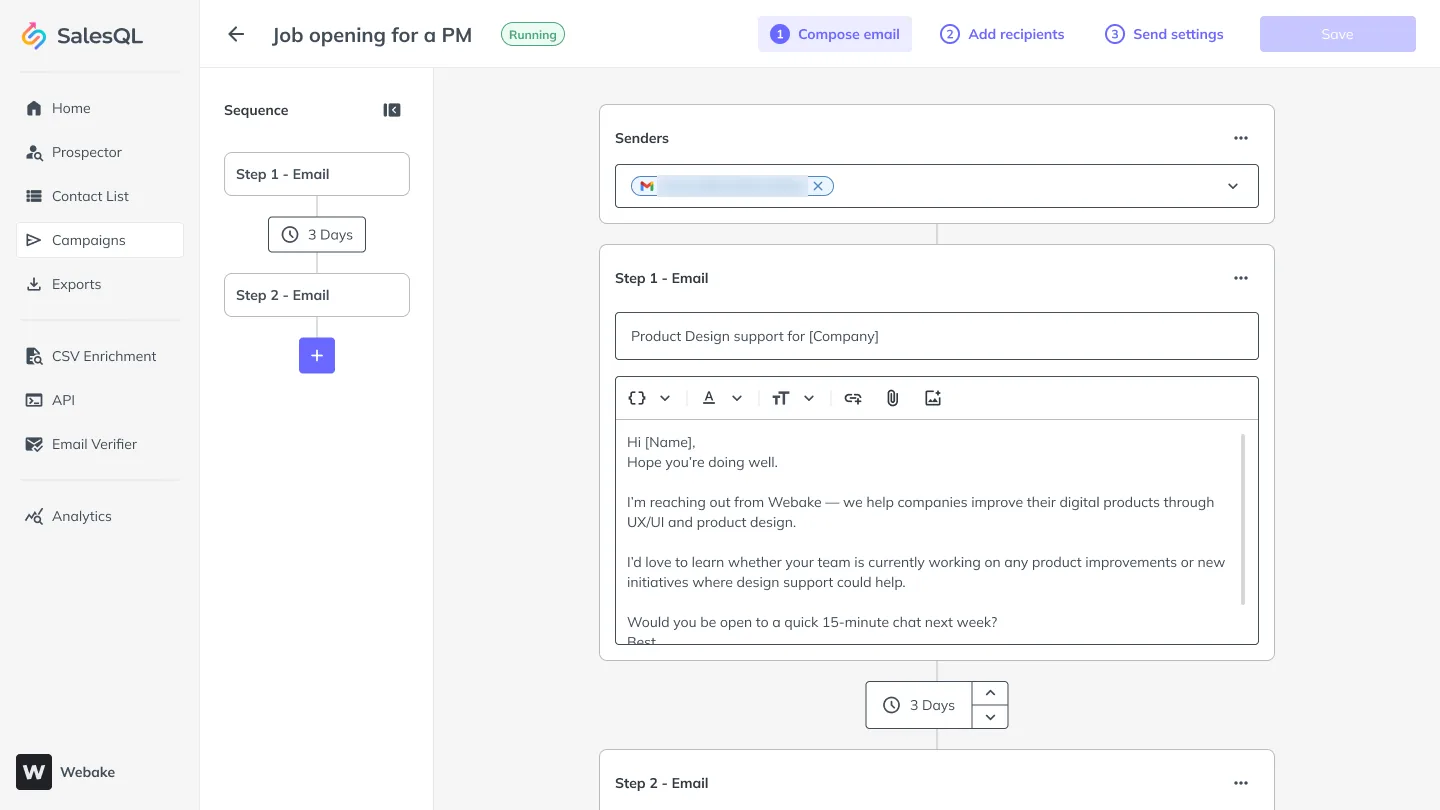
Campaigns is now part of SalesQL, on every plan. Build cold email sequences on top of the contacts you already found, and send them from your own Gmail or Microsoft 365 inbox.

  • Add recipients straight from your lists, with no CSV round-trips.
  • Name, role and company fill in from your contact data.
  • Up to 10 emails per sequence, with follow-ups that go out on their own.
  • See opens and clicks for every step.

Sending doesn't use credits. Every plan includes a number of recipients a month, from 100 on Free to 50,000 on Premium (see the plans). Open Campaigns to start your first sequence.

The Campaigns sequence editor: two email steps three days apart, sent from a Gmail inbox
Real screen · sender address blurred

Extra seats for your team

You can now add extra seats when you upgrade your subscription, so your teammates can search and enrich from the same workspace. See the plans and seat prices.

The extra seats control, with minus and plus buttons to change the number of seats

Prospector in Spanish

Prospector is available in Spanish, the first step to a SalesQL in more languages. Pick Español in the top menu, and your searches and filters switch to Spanish.

Saved searches in Prospector

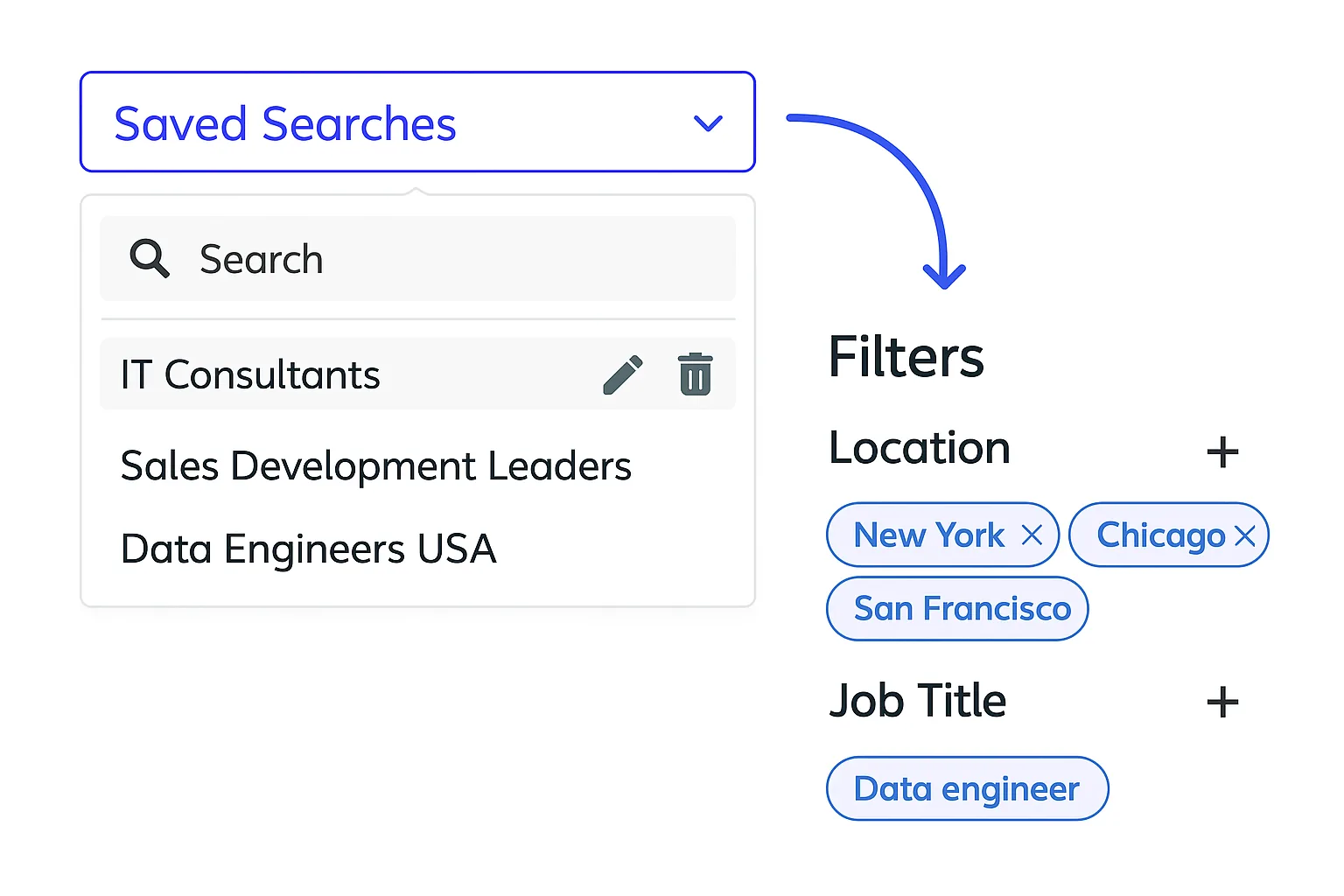
Save the filters you use most in Prospector and load them again in one click. Your prospecting flows stay ready, so you spend less time setting up each search.

The Saved Searches menu in Prospector loading a saved set of location and job title filters
Illustration

Prospector: company filters

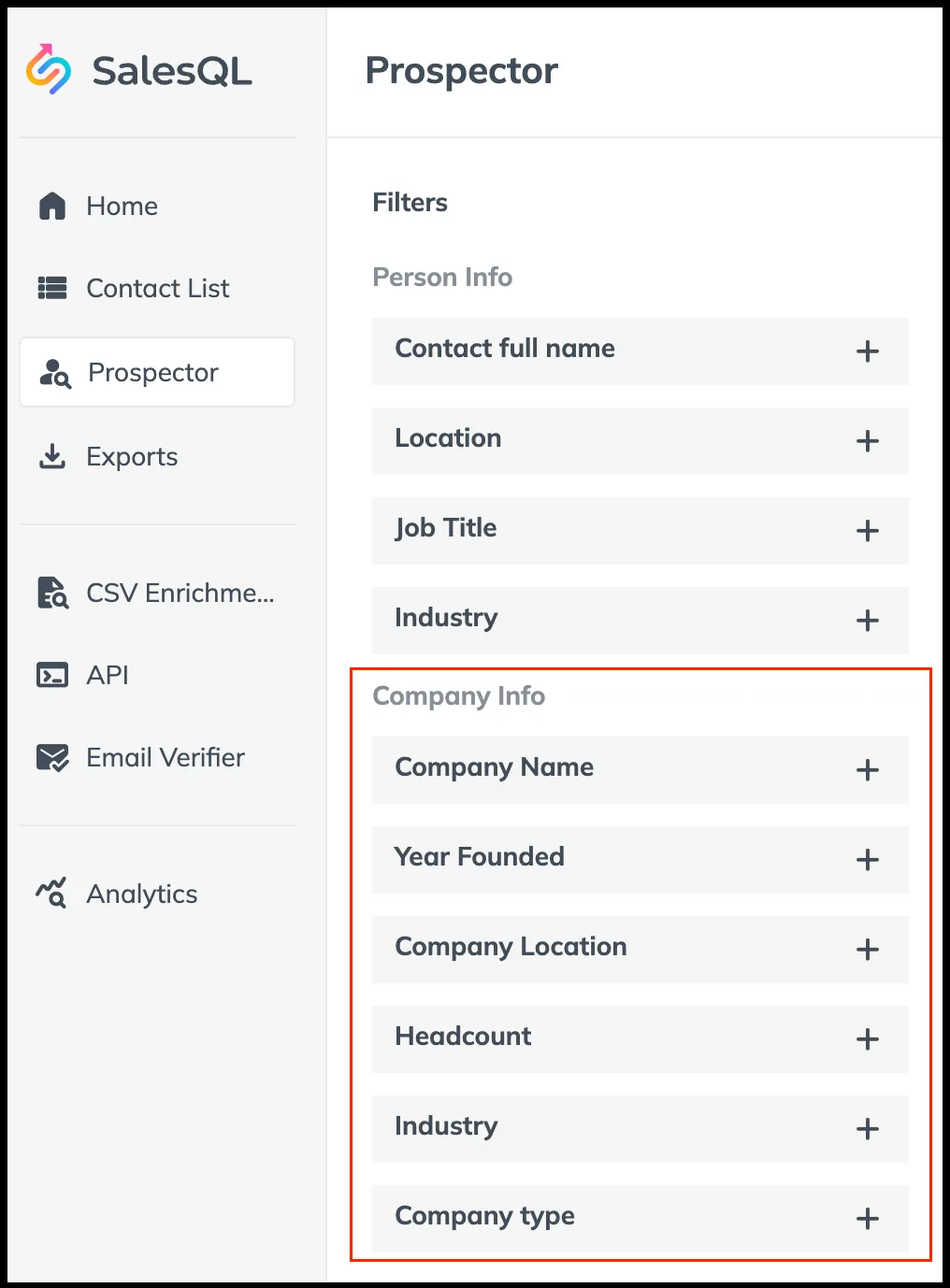
Prospector has new company filters to narrow your people search:

  • Company name, to include or exclude specific companies.
  • Year founded, one year or a range.
  • Company location: country, state or city.
  • Headcount, by standard size ranges.
  • Industry, to include or exclude.
  • Company type: public, private, non-profit and more.

Combine them with the people filters to build a tighter list.

Prospector's filter panel with the new company filters below the person filters

Reverse Email Lookup in CSV Enrichment

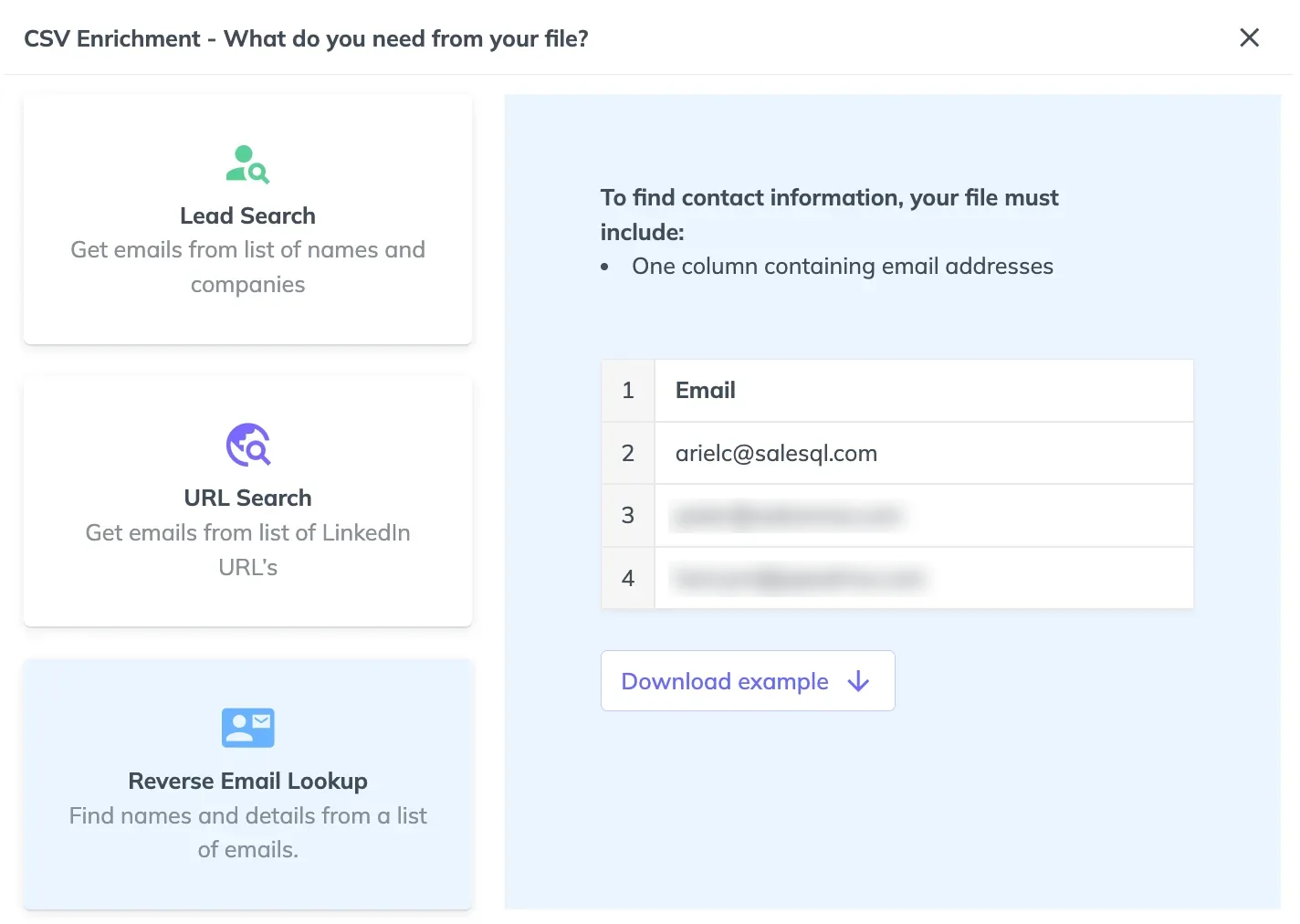
CSV Enrichment has a new option: Reverse Email Lookup. Upload a CSV with one column of email addresses, pick a destination folder, and SalesQL tells you who's behind each one: full name, current company and job title, LinkedIn profile, work email with its verification status, and phone numbers.

Download the enriched file, or work with the contacts in the folder you picked. More about Reverse Email Lookup

The CSV Enrichment dialog with Reverse Email Lookup selected and an example file with one column of emails
Real screen · sample addresses blurred

Prospector (beta): search B2B contacts from your dashboard

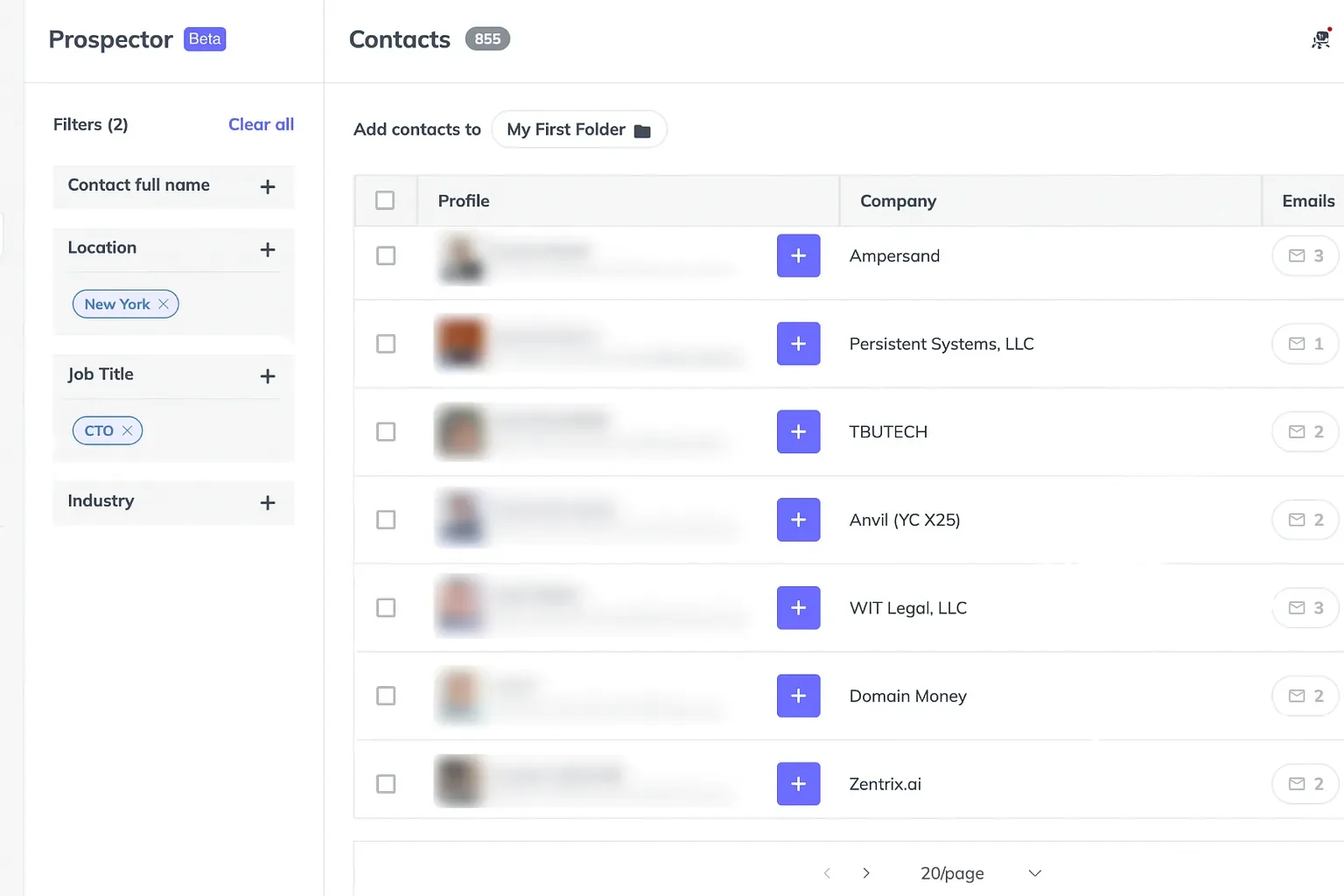
Prospector is a new way to search and enrich B2B contacts from your SalesQL dashboard, without browsing LinkedIn profile by profile. Filter by name, job title, industry or location, and get verified work and direct emails.

It's in beta, and we're adding more filters.

Prospector contact results filtered by location and job title, with company and email count columns
Personal data blurred

Analytics: see how you and your team use your credits

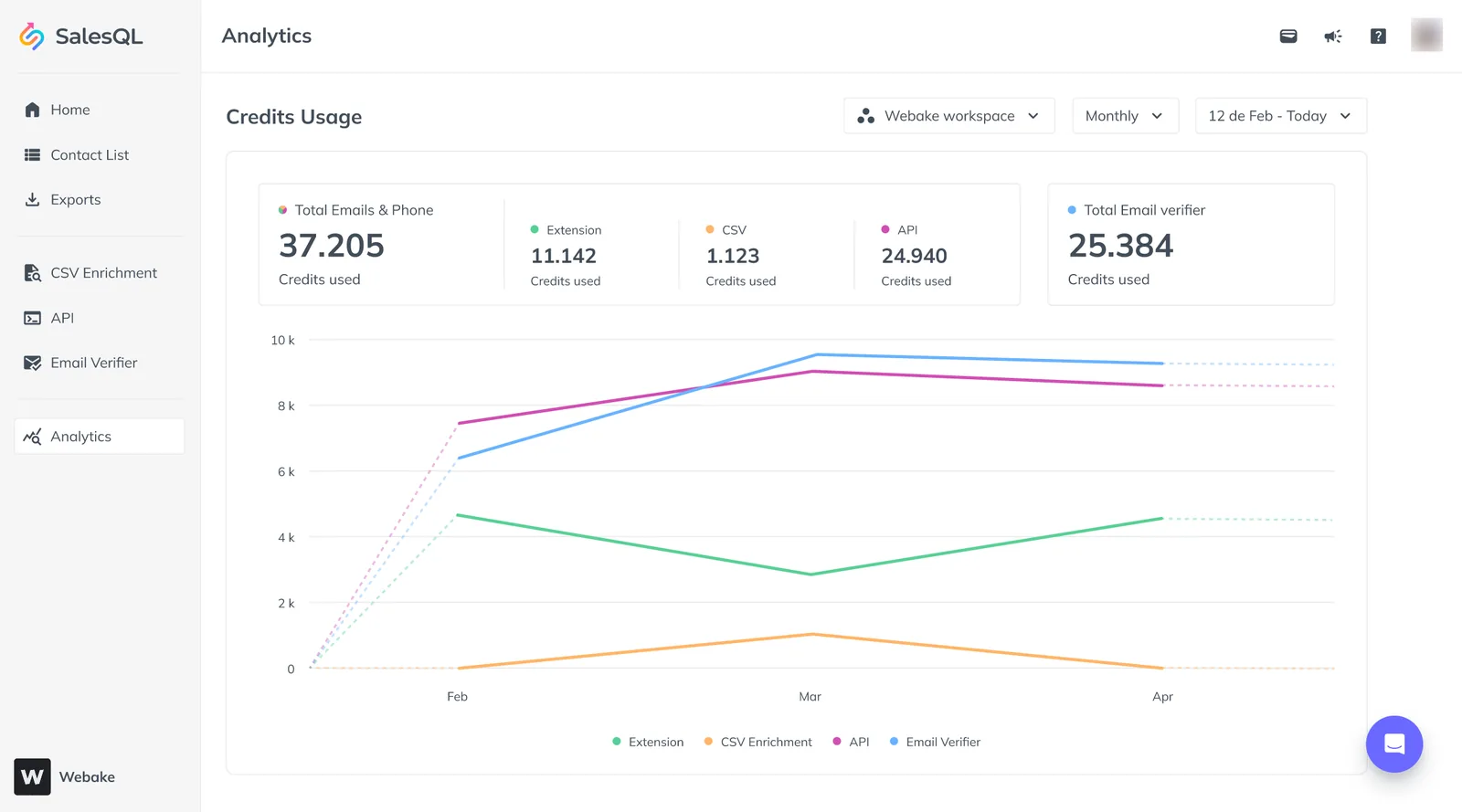
The new Analytics section shows how your workspace uses SalesQL:

  • By source: credits used in the extension, CSV Enrichment, the API and the Email Verifier.
  • By period: hourly, daily, weekly, monthly or quarterly.
  • By team member, on plans with more than one seat.

Find it under Analytics in the sidebar.

The Analytics page with the credits used by the extension, CSV, API and Email Verifier, and a monthly usage chart
Real screen · personal data blurred

Bulk email verification

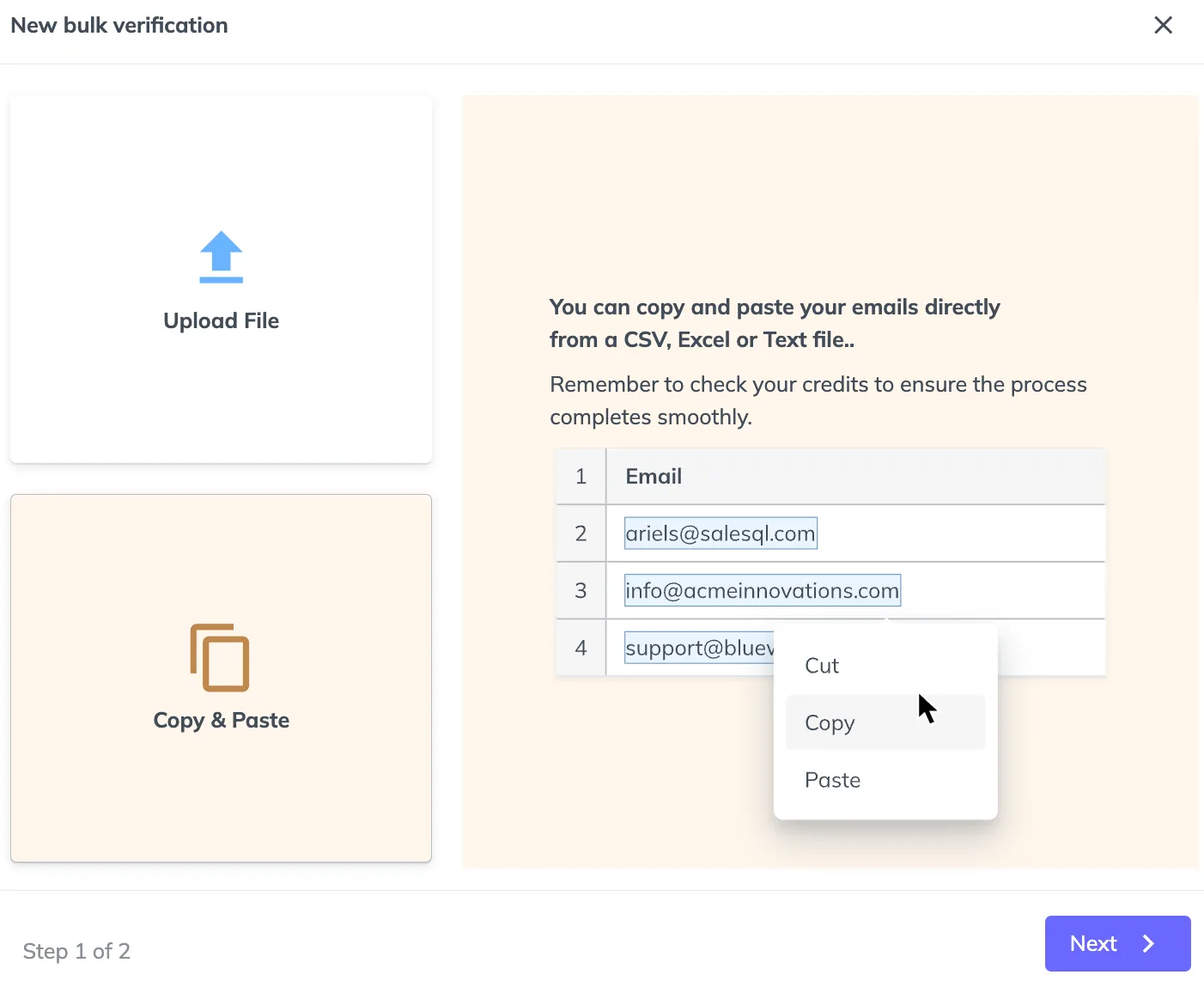
The Email Verifier now checks many addresses at once:

  • Upload a CSV or paste your list.
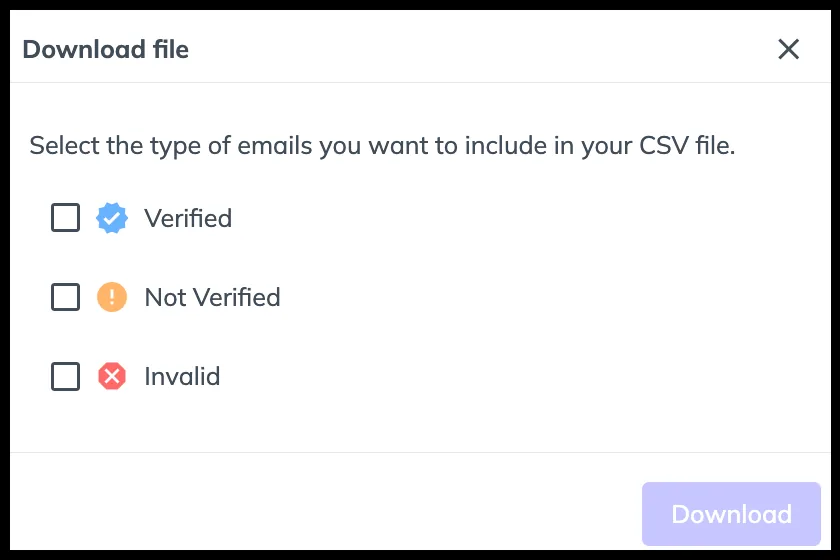
  • Download the results you need: verified, not verified or invalid emails.

Check a whole list before you send to it. Open the Email Verifier

The new bulk verification dialog with the Upload File and Copy & Paste options and a pasted list of emails
The download dialog to export Verified, Not Verified or Invalid emails as a CSV

Workspace settings in one place: teams, integrations and billing

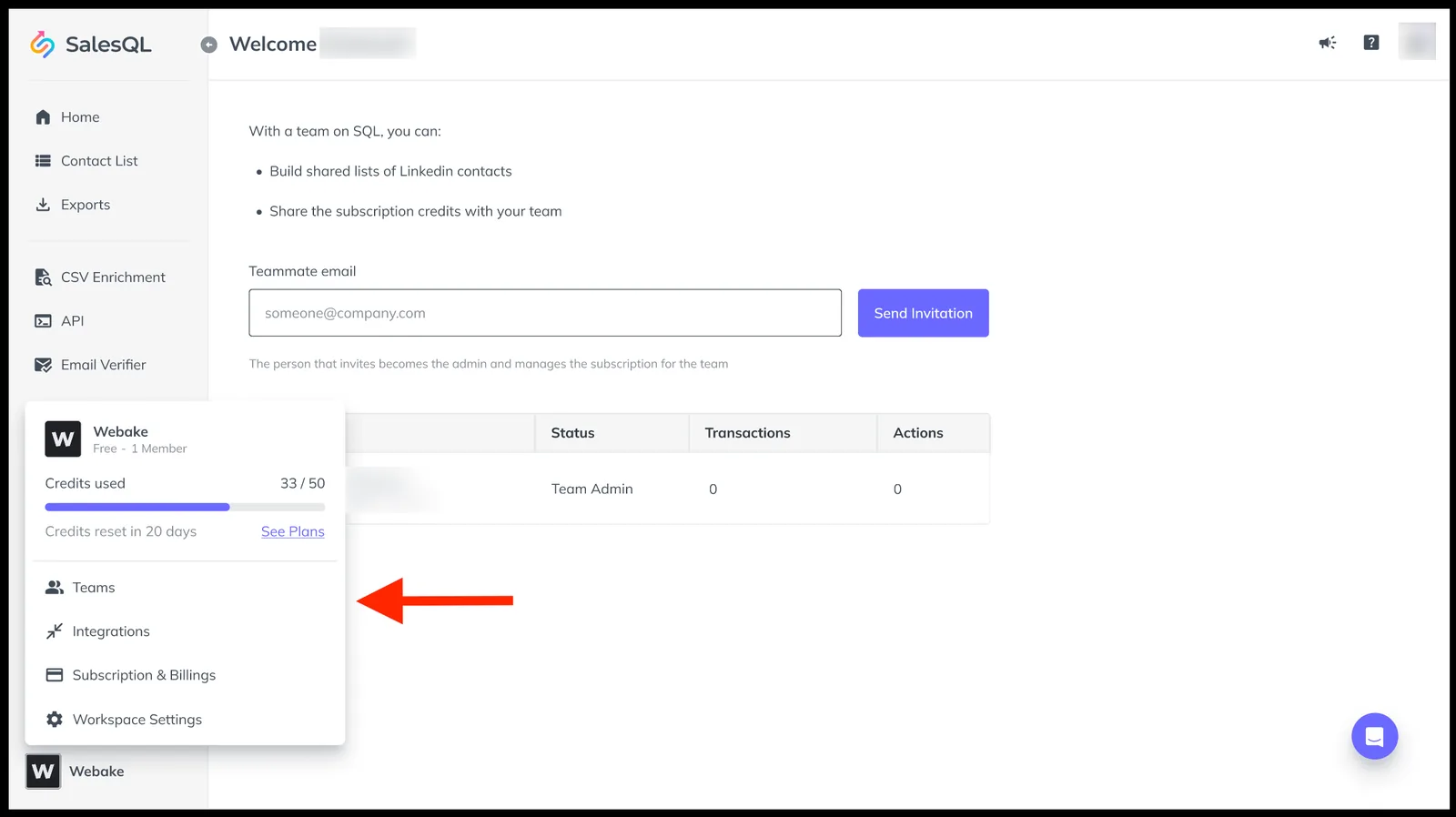
The dashboard sidebar now groups your workspace tools in one place: Teams, Integrations, Subscription & Billing and the workspace settings. Your credits have a clearer spot, and your personal settings stay in the top-right menu, apart from the workspace ones.

The workspace menu with Teams, Integrations, Subscription & Billings and Workspace Settings, over the Teams page
Real screen · personal data blurred

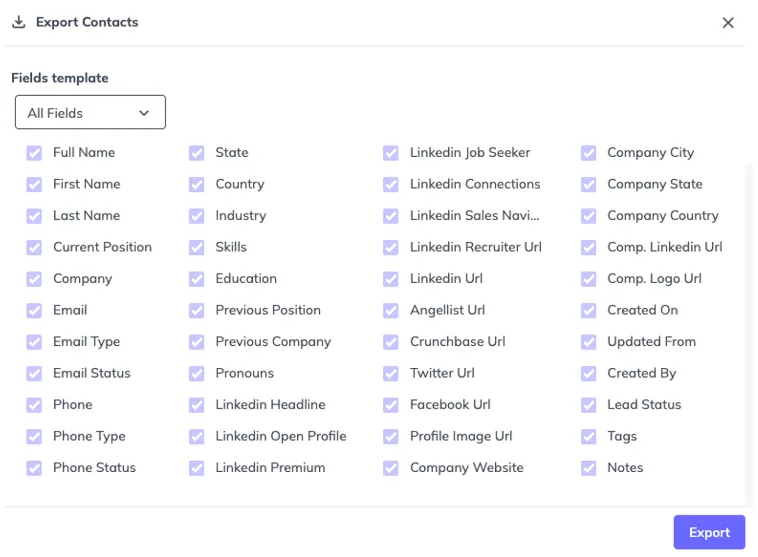
More fields when you export contacts

Exports to CSV or Excel can now include more about each contact: Pronouns, Open Profile, Premium Account, Job Seeker, LinkedIn Connections, Sales Navigator URL, Recruiter URL, Notes and Top Voice.

The Export Contacts dialog with the full list of contact and company fields to pick from

CSV Enrichment: find the emails for a whole list

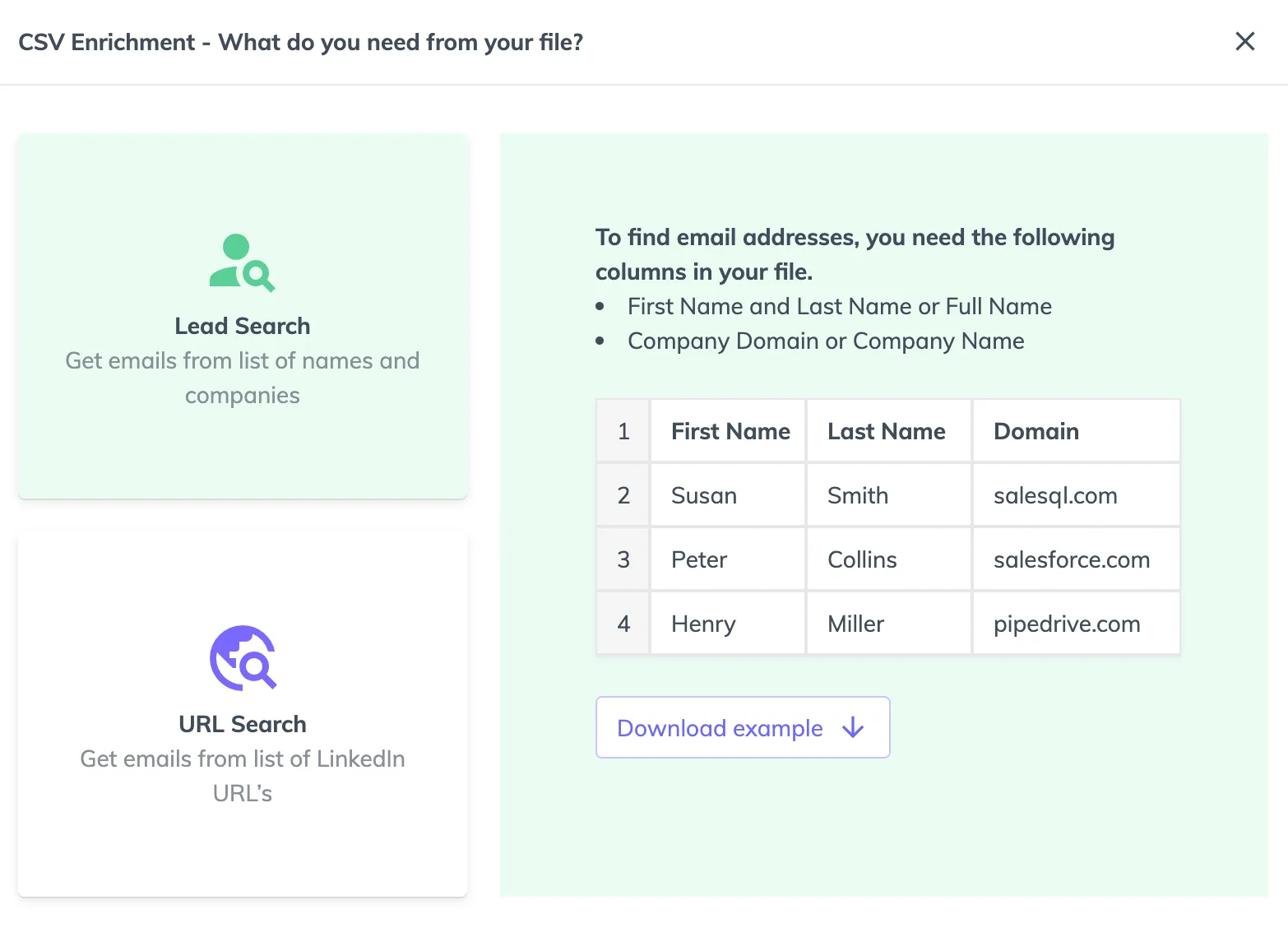
Upload a CSV and SalesQL finds the email addresses for your whole list:

  • Lead Search: a file with names and company domains.
  • URL Search: a file with LinkedIn profile URLs.

More about CSV Enrichment

The CSV Enrichment dialog with Lead Search selected and the name and company domain columns it needs

A new dashboard layout

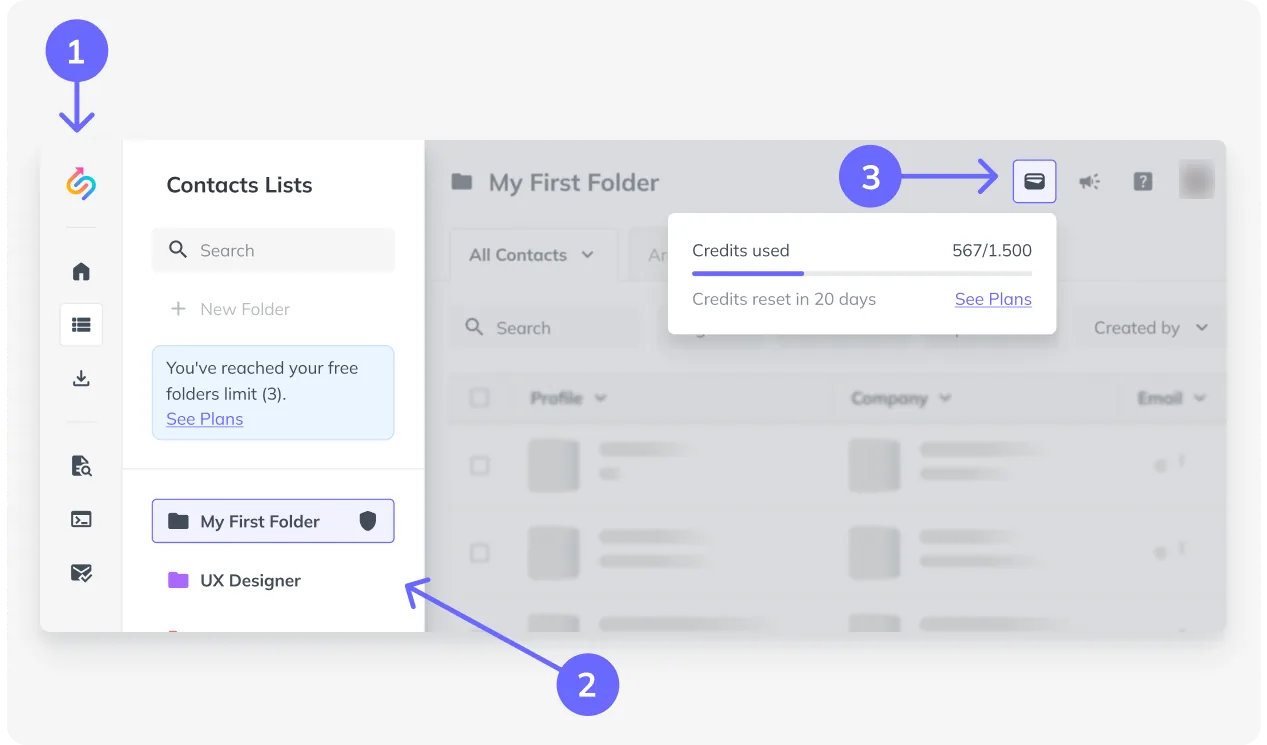
The dashboard has a new design:

  1. Reorganized navigation. Each section of the sidebar sits where you'd expect it.
  2. Better folder management. Organize your leads from the contact list.
  3. Your credit balance in view. It's in the top-right corner, in every section.
The new dashboard layout, with numbered callouts on the sidebar, the contact lists panel and the credits indicator
Real screen · personal data blurred

Email Verifier: check an email address before you send

The SalesQL Email Verifier checks whether an email address is valid before you send to it. Enter an address and get the result quickly, so every email you send goes to an address that works.

Try the Email Verifier

API: phone numbers, LinkedIn ID URLs and verification status

Three requested additions to the SalesQL API:

  • Phone numbers in the person endpoint.
  • LinkedIn ID URLs are accepted as input.
  • Verification status for the emails and phone numbers in each response.

Read the API reference

The SalesQL API

The SalesQL API is live. Use it to bring SalesQL's contact data into your own systems: automate your lookups and build enrichment into your apps and workflows.

See what the API does

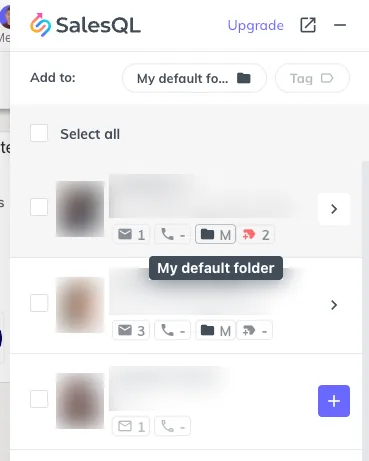
Change folders and tags from the extension

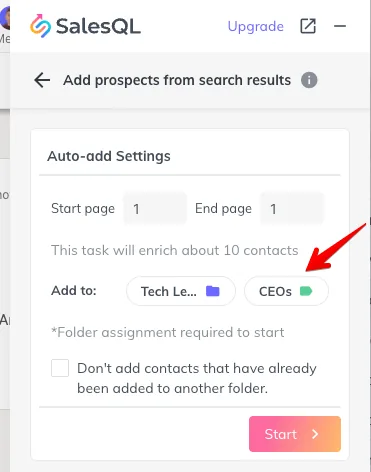
You can now see and change a contact's folder and tags from the extension: in the prospect lists, on each profile, and before you start an automation, so contacts always land in the right folder.

The extension's contact list with a folder and tag badge on each contact
Real screen · personal data blurred
Auto-add settings in the extension, with a page range and the folder and tag selectors

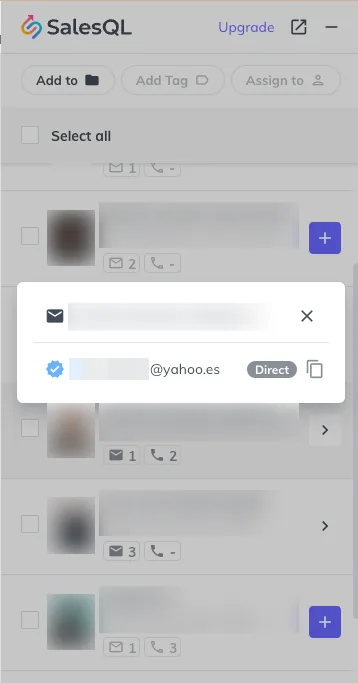
See emails from the prospect list in the extension

After you add a contact, you can now see their emails right from the prospect list in the extension, without opening the profile.

The extension's prospect list with an email preview open on one contact, labeled Direct
Real screen · personal data blurred

Extension: a clearer menu, and tags you can create on the spot

After the new extension launched in October, we kept improving it with your feedback.

  • A clearer menu. The menu at the bottom of the panel is redesigned, and it shows when automations are available on the page you're on.
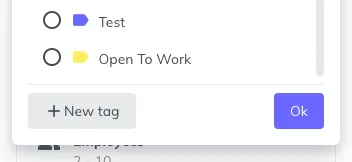
  • New tags from the extension. Create a tag right where you tag the contact.
  • Keep your place. Moving in and out of profiles from a LinkedIn search keeps your position in the list.
The extension menu with the Prospect, Automations and More tabs
The extension tag picker with a list of tags, a New tag button and an Ok button

A new SalesQL extension, in the Chrome Web Store

We released a new version of the SalesQL extension, built to remove the snags of the old one.

  • It updates itself. No more downloading zip files: you always have the latest version.
  • Easy to install on Chrome and Edge. It's in the Chrome Web Store, so installing it takes a click on both browsers.
  • Smoother on LinkedIn. The redesigned panel leaves more room for the contact's details.
  • Faster bulk adding. Adding many contacts at once takes less time.

Install the extension

The SalesQL extension opening on a LinkedIn profile to show emails, phones and company details