
CSV enrichment allows you to enhance your extensive contact lists by adding valuable SalesQL data.
Whether you're looking to enrich lead lists with detailed contact and company information, or fill in data gaps by uploading corporate domains, company names, or contact profile URLs to enhance your marketing segmentation, CSV enrichment ensures you have the most accurate data at your disposal, saving you time and resources along the way.
Functionality Overview
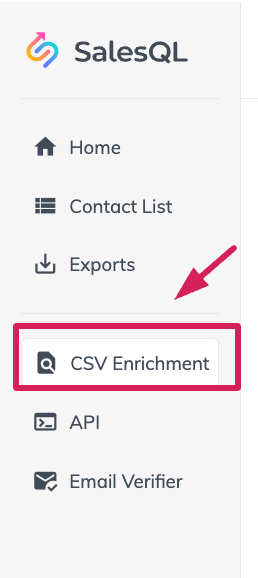
To access the CSV enrichment feature, click on 'CSV Enrichment' located at the left of your dashboard.
Who can access this function?
All paid plan users and their members can access this feature. Row limits per file
depend on your plan
| Plan | Rows per file |
|---|---|
| Basic | 1,000 |
| Professional | 5,000 |
| Premium (formerly Organization) | 50,000 |
Need to enrich larger files? See all plans.
How do I upload the files?
Once you access the CSV Enrichment section, you'll notice that you have the option to upload files using two buttons "Upload CSV"
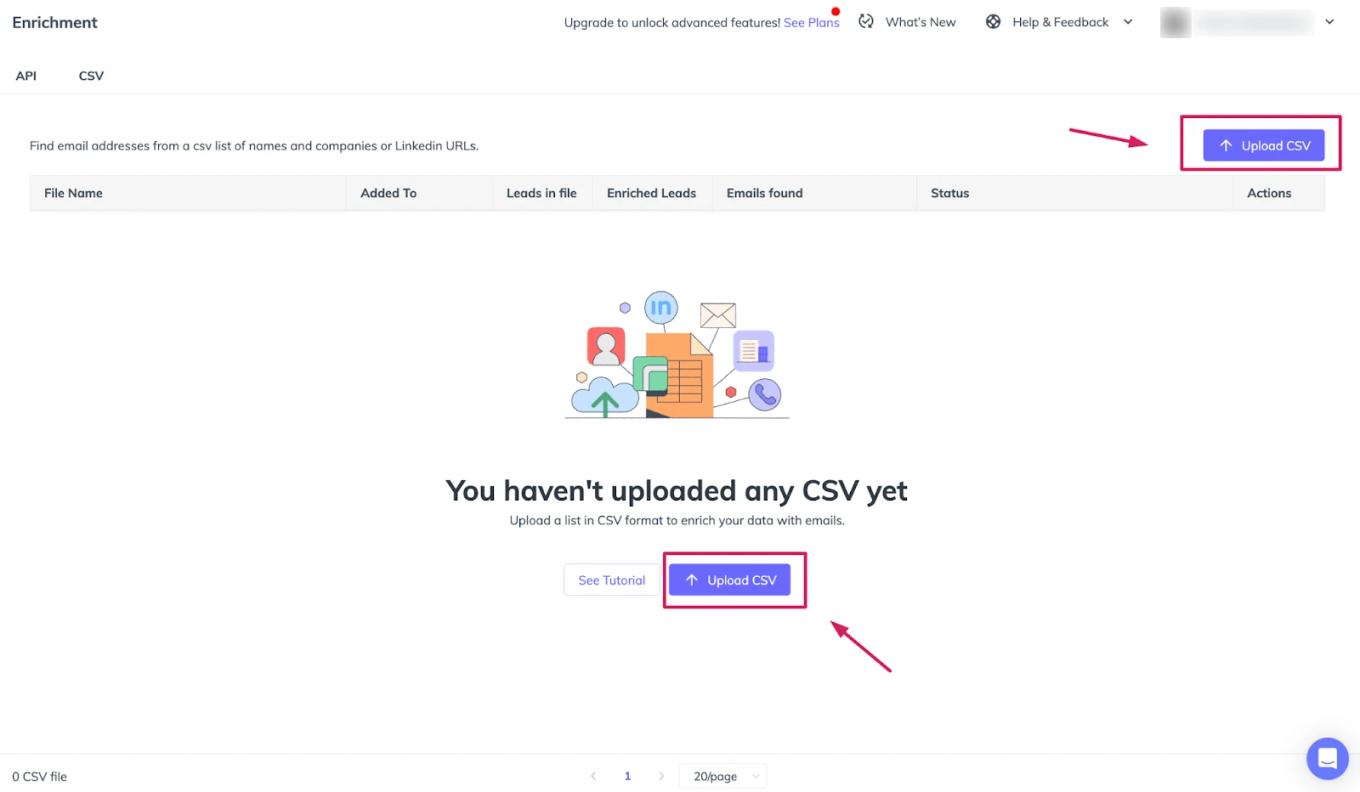
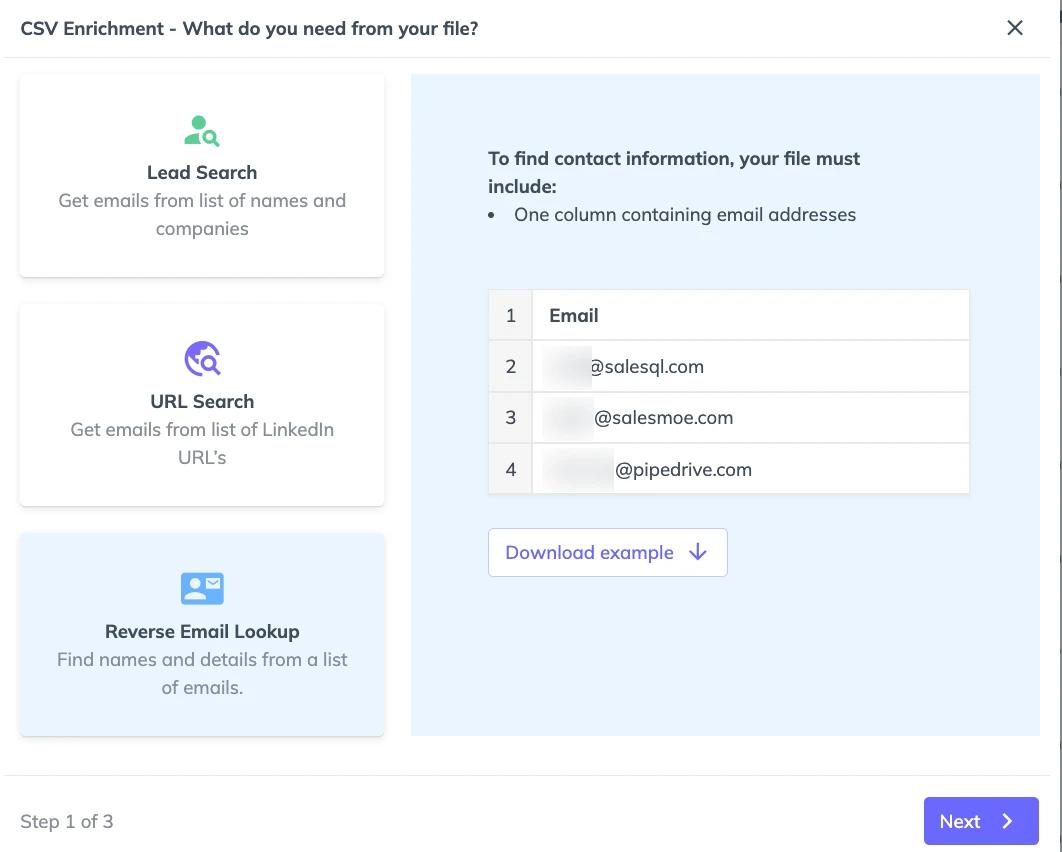
Once clicked, a new window will appear presenting three options.
The top option "Lead search" allows you to upload a CSV for lead search to gather email lists of names and companies.
The middle option, "URL Search" facilitates URL search, extracting emails from a list of LinkedIn URLs.
The button option, "Reverse Email lookup" Find names and contact details from a list of email addresses.


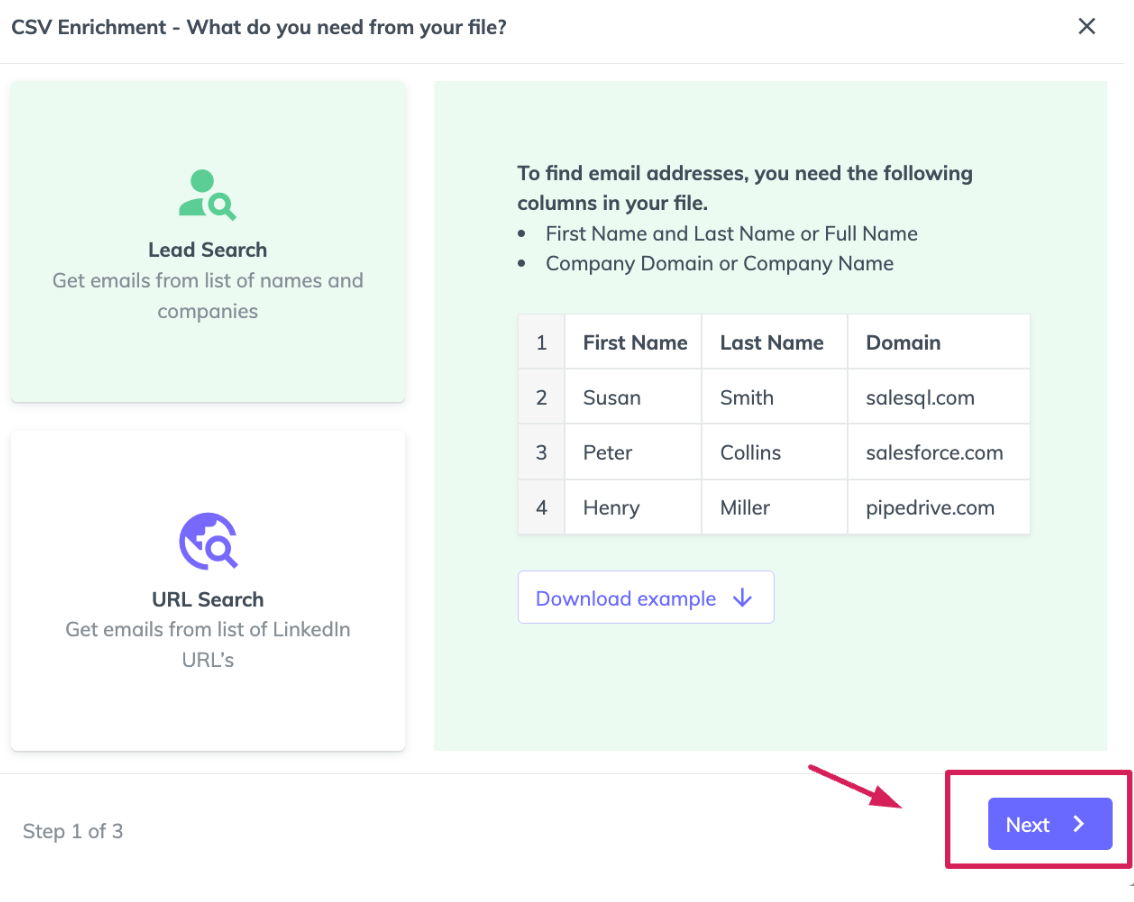
Lead Search CSV Enrichment
- In this option, you'll have the ability to upload files with the necessary columns to find email addresses:
- First Name and Last Name or Full Name
- Company Domain or Company Name
In this example, you will see how to upload a file of Company Domains and the required data for it. Example:
| First Name | Last Name | Domain |
|---|---|---|
| Nicolas | Cantos | salesql.com |
| John | Collins | salesforce.com |
In this example, you will see how to upload a file of Company Names and the required data for it. Example:
| First Name | Last Name | Company's Name |
|---|---|---|
| Nicolas | Cantos | SalesQL |
| John | Collins | Salesforce |
You can also download an example from the pop-up window

To continue, click on "Next".
Now you will have the option to upload the files. You have two choices: click the "Browse" button or drag and drop your CSV file here.
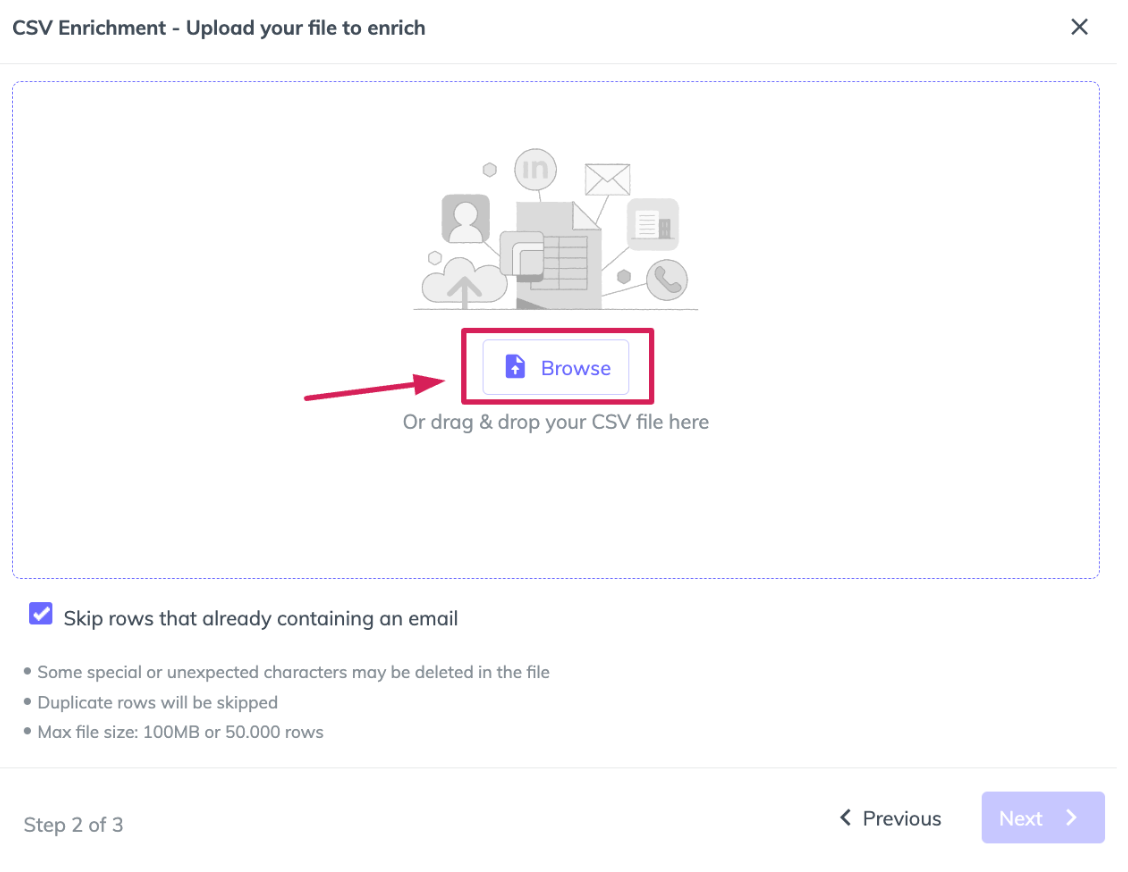
"Skip rows that already contain an email" – If this option is selected and an email is detected in the row, that contact will not be searched in the API.
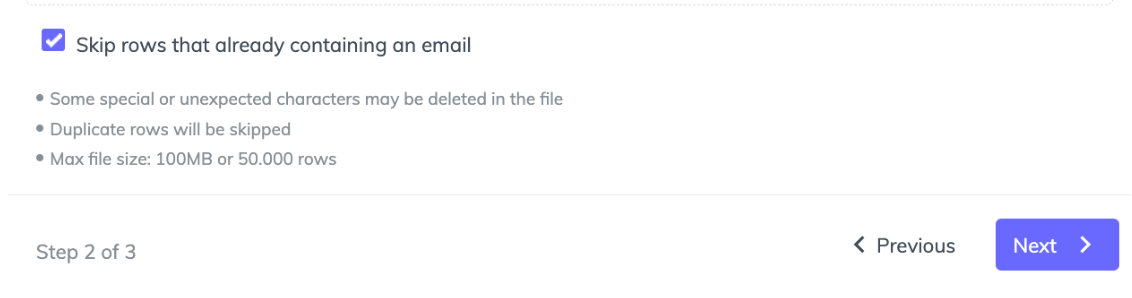
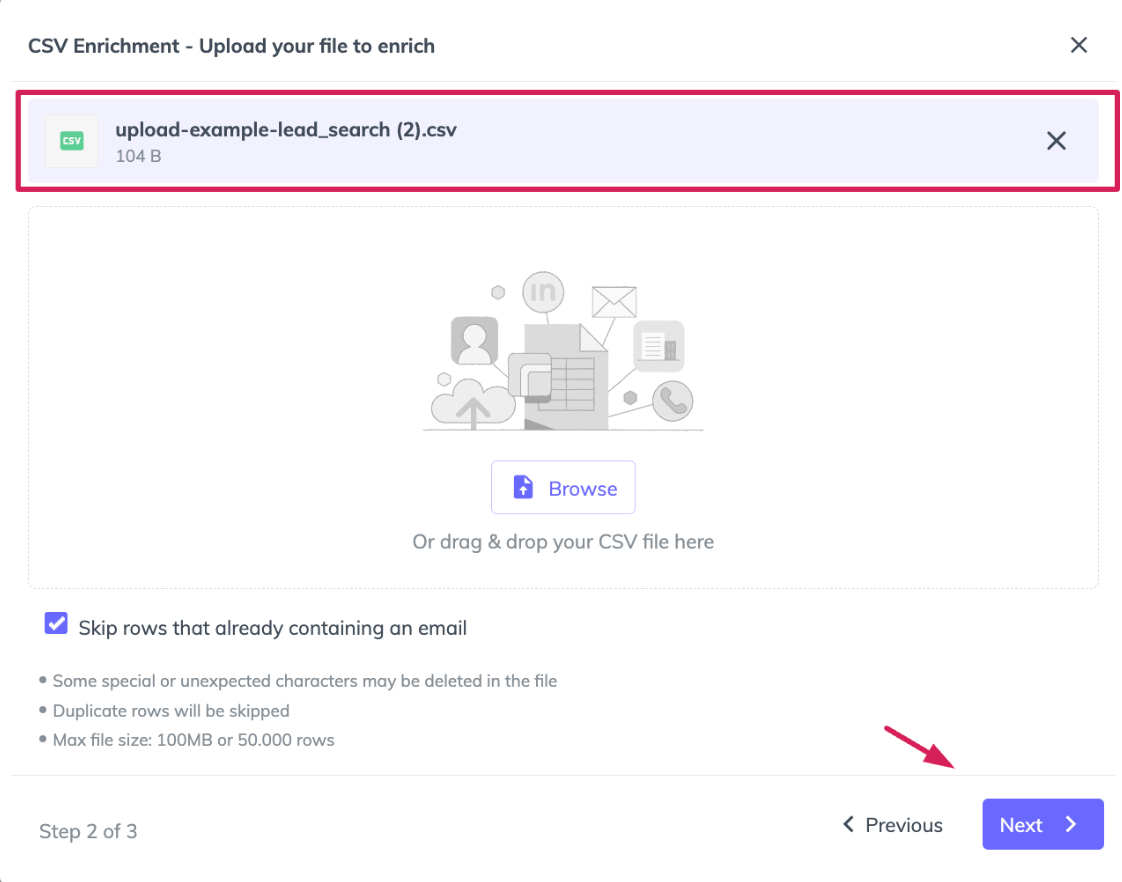
Once the file is uploaded, we can proceed to start mapping the columns.
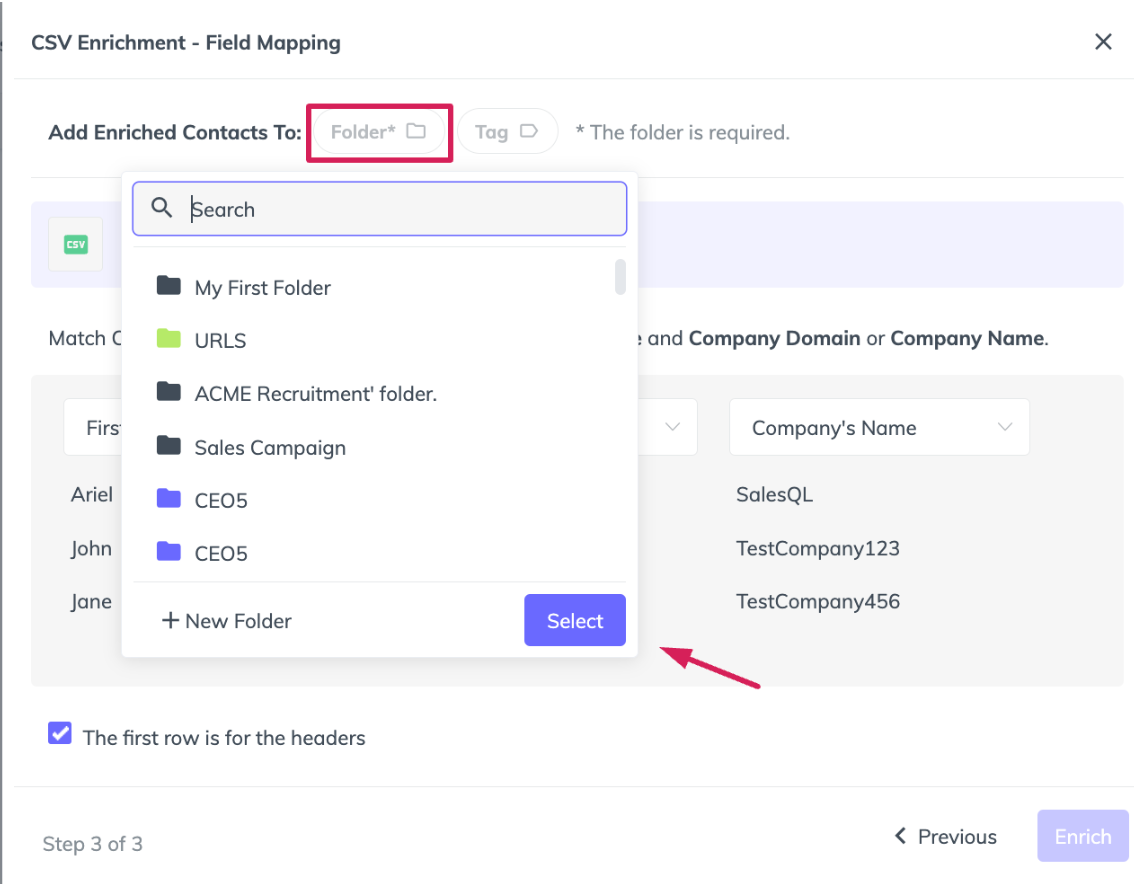
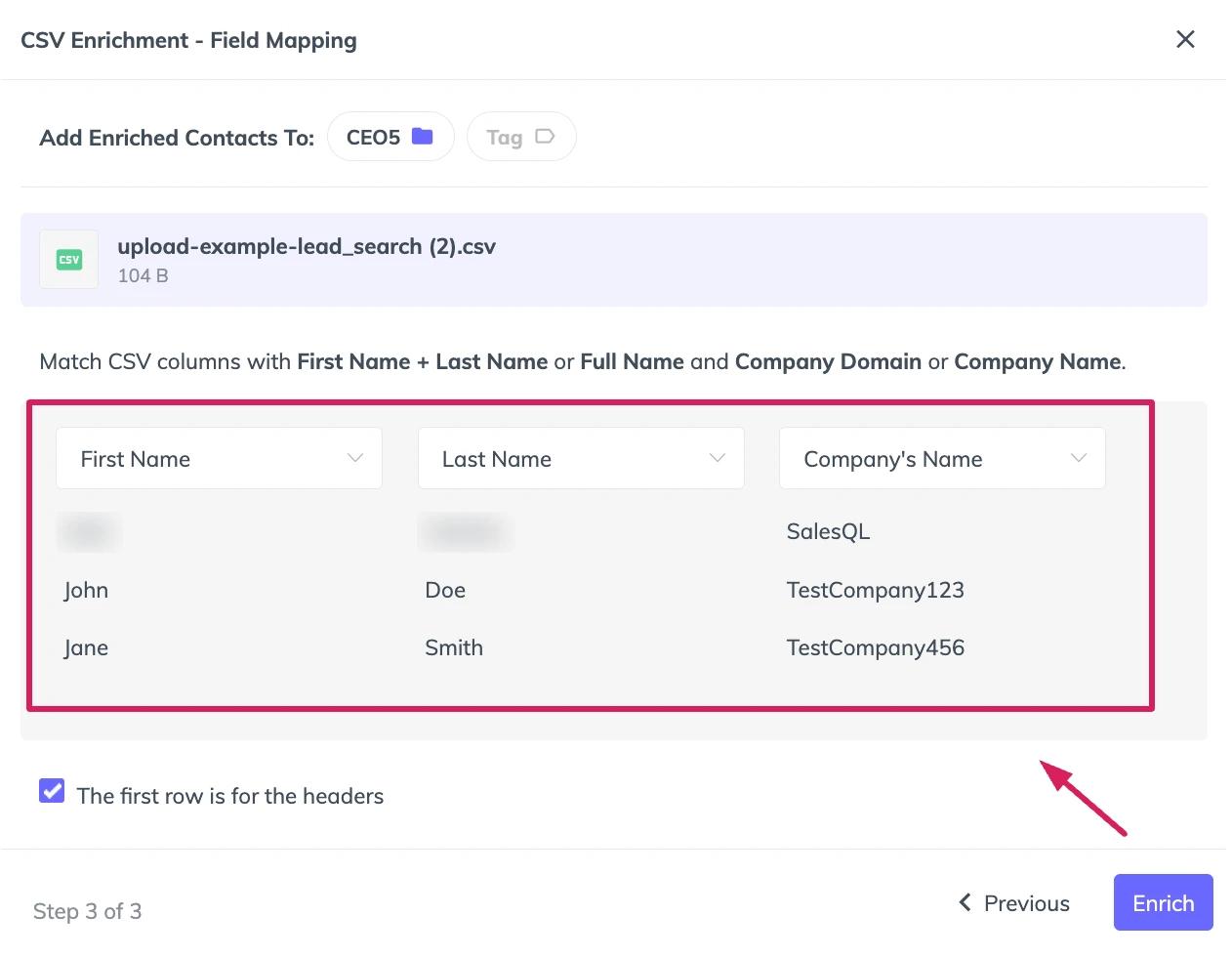
Select a folder! It's very important to choose a folder where you want all those contacts to go. You can also select a tag. If you don't select a folder, you won't be able to finish the process
Map your columns! It's crucial to map all the information correctly. If the data is disorganized and not in the correct columns, no emails or phone numbers will be found and the leads counter will increase because it reflects the number of rows in the file.
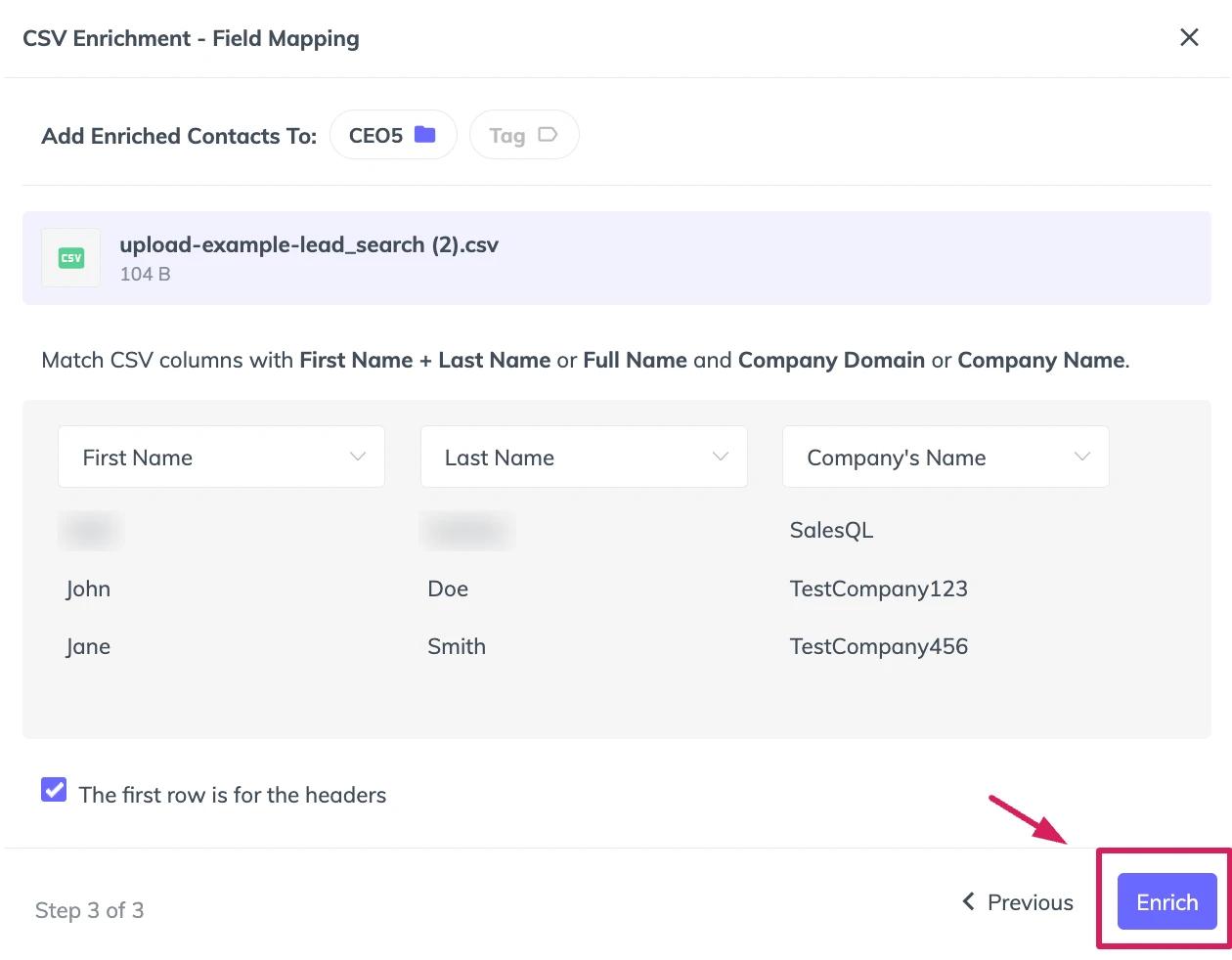
Click on “Enrich”
Now, you will get the results found in the file. You can download them from "Actions" or find them in the selected folder.
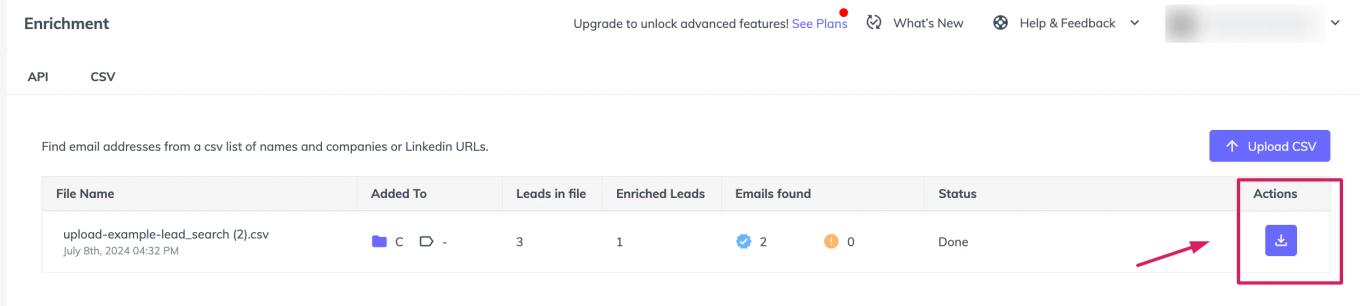


Important! If you do not see those contacts reflected in the folder, it means they were already downloaded into another folder before this download.
URL Search CSV Enrichment
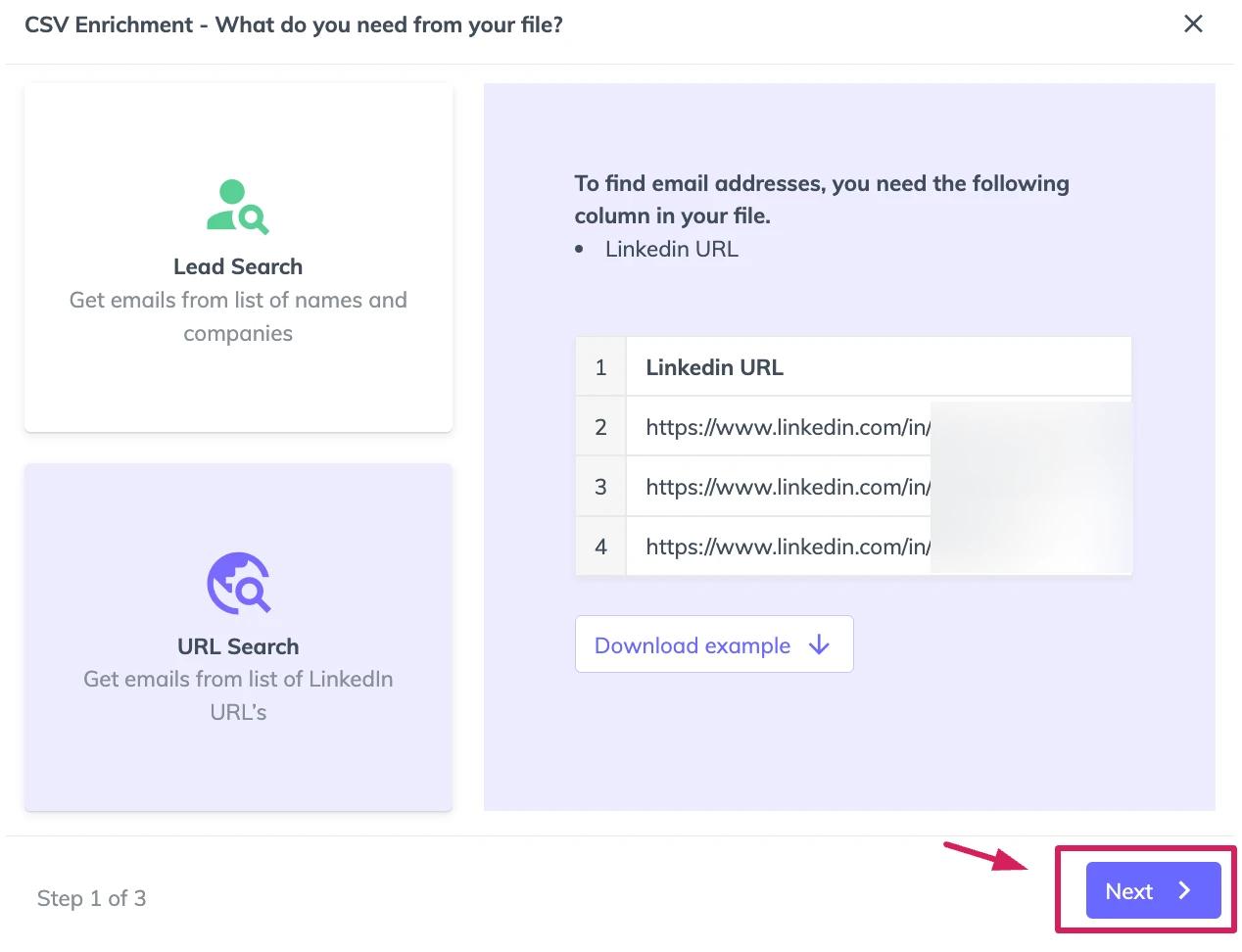
- Similarly to the previous option, you'll be able to upload files with the required columns to find email addresses. Make sure your file includes the following column:
- LinkedIn URL
In this example, you will see how to upload a file of URLs and the required data for it. Example:
| Full name | LinkedIn URL | |
|---|---|---|
| Nicolas Cantos | https://www.linkedin.com/in/nicolas-cantos-8323751a9/ | |
| Lais Macaria | https://www.linkedin.com/in/laismacaria/ |
You can also download an example from the pop-up window 📥

To continue, click on "Next"
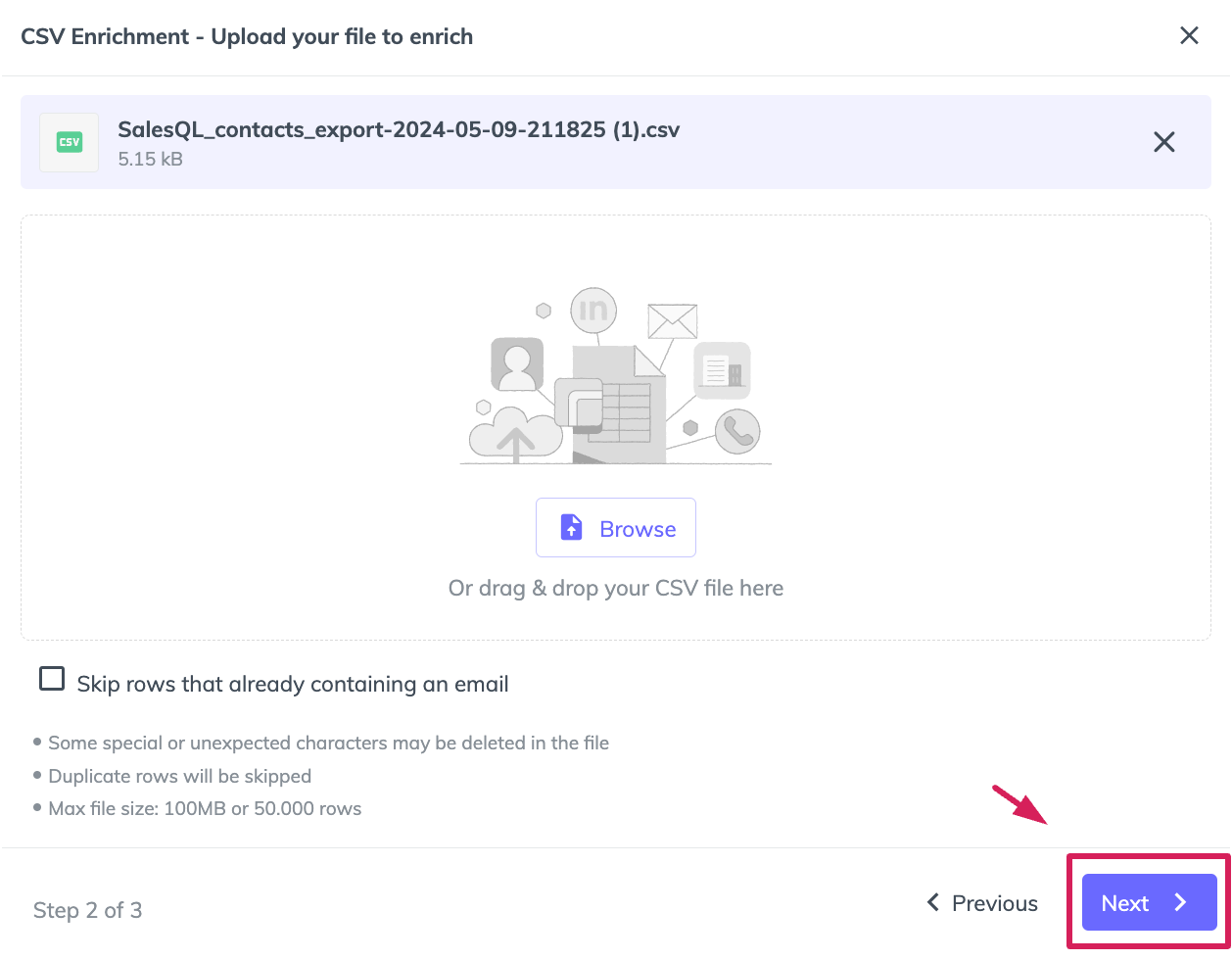
Now you will have the option to upload the files. You have two choices: click the "Browse" button or drag and drop your CSV file here.
"Skip rows that already contain an email" – If this option is selected and an email is detected in the row, that contact will not be searched in the API.
Once the file is uploaded, we can proceed to start mapping the columns.
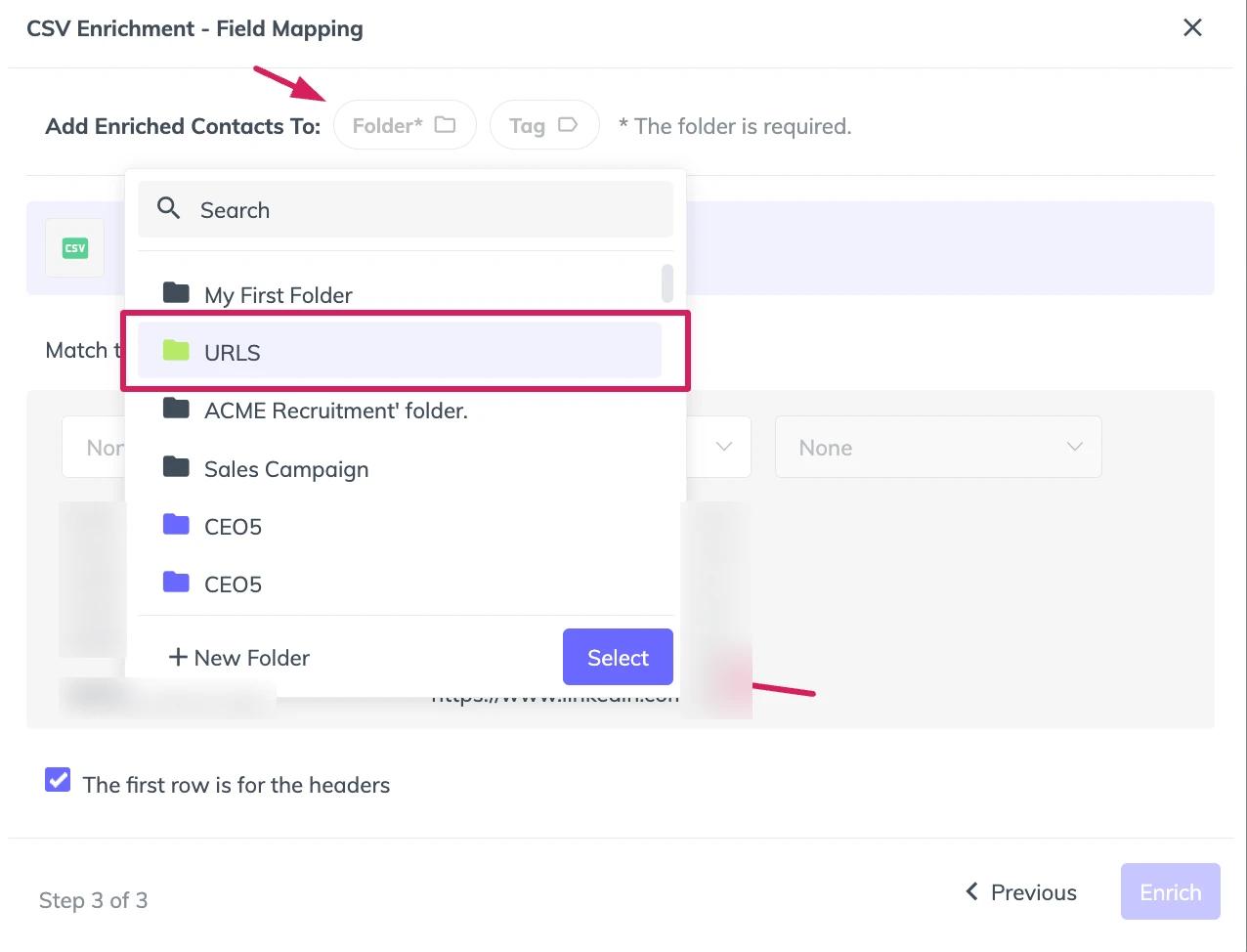
Select a folder! It's very important to choose a folder where you want all those contacts to go. You can also select a tag. If you don't select a folder, you won't be able to finish the process
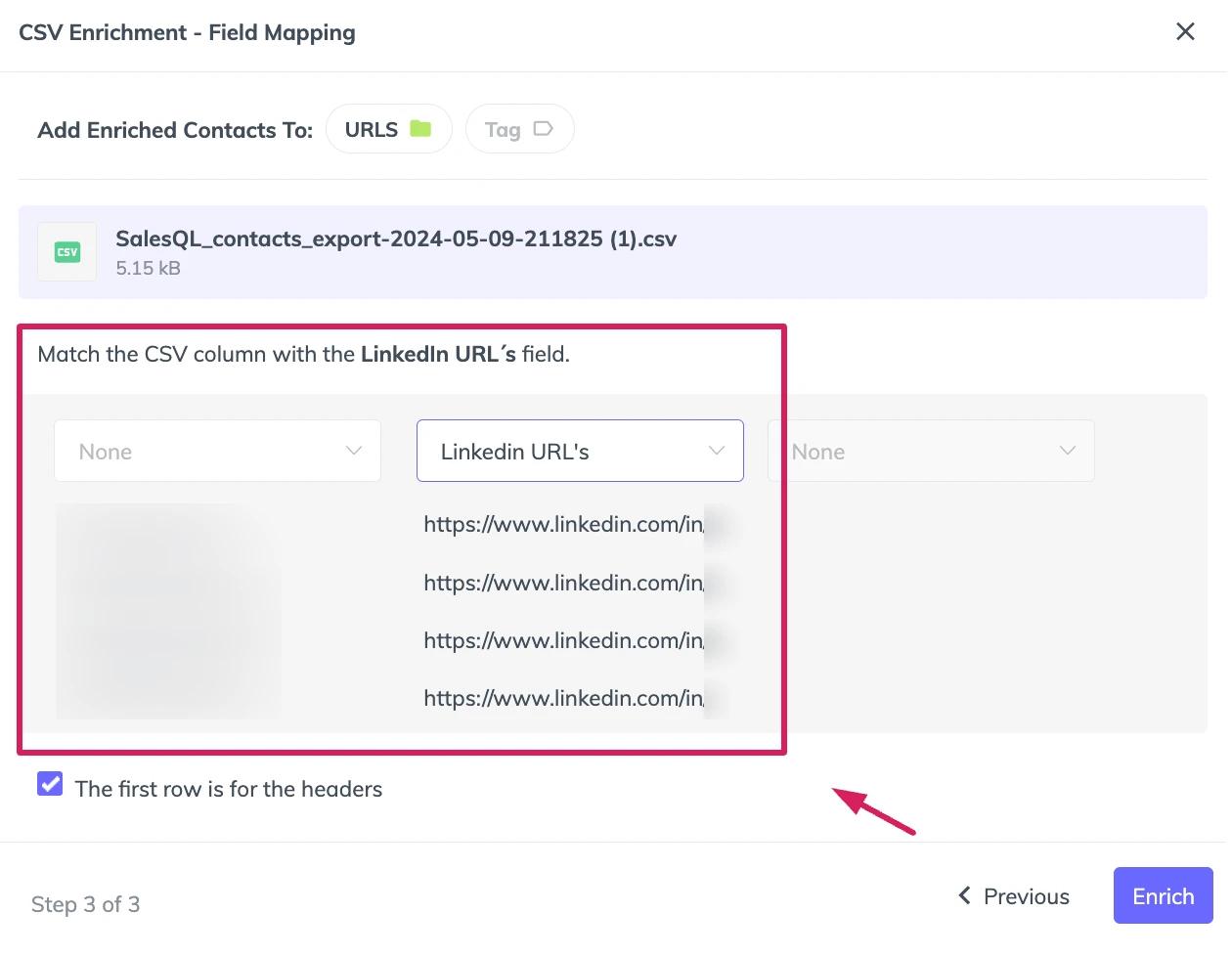
Map your columns! It's crucial to map all the information correctly. If the data is disorganized and not in the correct columns, no emails or phone numbers will be found and the leads counter will increase because it reflects the number of rows in the file.
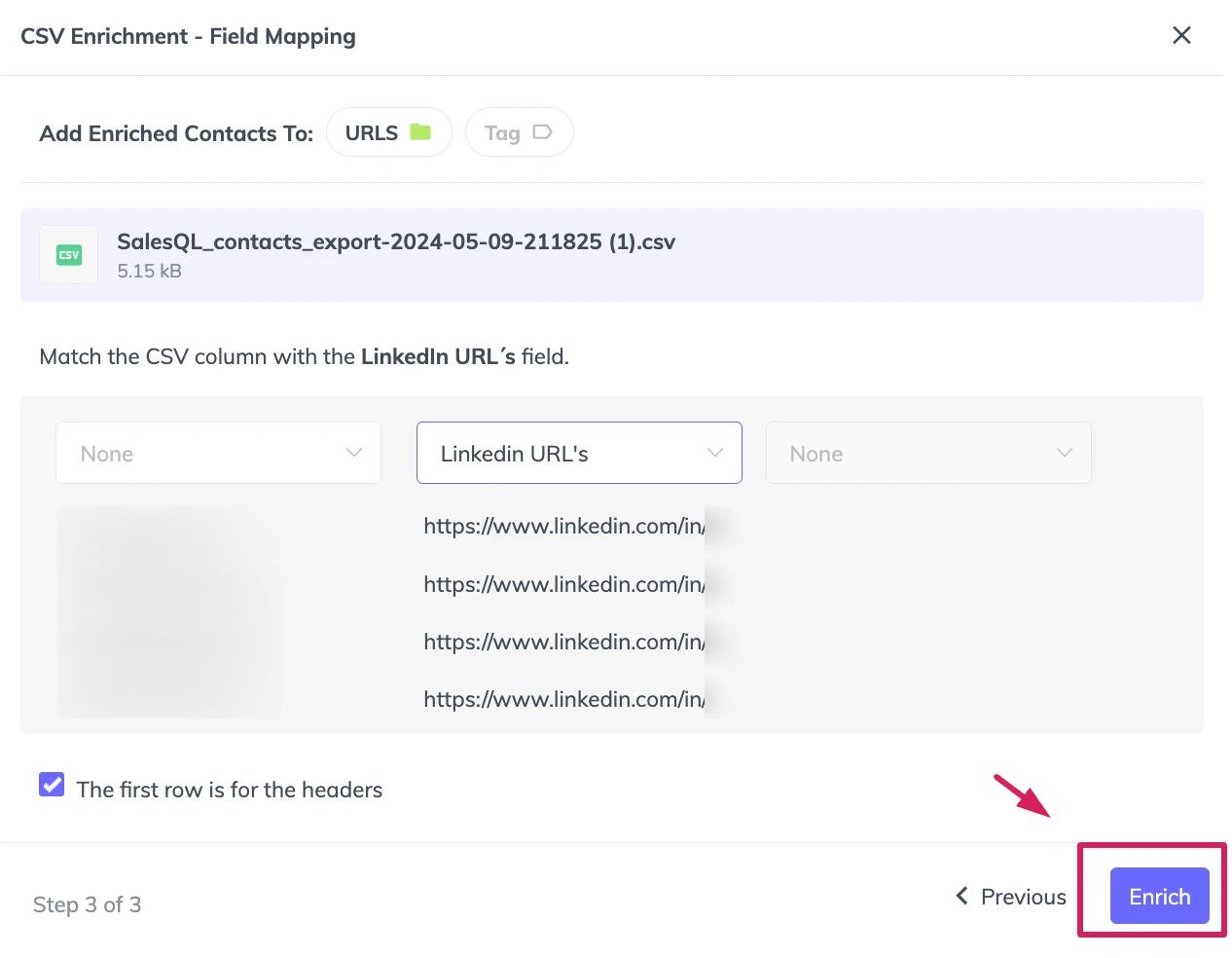
Click on “Enrich”
Now, you will get the results found in the file. You can download them from "Actions" or find them in the selected folder.
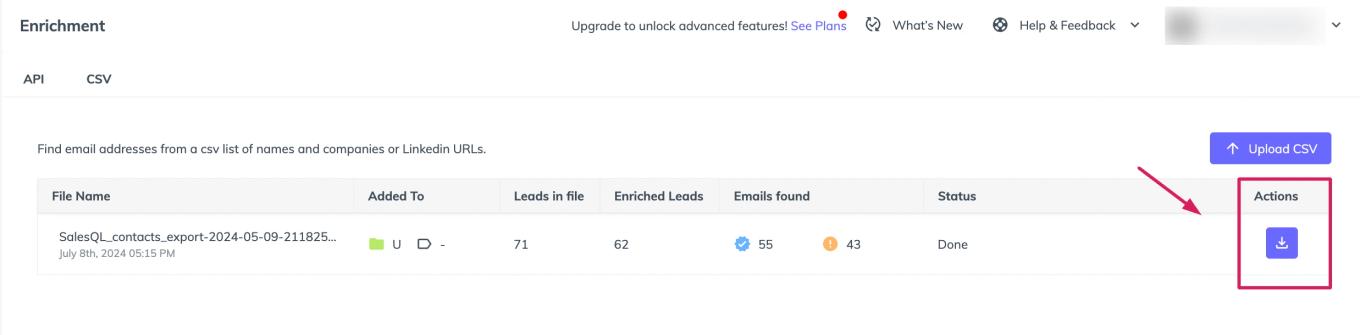


Important! If you do not see those contacts reflected in the folder, it means they were already downloaded into another folder before this download.
Reverse Email Lookup
Find names and contact details from a list of email addresses.
Upload a CSV file containing one column with email addresses, and SalesQL will enrich it with details like full name, job title, phone, company, URL, and more.
Example:
| ariel@salesql.com | ||
| nicolas@salesql.com |

The rest of the process is similar for all enrichment options:
- Click on Next.
- Upload your CSV file by clicking "Browse" or dragging & dropping it.
- Select the folder where you want your enriched contacts saved .
- Map your columns properly .
- Click on “Enrich”.
- Download your results from "Actions" or view them in the selected folder.
Credits Charging for Email Reverse Lookup
Unlike other functions, the Email Reverse Lookup, credits are not charged simply for finding an email address associated with a contact.
Instead, a credit is only deducted when additional information is retrieved about the contact, such as the company name or other related details. A credit is used each time such information is successfully obtained.
Limitations and specifications
- Some special or unexpected characters may be removed from the file (these could be characters used as CSV delimiters).
- Technical limit (all plans): files up to 100MB
- Duplicate rows are automatically skipped during processing.
💡 How credits work for CSV Enrichment: one credit is used per contact, regardless of how many emails are found for that contact (phone numbers are never charged). Duplicate contacts you've already added won't be charged again. See Understanding How Credits are Charged for the full breakdown.