
SalesQL lets you organize your contacts in two ways — using folders, tags, or a combination of both. This article walks through each strategy so you can pick the one that fits your workflow.
You can add contacts from the browser extension on LinkedIn, Prospector, CSV Enrichment. The organization logic works the same way across all of them.
Folder-based strategy
This strategy treats each folder as a separate project. Tags work as subgroups or attributes within that project — similar to how you'd organize files on a computer, where related files live in the same folder and tags help you sort them further.
Best for: teams and individuals running recurring, pipeline-oriented projects like sales campaigns, recruiting, or marketing outreach.
How to set it up
Go to your SalesQL dashboard and create a new folder. For example: Sales Campaign.
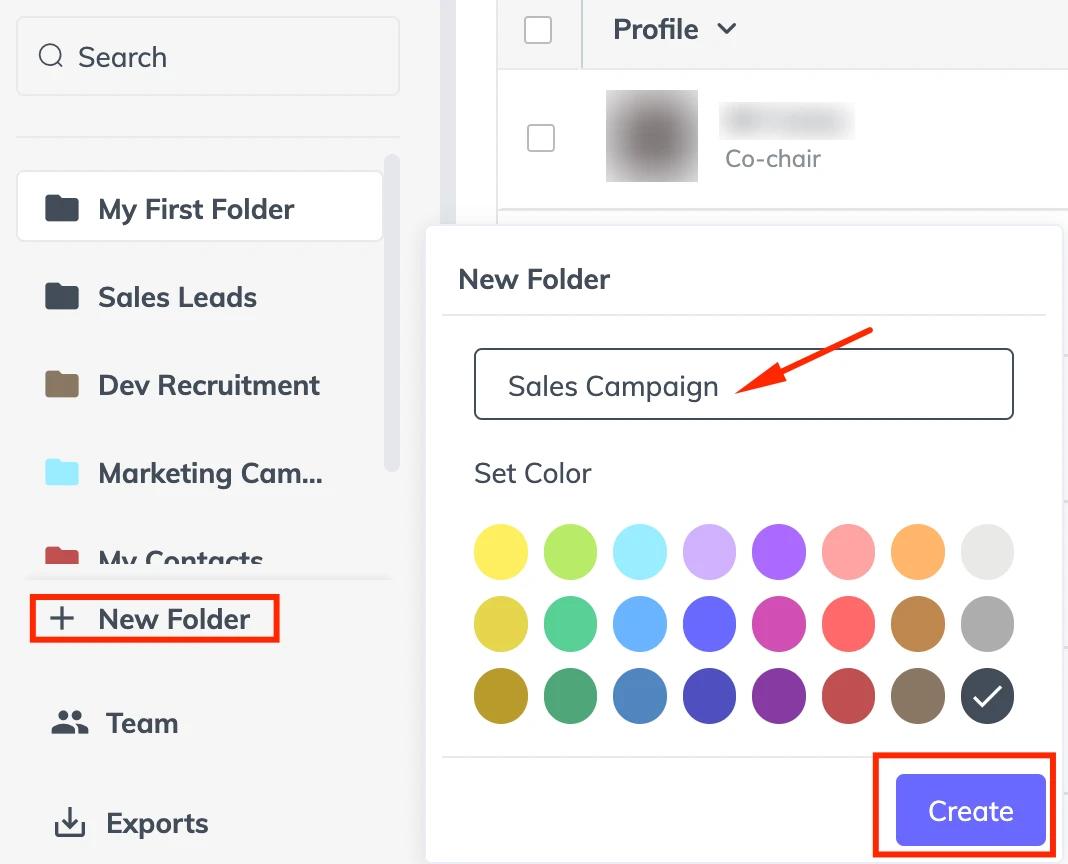
Open the extension or Prospector and select Sales Campaign as your active folder. From this point on, every contact you add will be saved there.
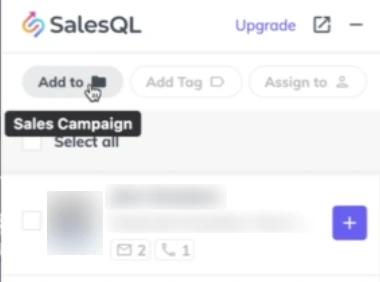
Start adding contacts. Once done, open the Sales Campaign folder in your dashboard to review, search, and manage them.
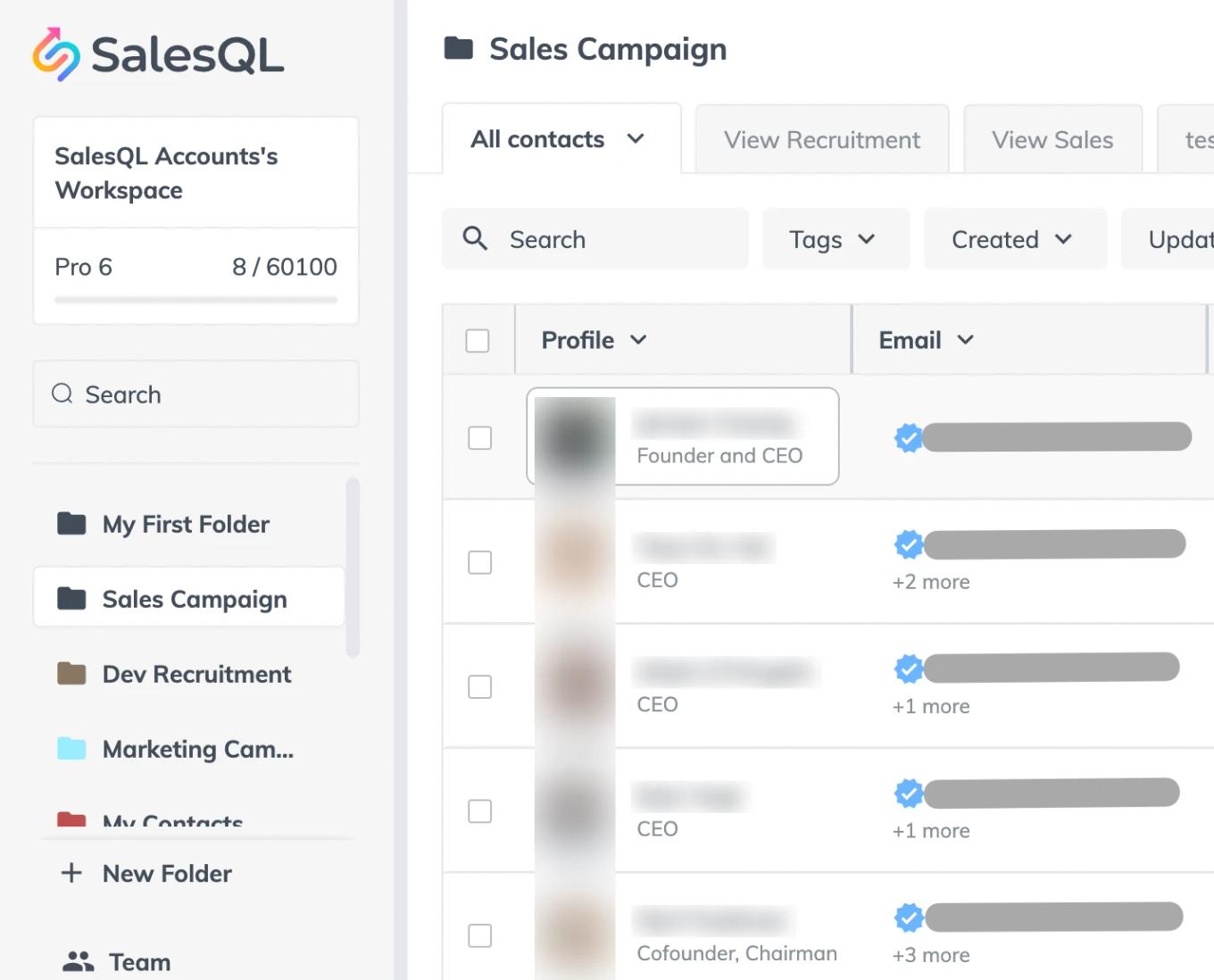
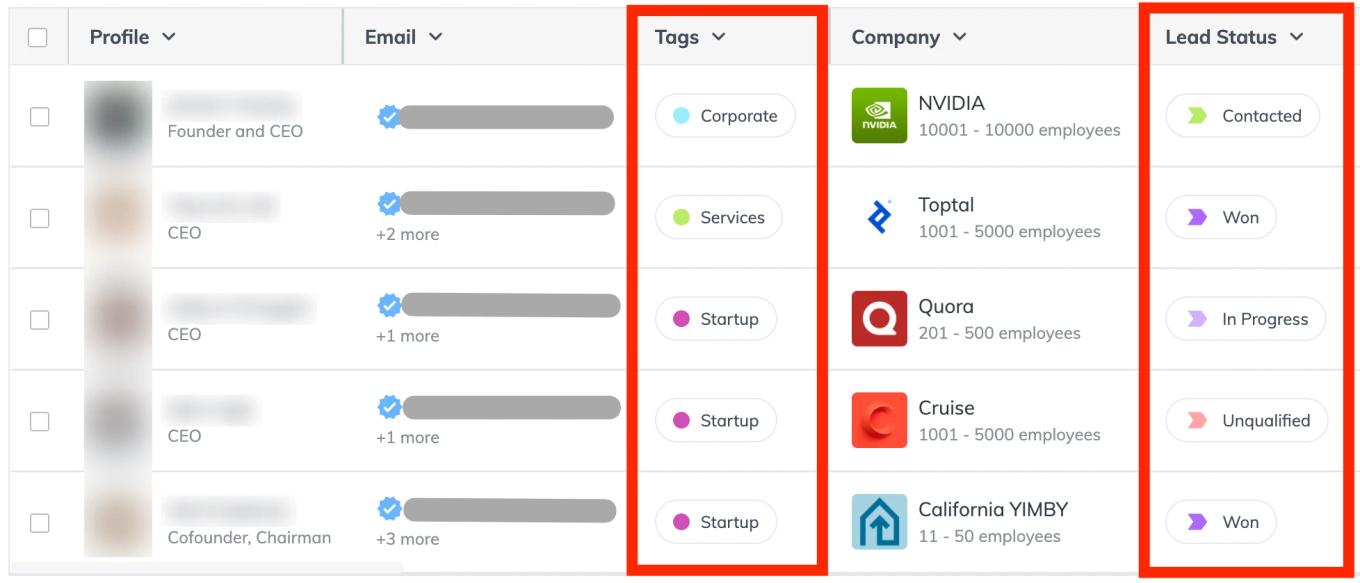
From the dashboard, you can tag contacts, assign them to team members, and use the Lead Status feature to track where each contact sits in your pipeline.


Tips
- If you're working as a team on the same project, everyone should select the same folder in their extension or Prospector.
- Use Assign To in the extension or dashboard to distribute contacts among team members.
- For large teams, a common setup is one folder per team member — each person manages their own project independently.
Best for
Teams and individuals running recurring, pipeline-oriented projects like sales campaigns, recruiting, or marketing outreach.