Contact management

Customize your Exports

Choose exactly which fields to export from a SalesQL folder on any paid plan with the Custom template, then find the file in the Downloads section.

Maximize your Data Output: Customization Techniques for Better Export

All paid plans offer complete control over the fields you wish to export, allowing you to tailor the output to your specific preferences

How do I do this? Well, it's simple. Follow the steps below to learn how.

  1. Choose the project (folder) you want to use and then click on the 'Export'´ button.
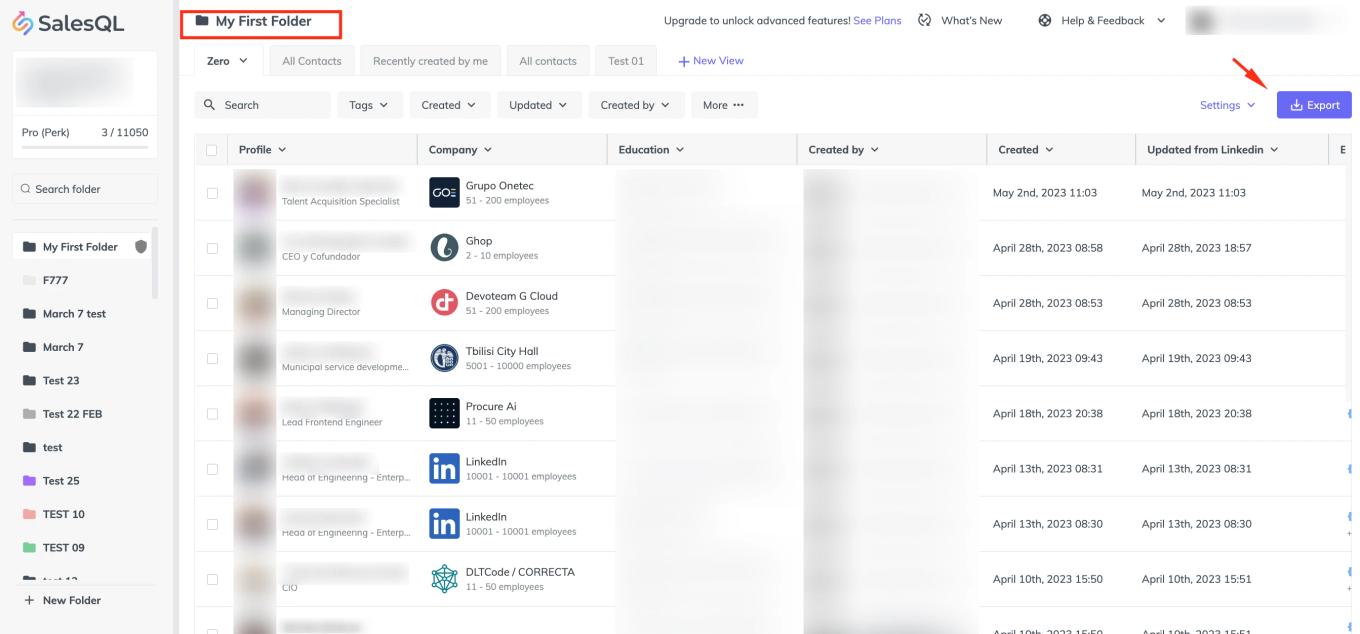
    "My First Folder" open in the SalesQL dashboard with the "Export" button pointed out
  2. In the fields template, select 'Custom'.
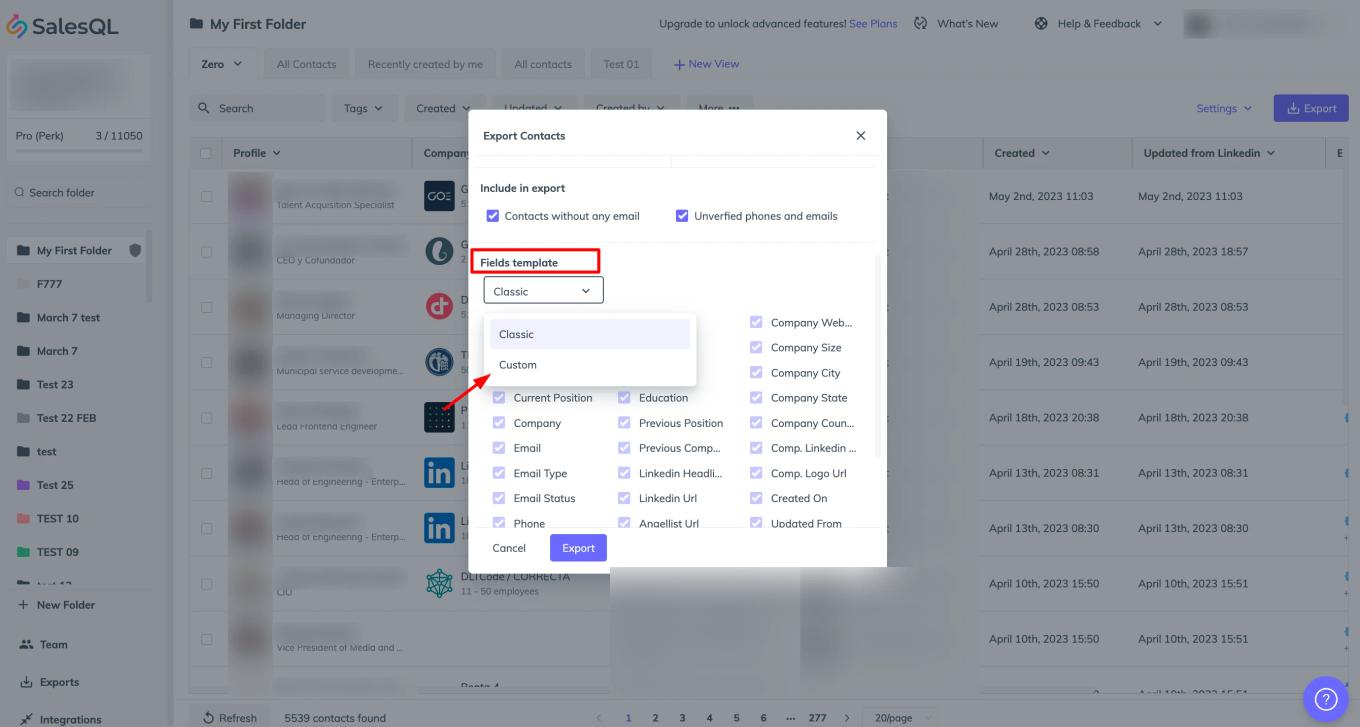
    "Export Contacts" dialog with the "Fields template" dropdown open showing "Classic" and "Custom"
  3. Select the desired fields and click 'Export' to initiate the data export process.
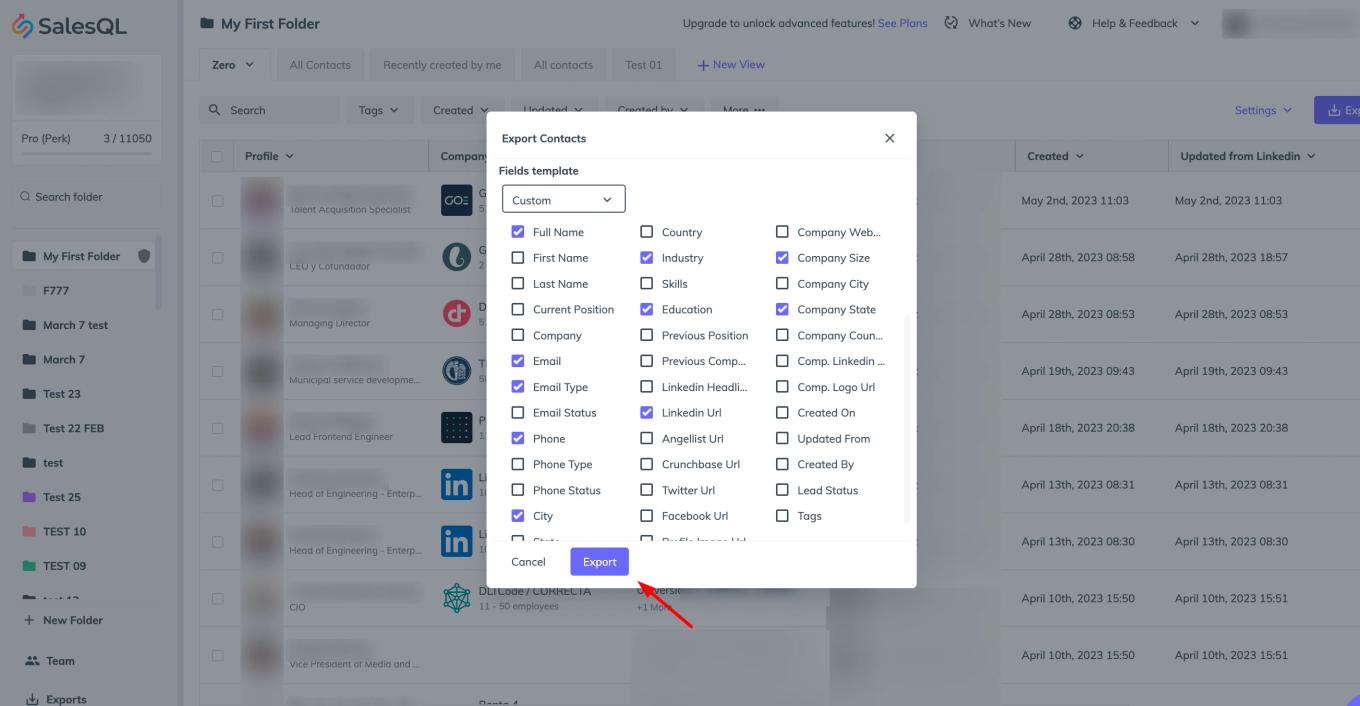
    "Export Contacts" dialog with the "Custom" template, selected field checkboxes and the "Export" button
  4. Once the export is complete, navigate to the 'Downloads' section where you can find the downloaded file.

    SalesQL "Exports" page with a completed export of "My First Folder" and the "Download" button

All done. By customizing your exports, you can easily manage the data you need and streamline the integration process with other tools. This feature is designed to simplify data mapping and ensure a seamless transfer of information between platforms, making it easier than ever to stay organized and maximize your efficiency.

More in Contact management

  • Contact organization: folders

    Organize SalesQL contacts with a folder-based strategy, treating each folder as a project and using tags, Assign To, and Lead Status inside it.

  • Adding contacts twice

    Find out how SalesQL merges contacts you add twice, when it charges extra credits, and how enriching the same contact through the API differs.

  • Moving my contacts from tags to folders

    Move contacts from a tag into a new folder by creating the folder, filtering your contacts by that tag, selecting them all, and using Move to Folder.

  • Starring your favorite folders

    Star your favorite SalesQL folders so they appear right below the Protected Folder, and unstar them to send them back to their place in the list.

  • What is the Protected Folder?

    Understand the Protected Folder, a folder at the top of your list that you can rename and use like any other, but that can't be deleted.

See all 6 articles in Contact management