
If you are in the middle of a project and you need to start using folders (the new way to organize contacts), you can take contacts that belong to a specific tag and quickly move them to a new folder.
First, you have to create the new folder. You can use the same name and color of your tag to do so:

Now, filter your contacts by the tag you want to move to a folder, and select all these contacts:
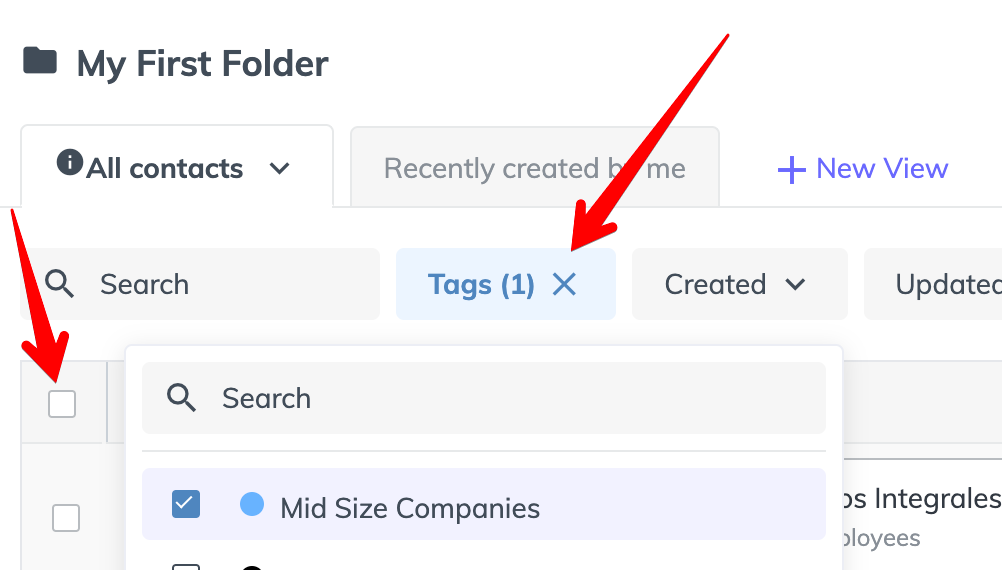
Select all these contacts, click on 'Move to Folder', and select the folder you have created:
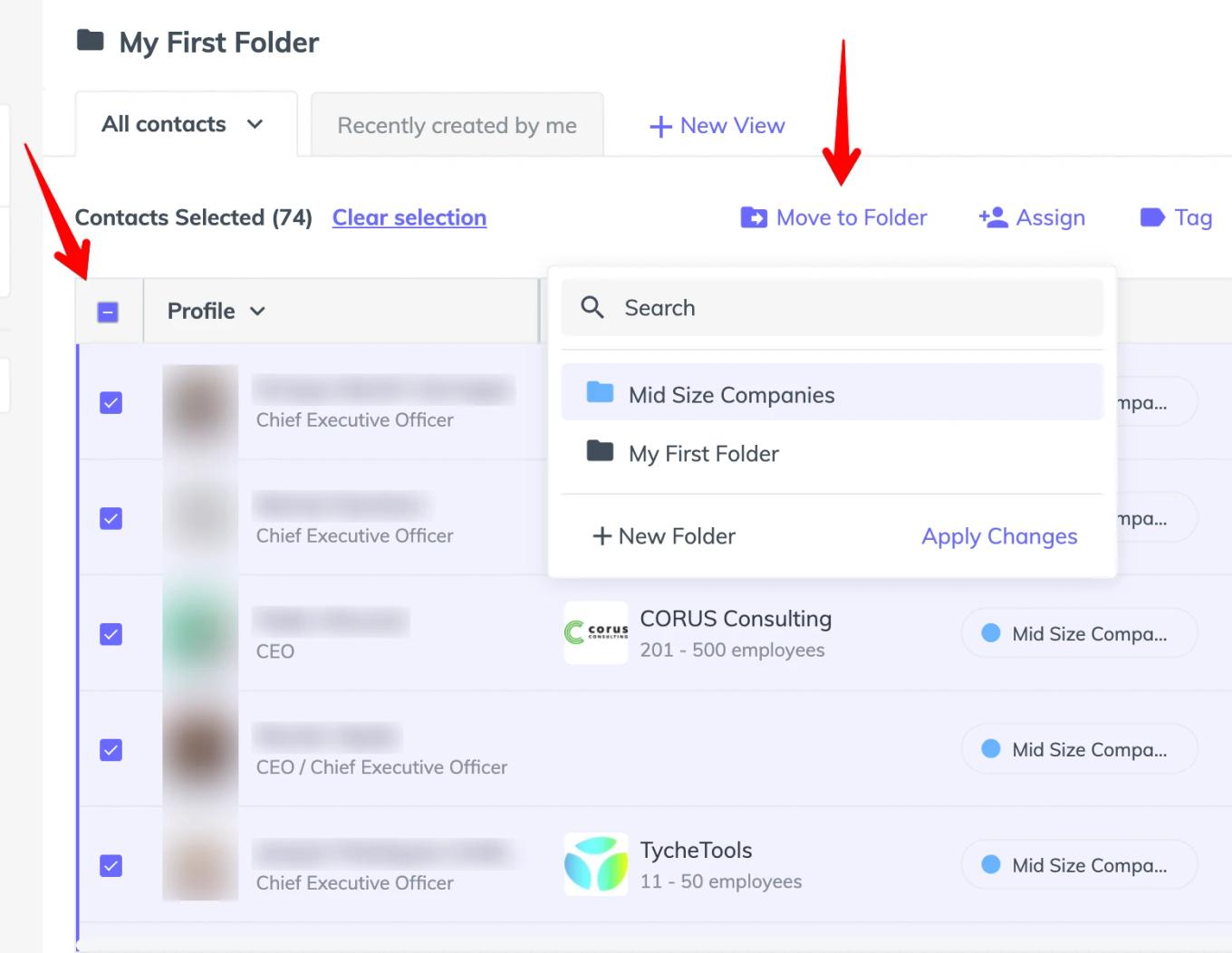
That's it. Your contacts are now part of the new folder, and you can continue using the extension to add more prospects to this folder:

Moving contacts from one folder to another
1. In Contacts Lists, open the folder that contains the contacts you want to move.
2. Select the contacts using the checkboxes. To move every contact in the folder (not just the ones on the current page), click Select All.
3. Click Move to Folder and choose the destination folder.

That’s it. Your contacts are now in the destination folder.


