Integrations

Zapier Integration

Connect your SalesQL account to Zapier from the Integrations page of your dashboard, then build Zaps that connect SalesQL with other apps, such as Gmail.

Here are some simple steps to synchronize your SalesQL account with Zapier.

  1. Firstly, go to Integrations in your SalesQL dashboard, select Zapier and then click on the 'Install app' button.
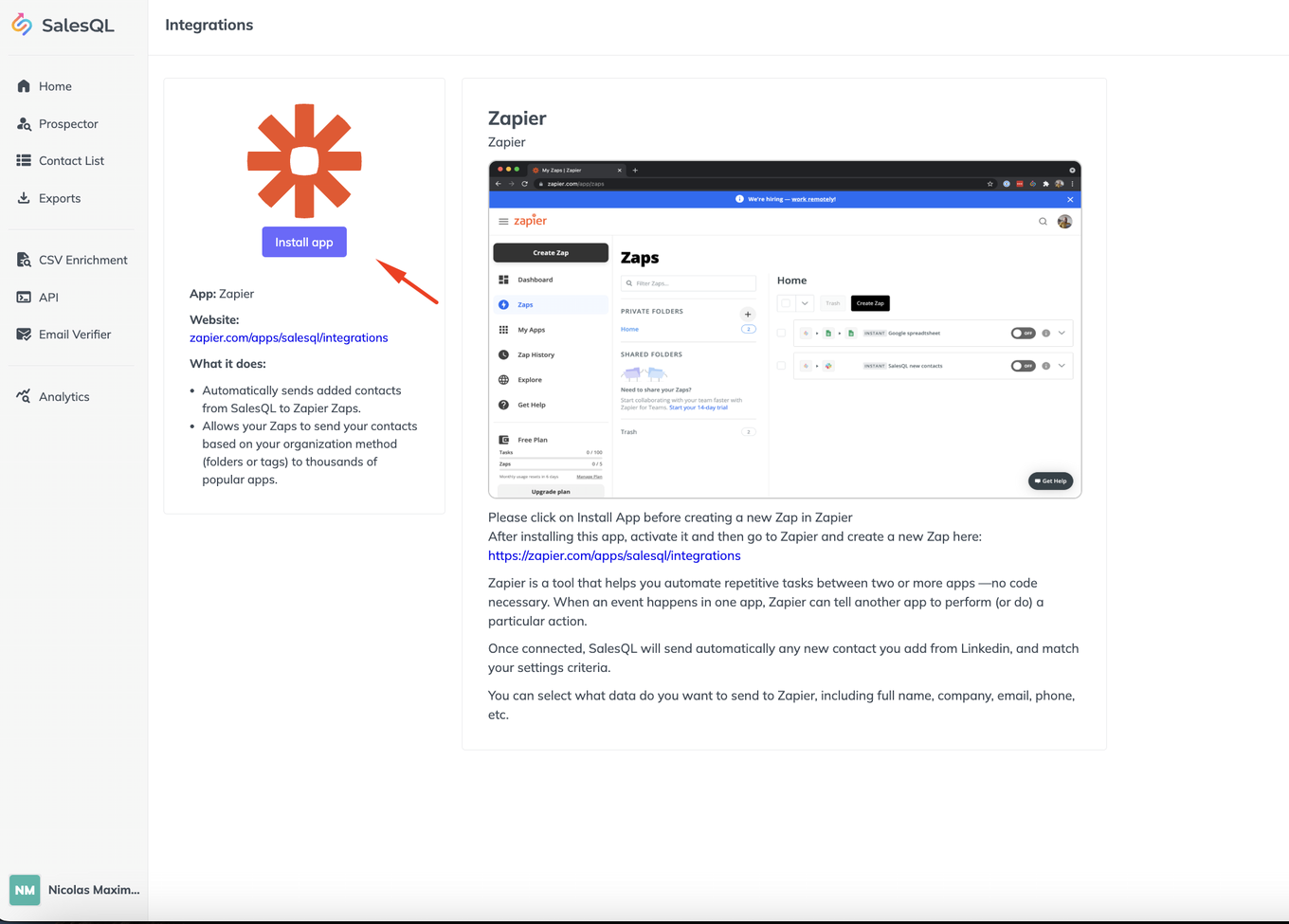
    Zapier app page in SalesQL Integrations with an arrow pointing to the "Install app" button
  2. After installing the App, you will receive a message to activate the configuration. Please click on the blue button to confirm this action.
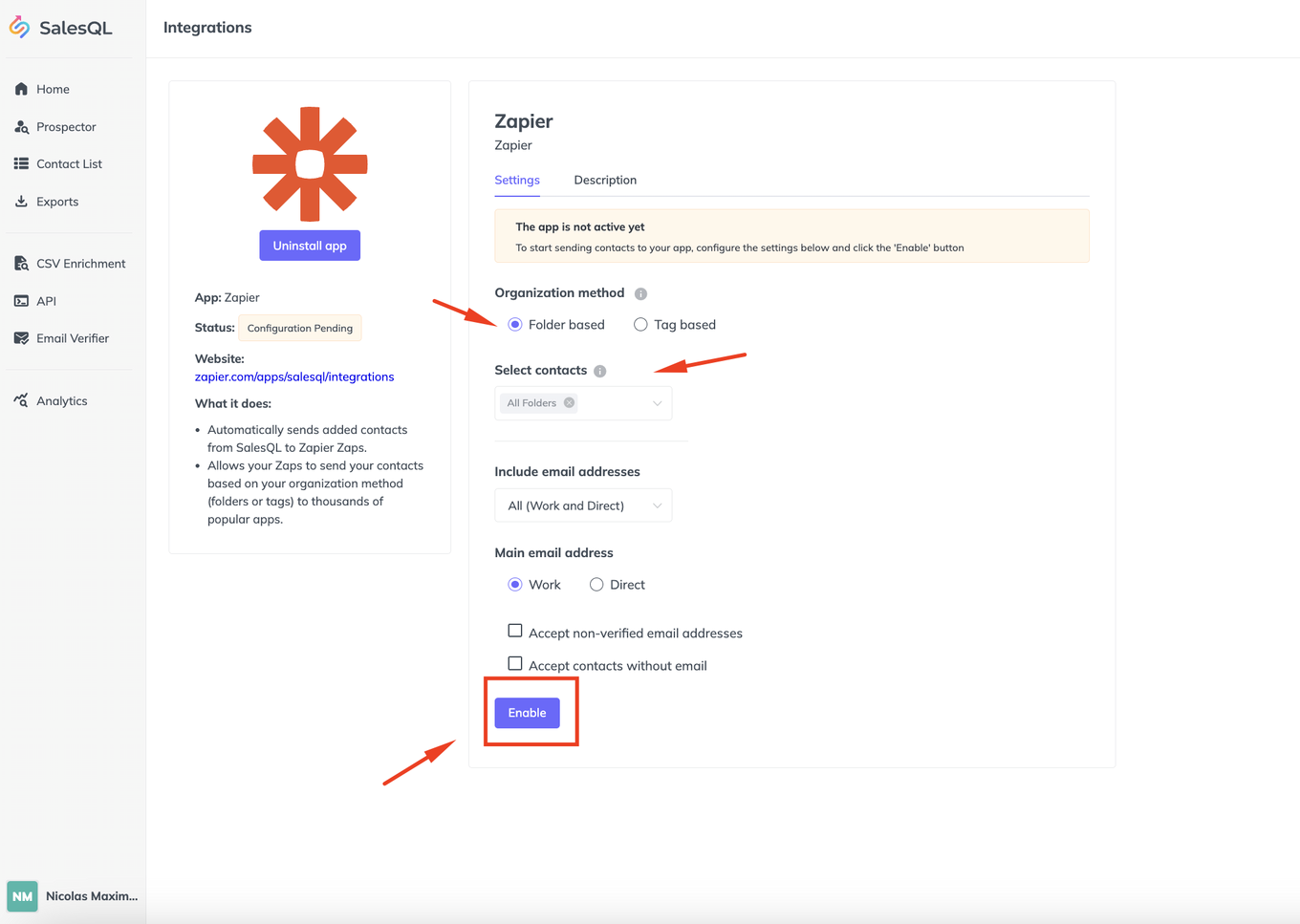
    Zapier integration settings in SalesQL with "Folder based" selected and the "Enable" button highlighted
  3. When the installation is completed, it should be shown as active.
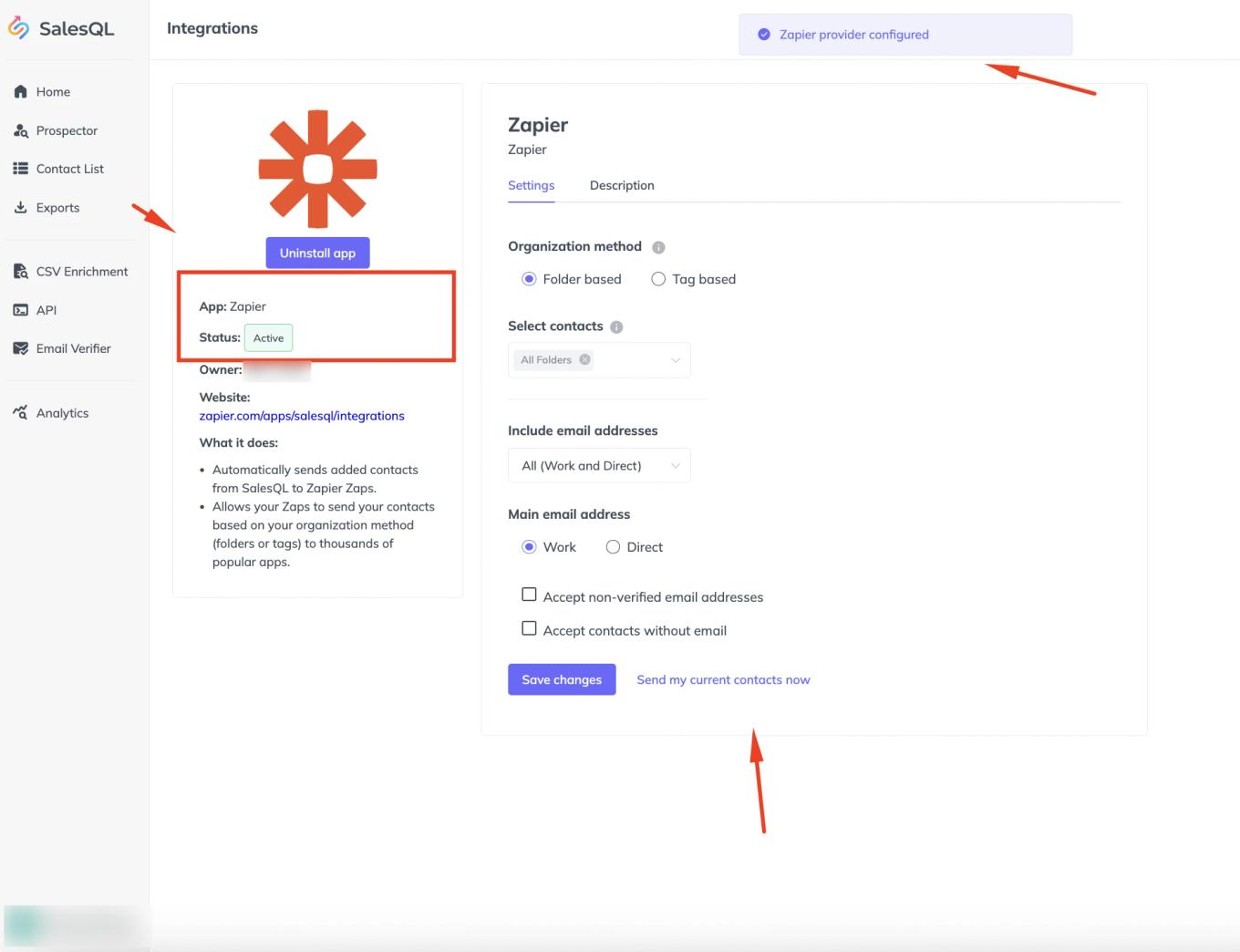
    SalesQL Zapier integration with status "Active" highlighted and the "Zapier provider configured" message

Keep in mind that you can create further automations with Zapier for connecting SalesQL with other platforms.

In the following example we will configure Zapier to send emails using Gmail:

  1. Once your account is set up, go to Zapier's App editor and search for SalesQL.
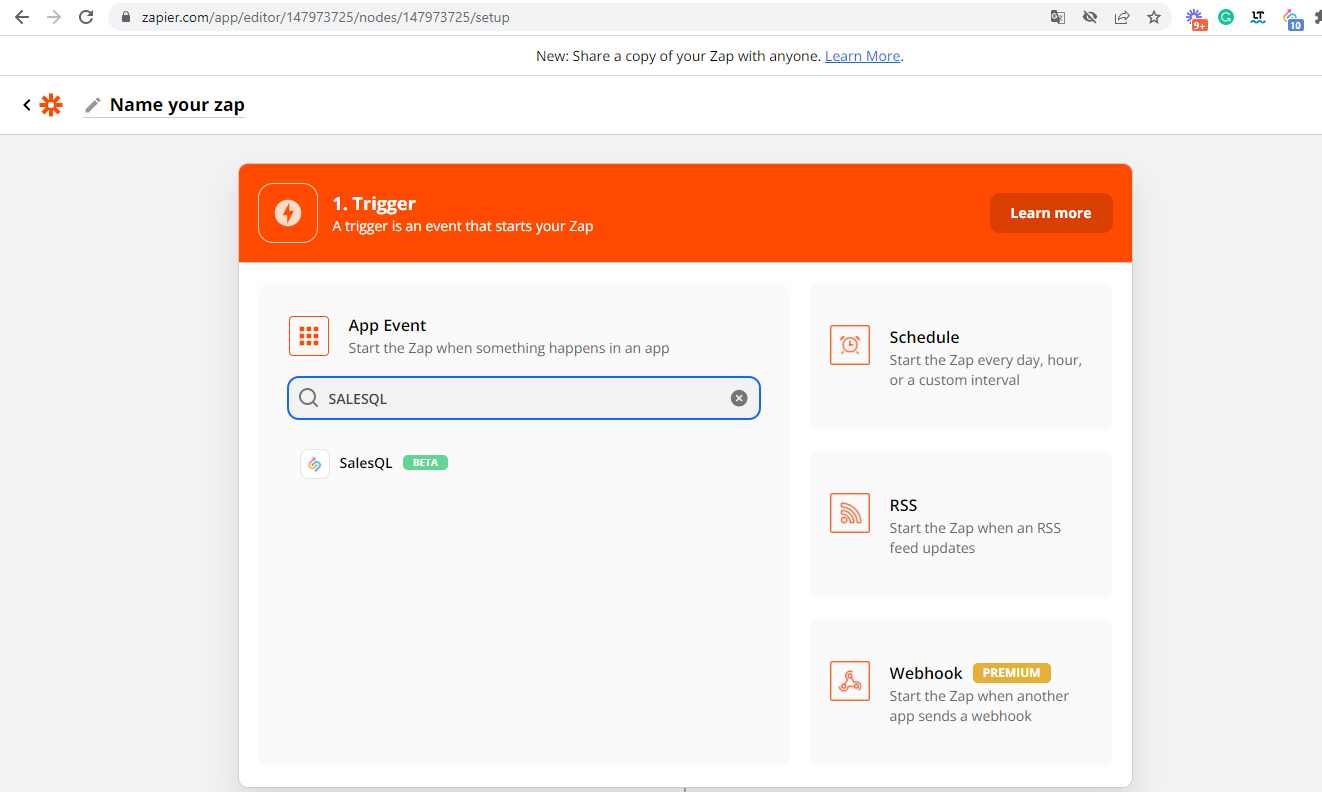
    Zapier Zap editor trigger step with "SALESQL" typed in the App Event search and the SalesQL app in the results
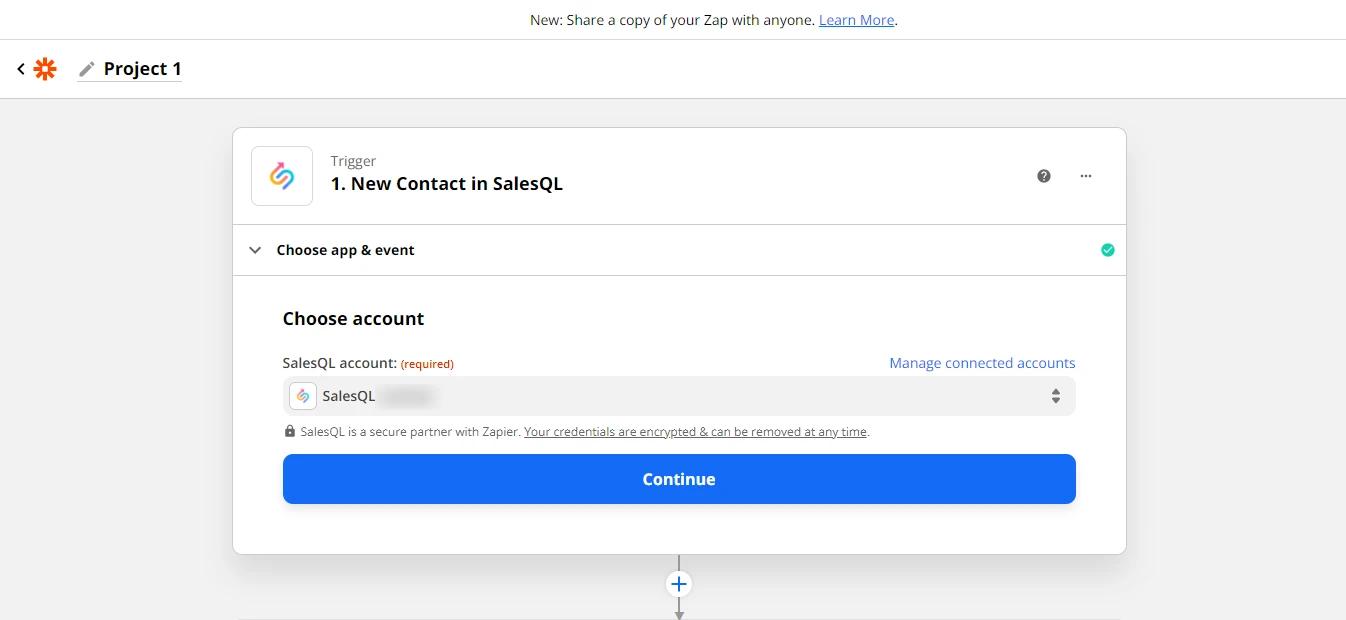
  2. Now, choose your SalesQL account.

    Zapier "Choose account" step for the "New Contact in SalesQL" trigger with a SalesQL account selected and "Continue"
  3. Next, select an email application. In this case, we're using Gmail.
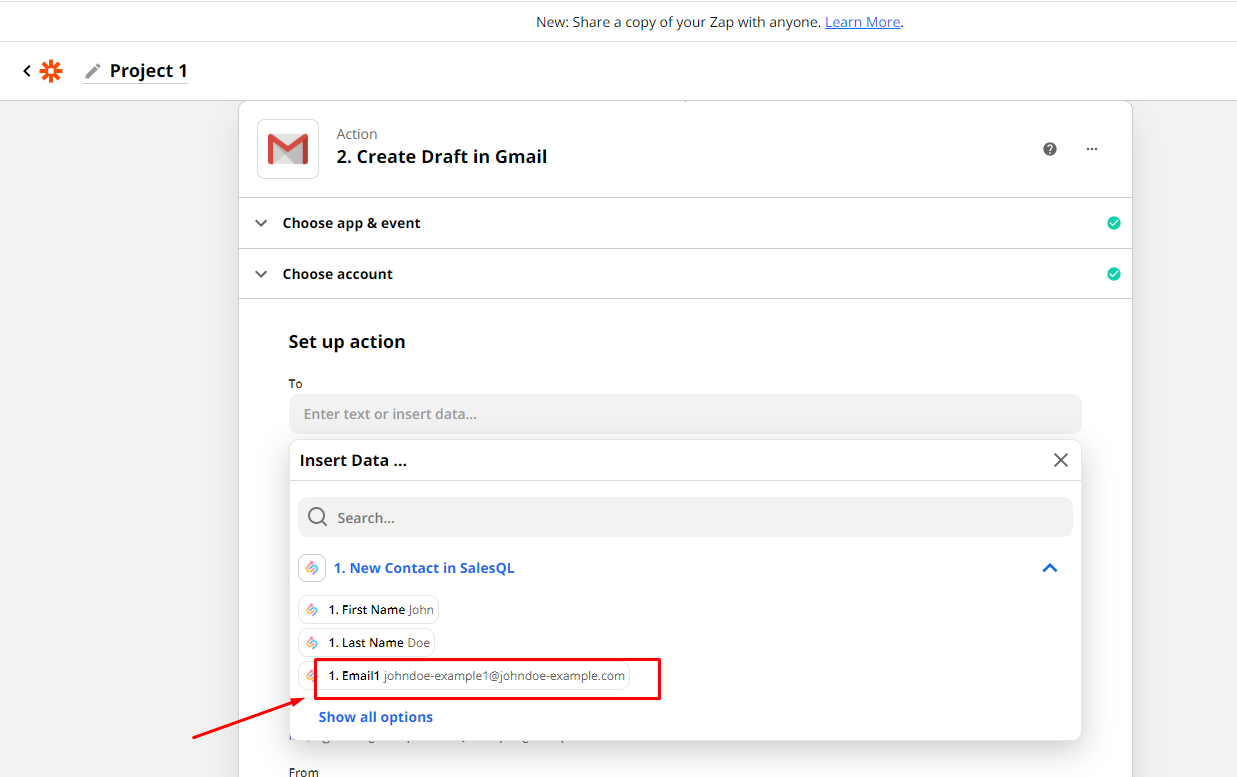
    Zapier "Create Draft in Gmail" action with the Insert Data menu showing SalesQL contact fields and "Email1" highlighted
  4. Once you have selected all the actions, you can perform a test. After that, you will be able to turn on your new Zap.
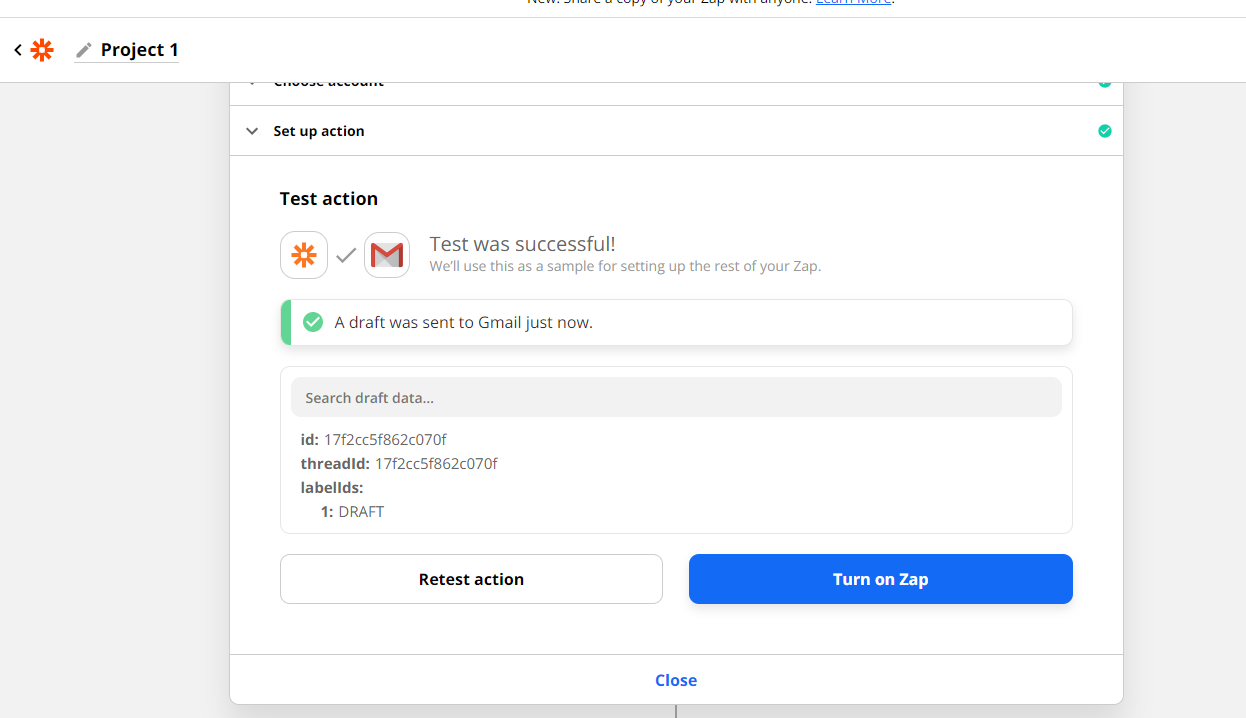
    Zapier test action reporting "Test was successful!" for Gmail, with the "Turn on Zap" button
  5. To see all your Zaps, just check out zapier.com/app/zaps.
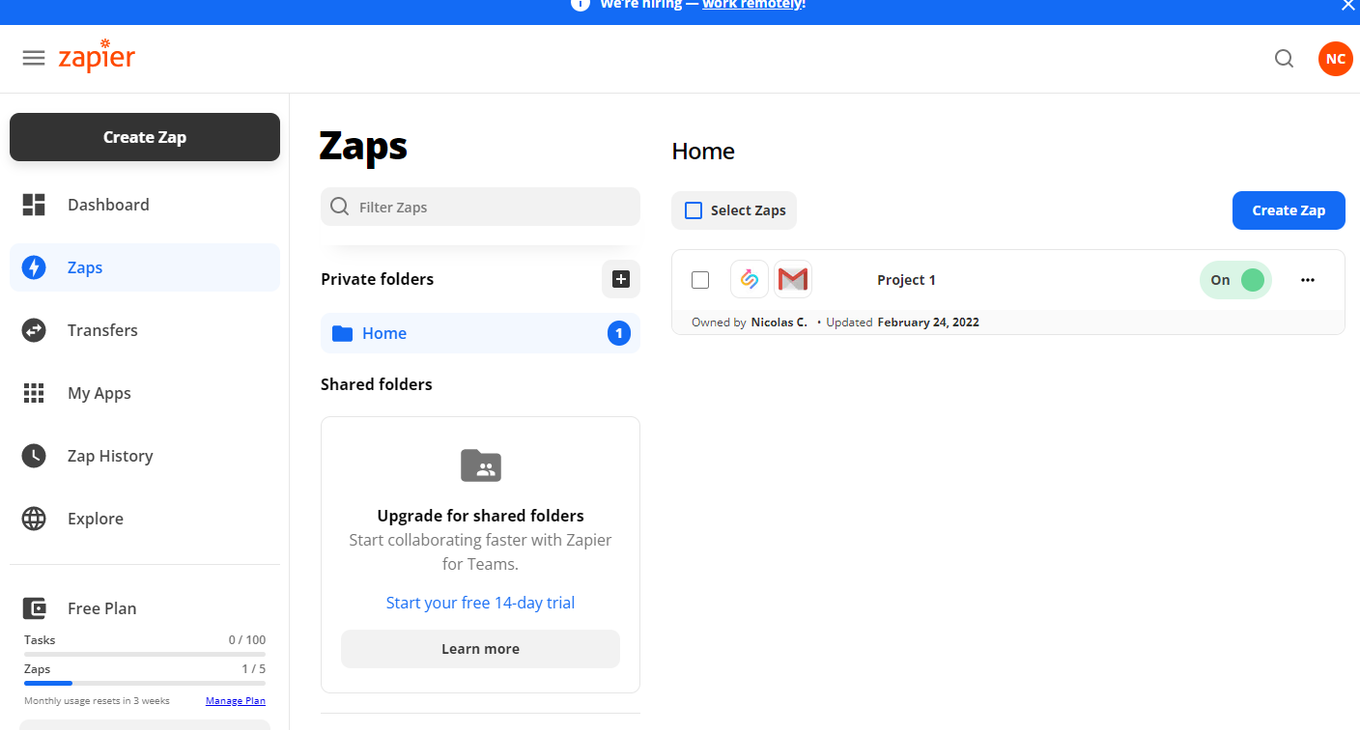
    Zapier Zaps dashboard listing a SalesQL to Gmail Zap named "Project 1" switched "On"

If you have any questions or suggestions regarding this integration, please contact support and we will assist you right away.

More in Integrations

  • HubSpot Integration

    Connect SalesQL to HubSpot, export your projects as HubSpot lists, and import extra contact fields from a SalesQL download with HubSpot's import tool.

  • Mailchimp Integration

    Connect SalesQL to Mailchimp, send your existing contacts to an audience, and filter them in Mailchimp by the tags created from your SalesQL folders.

  • Zoho CRM Integration

    Sync SalesQL with Zoho CRM to export your folders' contacts as Leads, and fix the sync error by creating a Zoho CRM account first.

  • SalesQL with Google Sheets

    Send new SalesQL contacts to a Google Sheet automatically with a Zapier Zap, from setting up the trigger to mapping columns and publishing it.

See all 5 articles in Integrations