Integrations

Zoho CRM Integration

Sync SalesQL with Zoho CRM to export your folders' contacts as Leads, and fix the sync error by creating a Zoho CRM account first.

How to sync SalesQL with Zoho

To sync your SalesQL account with Zoho, just follow these simple steps.

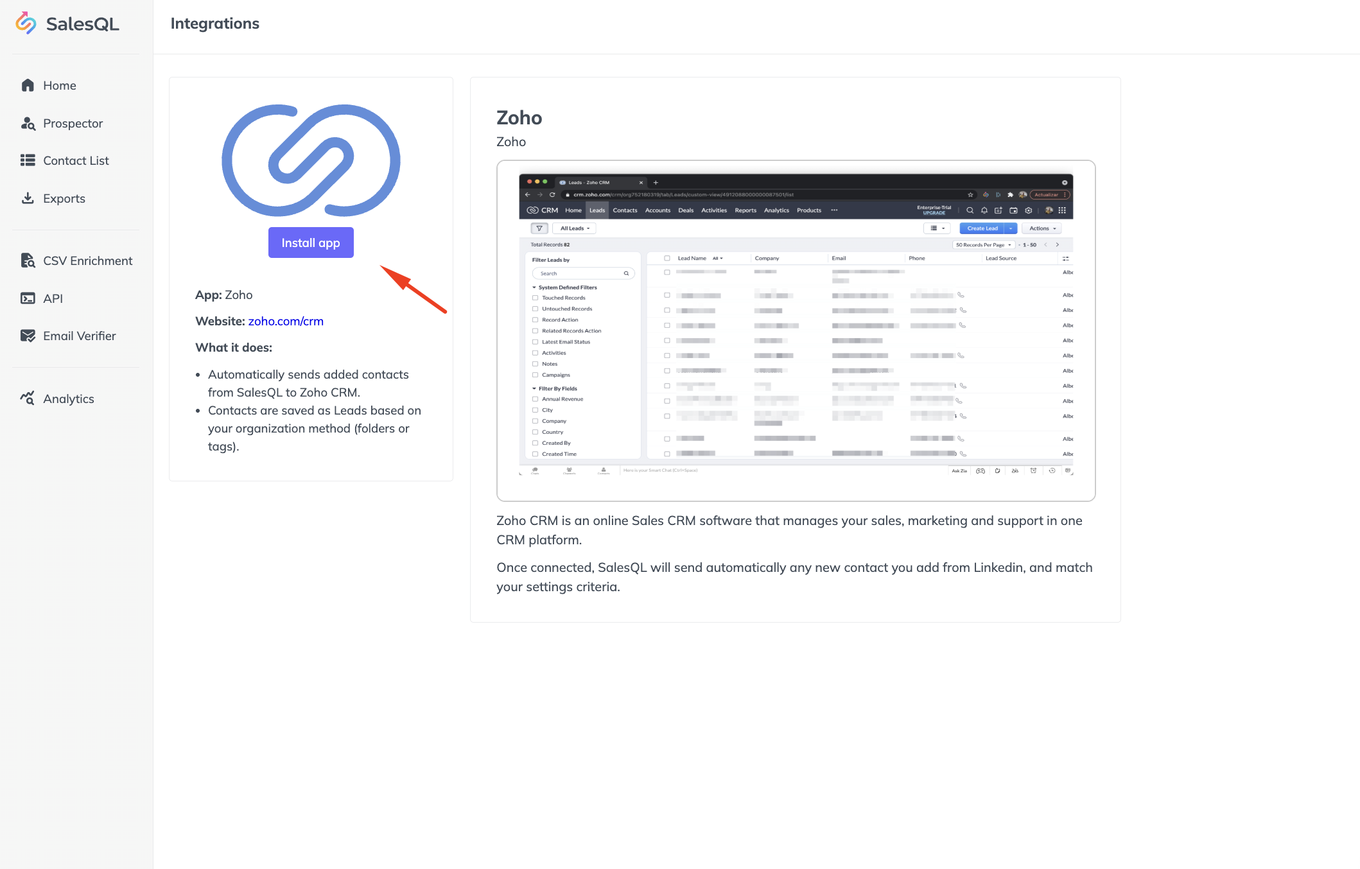
  1. Install the app.

    Zoho app page in SalesQL Integrations with an arrow pointing to the "Install app" button
  2. Select the "Folders" you want to export, and click the ‘Activate’ button.
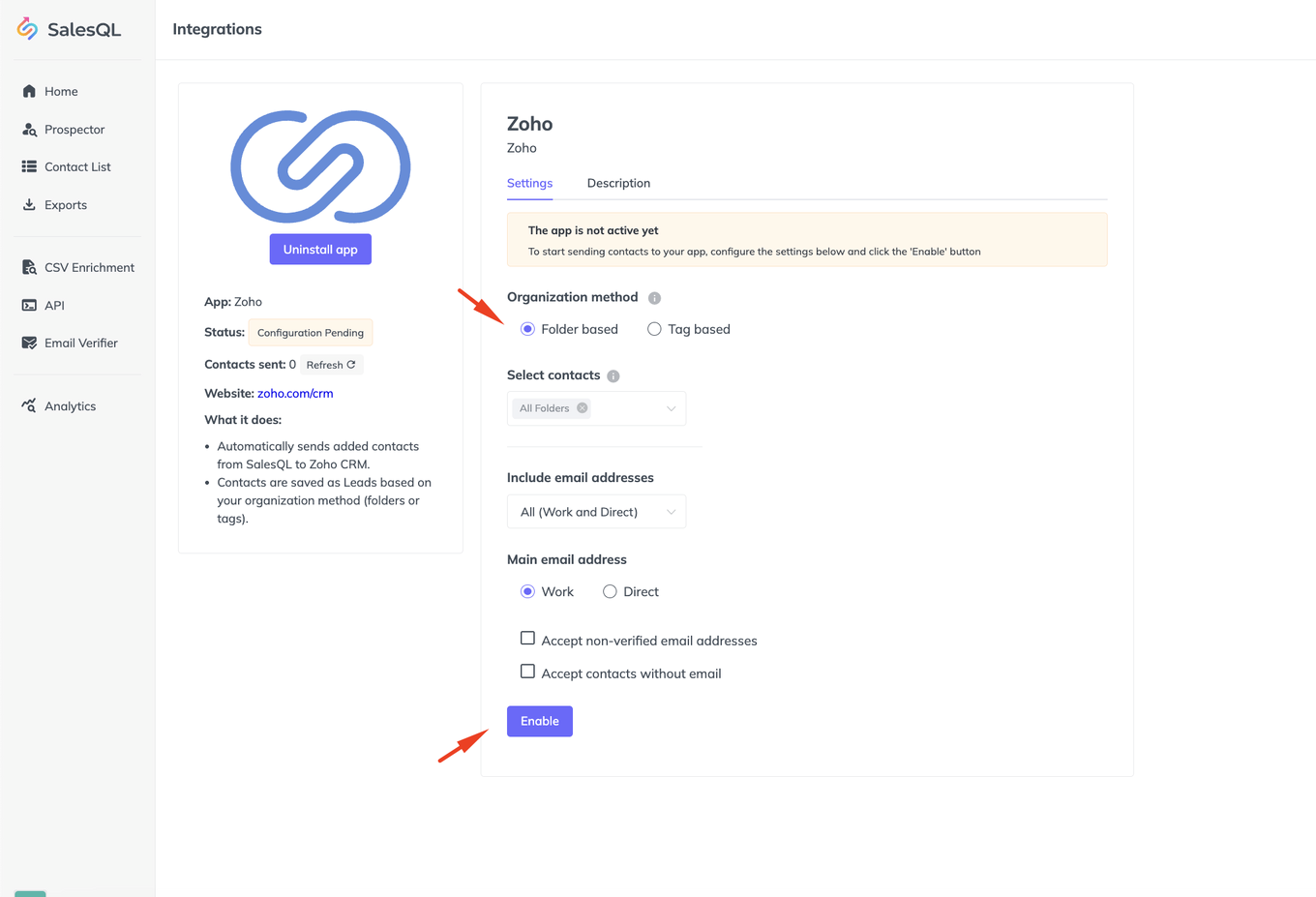
    Zoho integration settings in SalesQL with "Folder based" organization method selected and the "Enable" button highlighted
  3. The previous step will redirect you to Zoho. If you already have an account, just log in. If you don't, you'll have to create one.
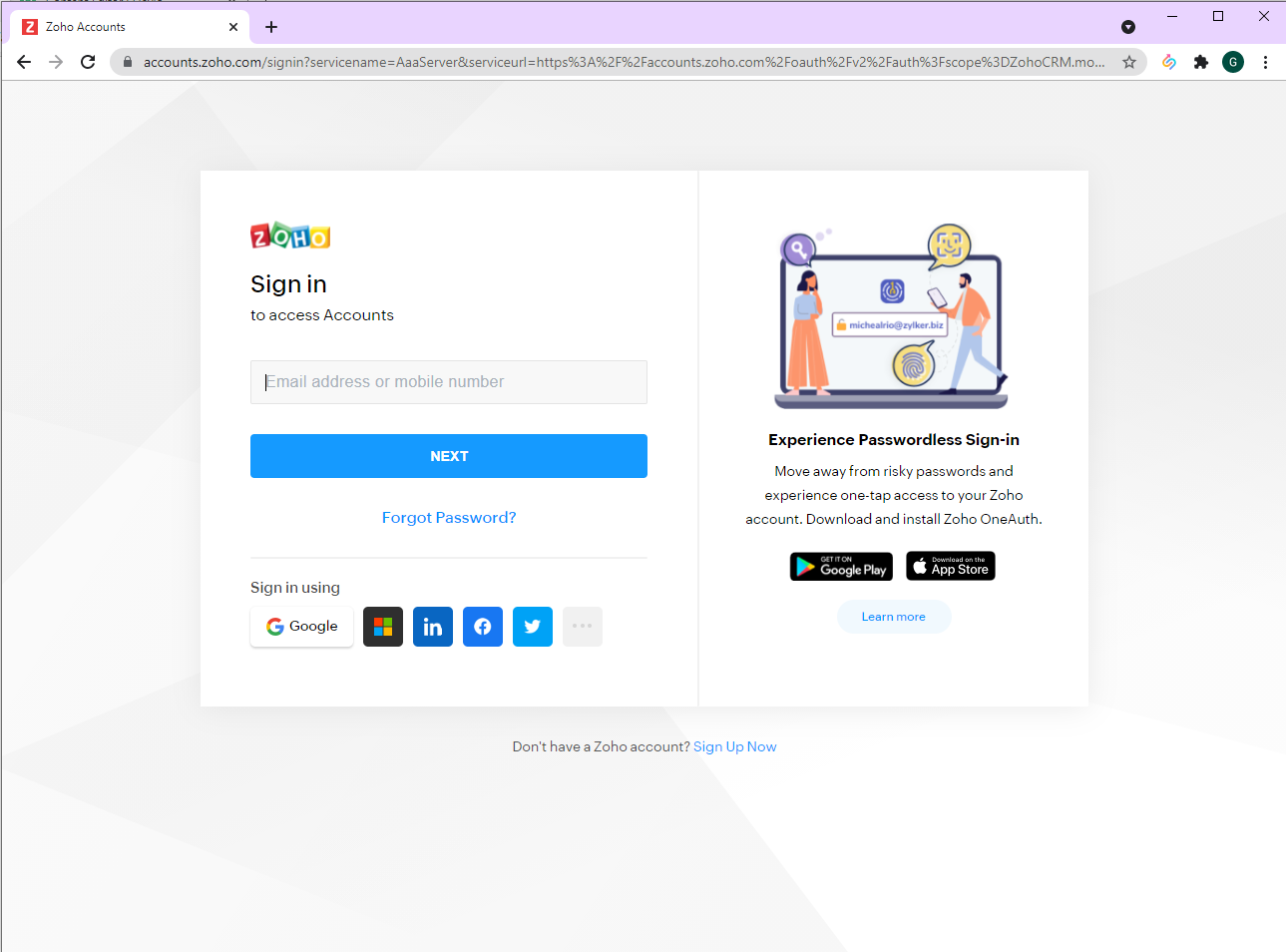
    Zoho Accounts "Sign in" page with the email or mobile number field, "NEXT" button and "Sign Up Now" link
  4. Once you’ve signed in, you’ll have to sync your Zoho account with SalesQL by clicking 'Accept.'
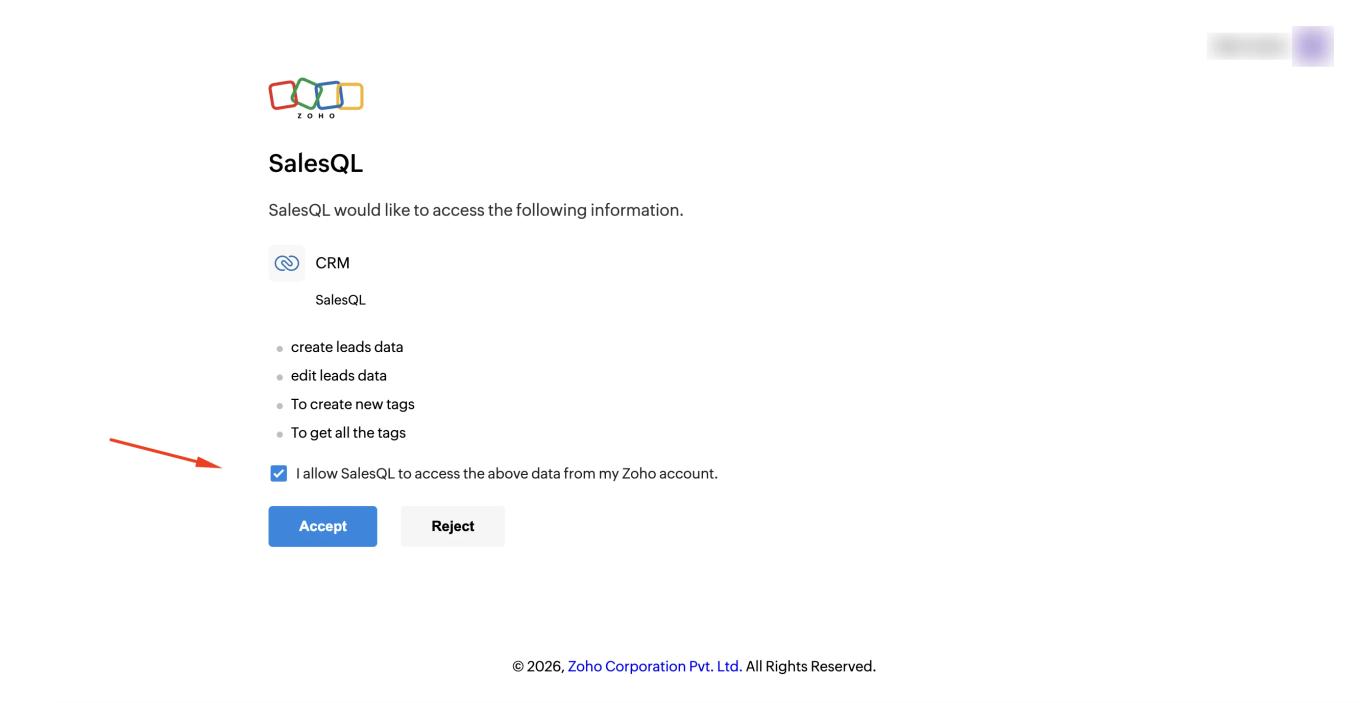
    Zoho consent screen listing the CRM permissions SalesQL requests, with the allow checkbox ticked and the "Accept" button
  5. If you have performed the previous steps correctly, you'll now be redirected to the SalesQL page, where you'll see the status is ‘Active’:
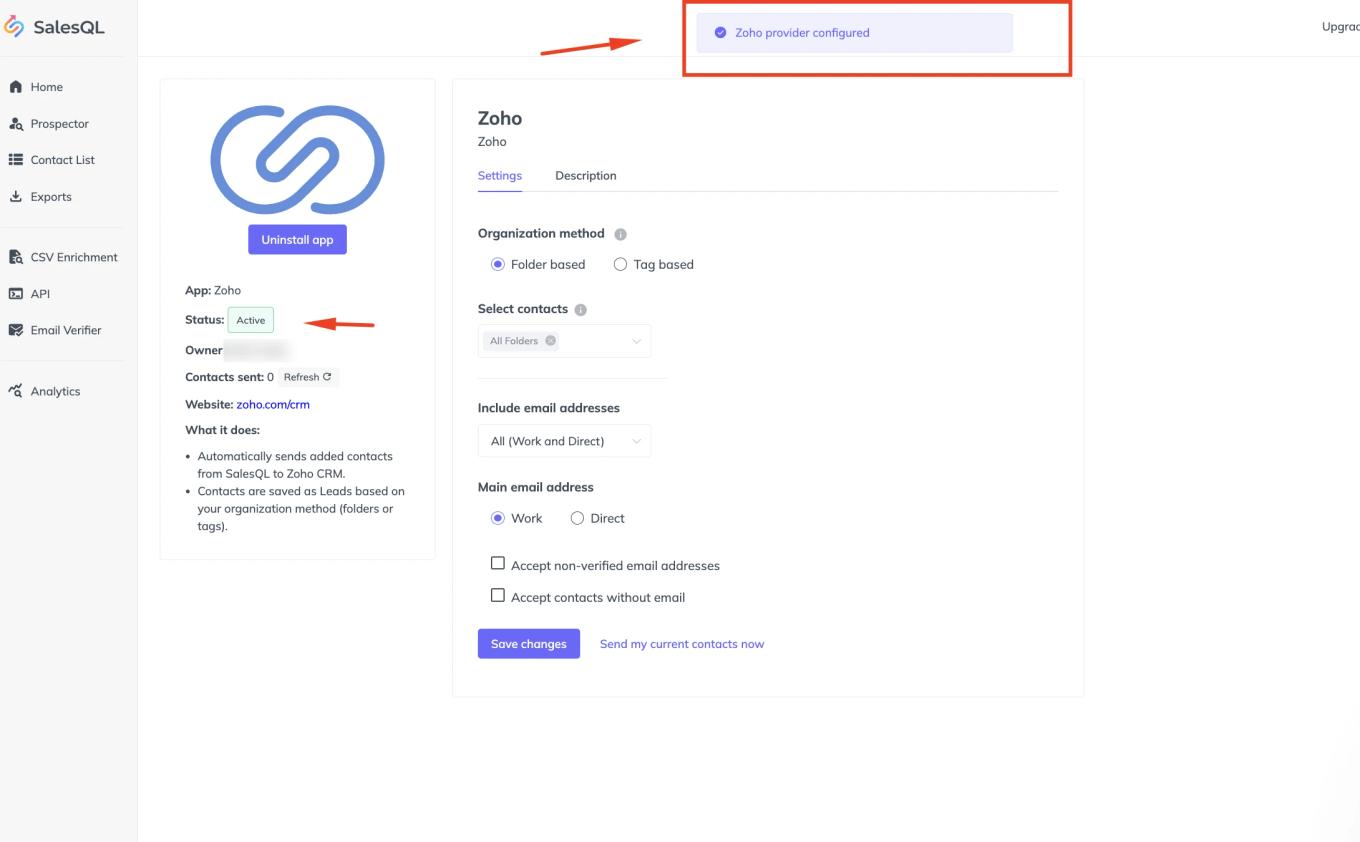
    SalesQL Zoho integration showing status "Active" and the "Zoho provider configured" confirmation message
  6. Then choose the other filters and click ‘Save’:
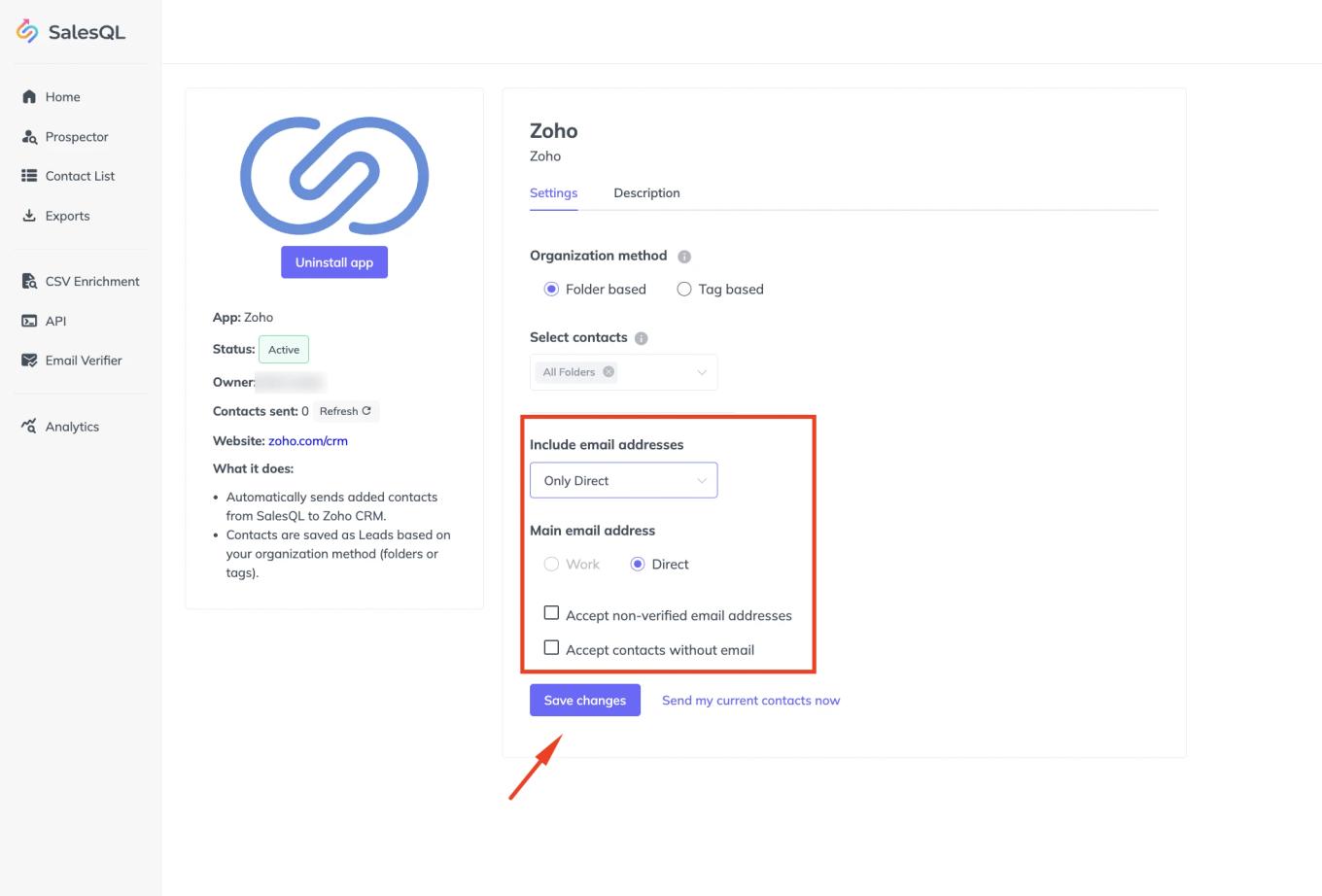
    Zoho integration settings with "Include email addresses" and "Main email address" options highlighted and "Save changes"
  7. Lastly, click on ‘Integrate My current Contacts.’ All the contacts that comply with the filters chosen above will be exported.
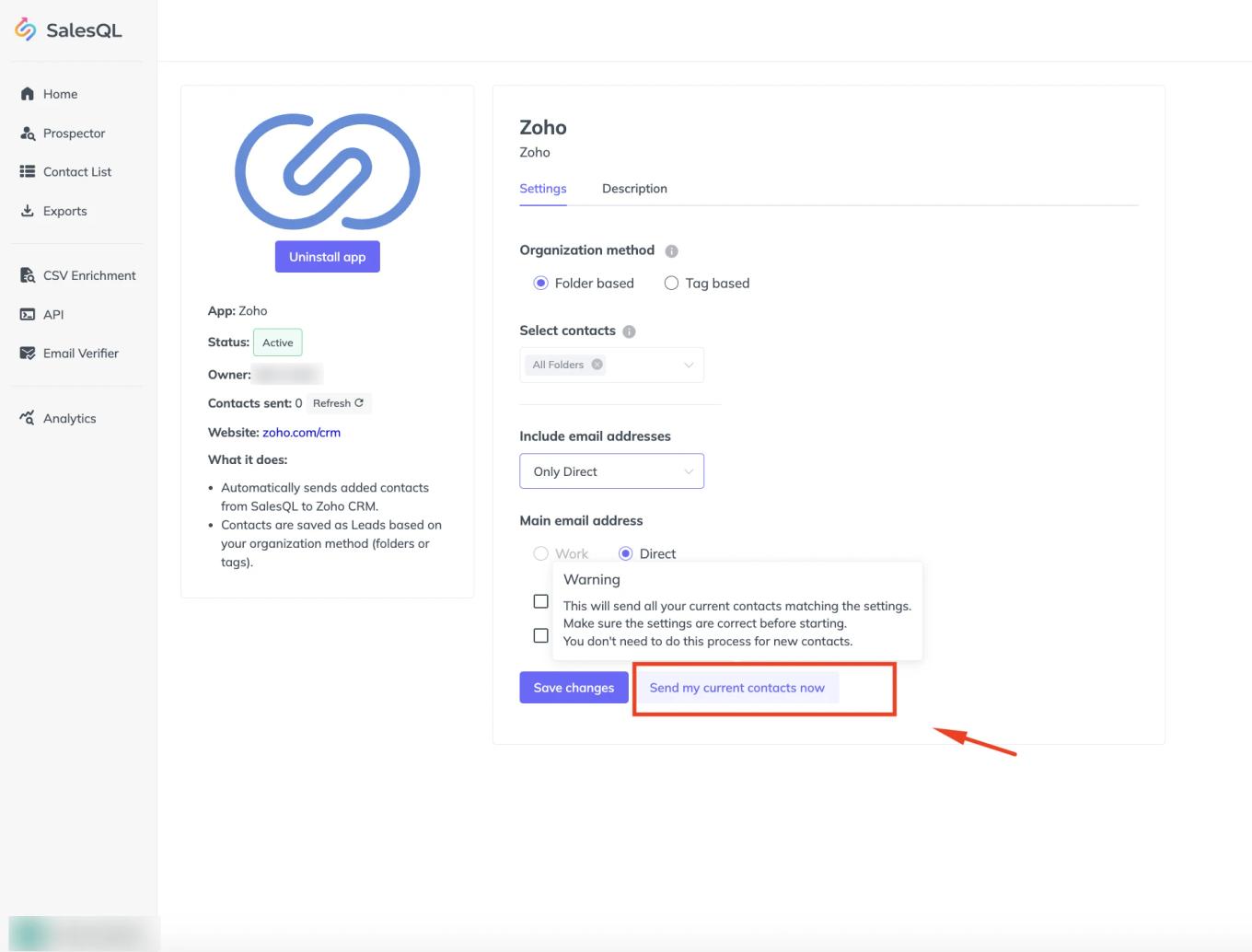
    Zoho integration settings with the "Send my current contacts now" link highlighted and a warning tooltip

Error when syncing my SalesQL account with Zoho

If you see an error like this:

Zoho authorization error in Spanish saying the user is not part of any organization, so CRM permissions are not granted

You’ll have to create a CRM Zoho account with the following link: https://crm.zoho.eu/crm/

Zoho CRM website homepage with the "ACCESS ZOHO CRM" button

Once you see this page, your CRM account is ready and you can keep performing the synchronization.

Zoho CRM welcome page asking "Where would you like to start?" with tour and data migration options

When you’ve finished and you’ve integrated your contacts with Zoho, you can find them as ‘Leads’ by clicking the following link.

More in Integrations

  • HubSpot Integration

    Connect SalesQL to HubSpot, export your projects as HubSpot lists, and import extra contact fields from a SalesQL download with HubSpot's import tool.

  • Mailchimp Integration

    Connect SalesQL to Mailchimp, send your existing contacts to an audience, and filter them in Mailchimp by the tags created from your SalesQL folders.

  • Zapier Integration

    Connect your SalesQL account to Zapier from the Integrations page of your dashboard, then build Zaps that connect SalesQL with other apps, such as Gmail.

  • SalesQL with Google Sheets

    Send new SalesQL contacts to a Google Sheet automatically with a Zapier Zap, from setting up the trigger to mapping columns and publishing it.

See all 5 articles in Integrations