Auto enrichment

Auto Enrichment over Recruiter Lite

Use SalesQL Auto Enrichment in Recruiter Lite to add several pages of LinkedIn search results to a folder, then review them in your dashboard.

In short

  • Start a search, choose a folder, click the lightning bolt, and select Add prospects from search results.
  • Set how many pages to download (one page holds 25 contacts) and click Start; don't do other work until it finishes.
  • Automatic multi-page adding is not available in Pipelines; use the bulk function there instead.

Did you know that, unlike our competitors, SalesQL empowers you with automation for downloads, boosting productivity while reducing effort? In this article, we will walk you through the process of adding multiple pages using our LinkedIn Auto Enrichment feature in Recruiter Lite. ๐Ÿš€๐Ÿ“Š๐Ÿค–

๐Ÿ”‘ Before we commence, we strongly recommend holding a responsible position that adheres to LinkedIn's usage guidelines. For detailed information, please refer to this link: LinkedIn Limits Information ๐Ÿ”’๐Ÿ“„๐Ÿ“Œ

Watch the quick video tutorial ๐Ÿ“บ๐Ÿ‘€๐Ÿ“น

Detailed steps on how to add multiple pages from LinkedIn search pages ๐Ÿ“„๐Ÿ”๐Ÿ“„๐Ÿ”๐Ÿ“„๐Ÿ”

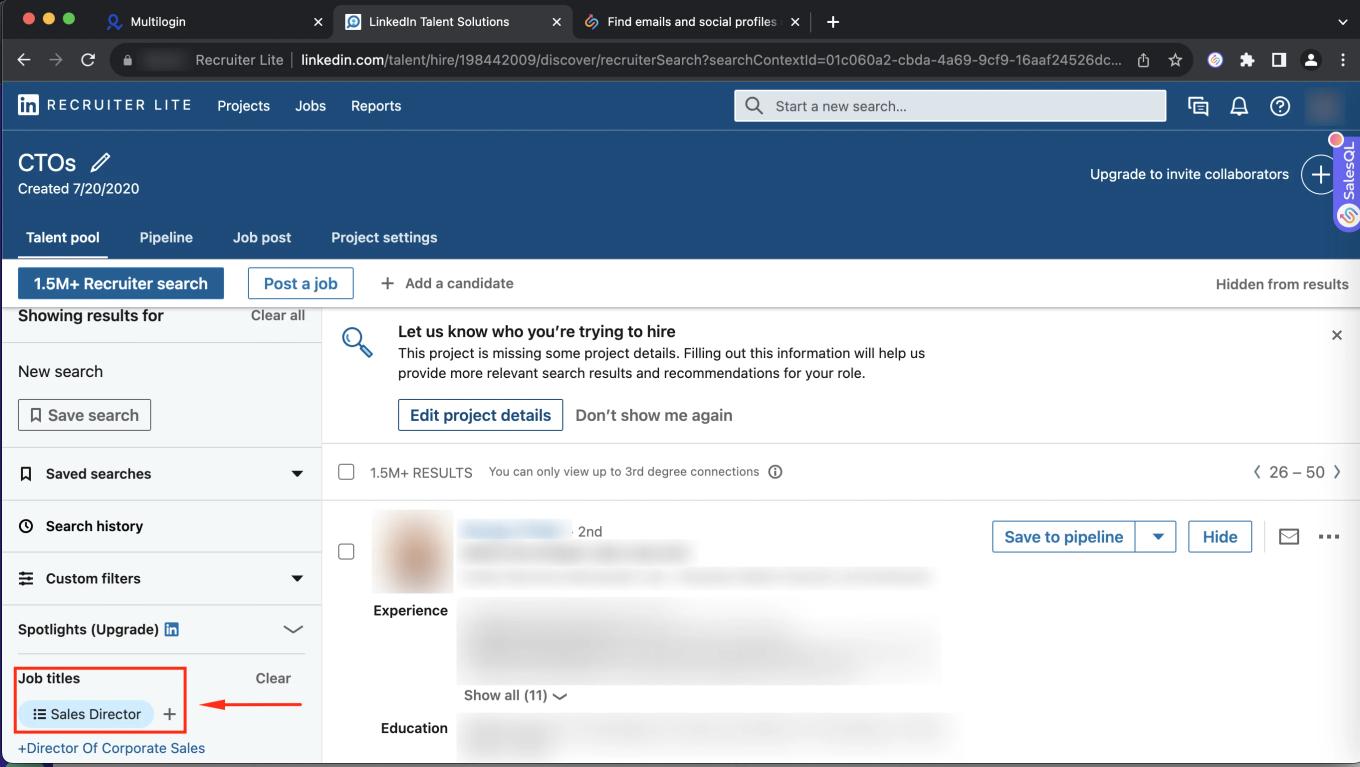
  1. First, you have to start a LinkedIn search, in this example, I'm looking for โ€œSales Directorโ€ and clicking on the button: See all results for โ€œSales Director"

    LinkedIn Recruiter Lite search with the "Sales Director" job title filter highlighted
  2. We choose a folder for these contacts
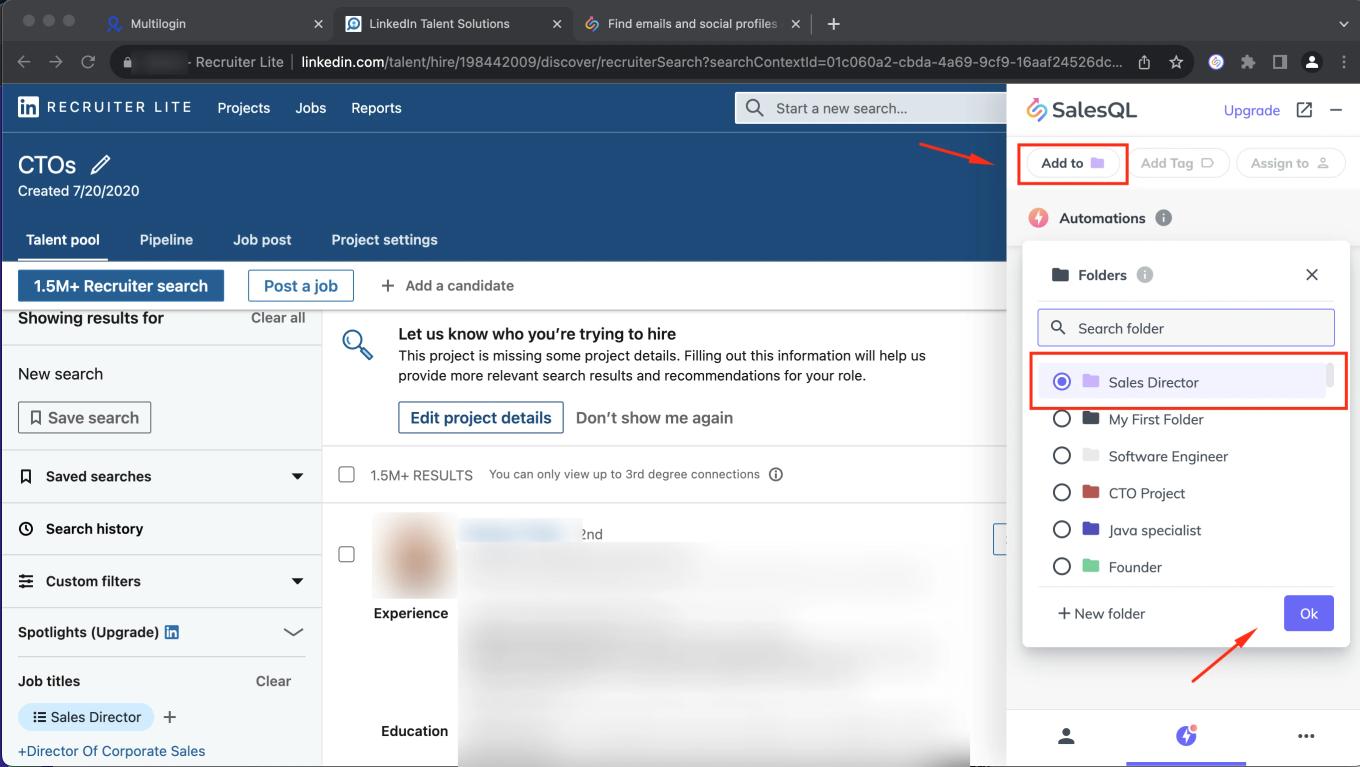
    SalesQL "Automations" panel on Recruiter Lite with "Add to" open and the "Sales Director" folder selected

    Lets named โ€œSales Directorโ€. This folder is where the contacts will be redirected.

  3. Now we have to click on the lightning bolt sign and select the option "Add prospects from search results"
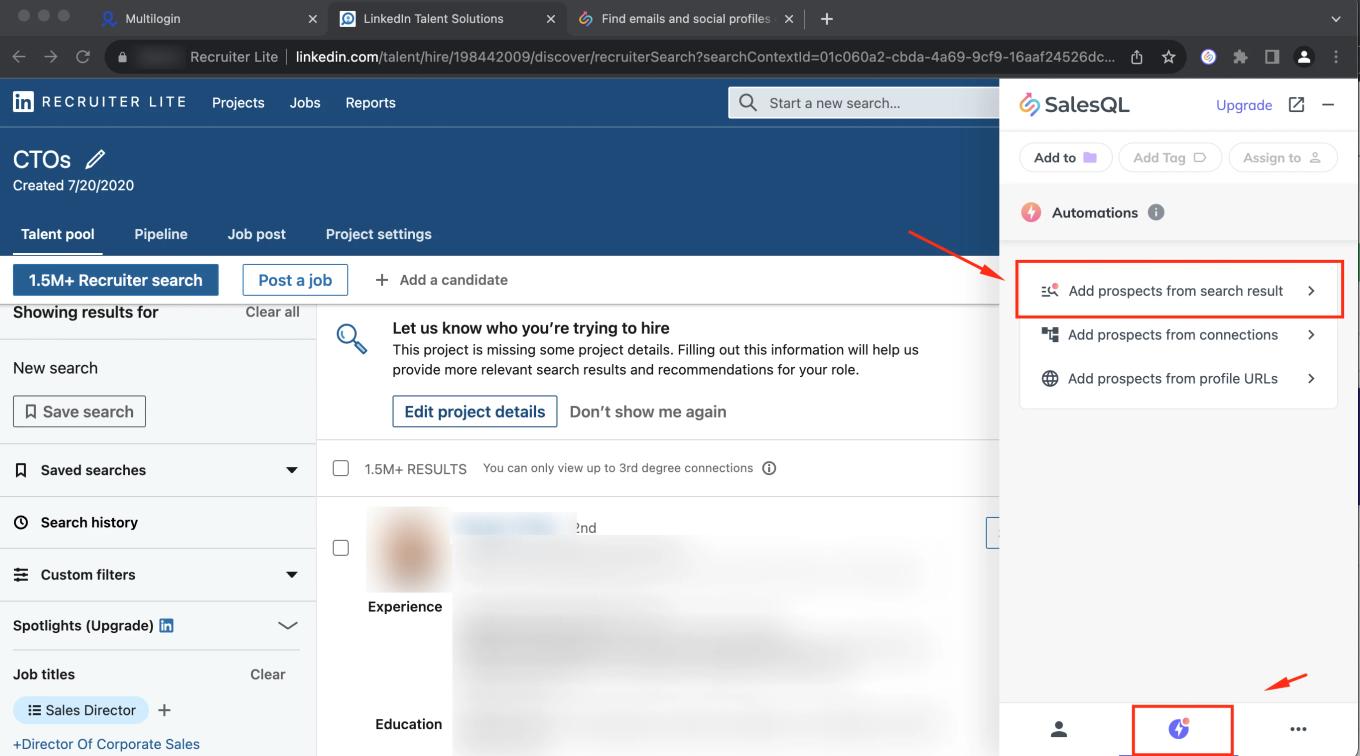
    SalesQL "Automations" tab on Recruiter Lite with "Add prospects from search result" highlighted
  4. After clicking on "Add prospects from search results" we will have the option to specify the number of pages you want to download. In this case, wewill add 1 page of the results (25 contacts) and click on "Start"
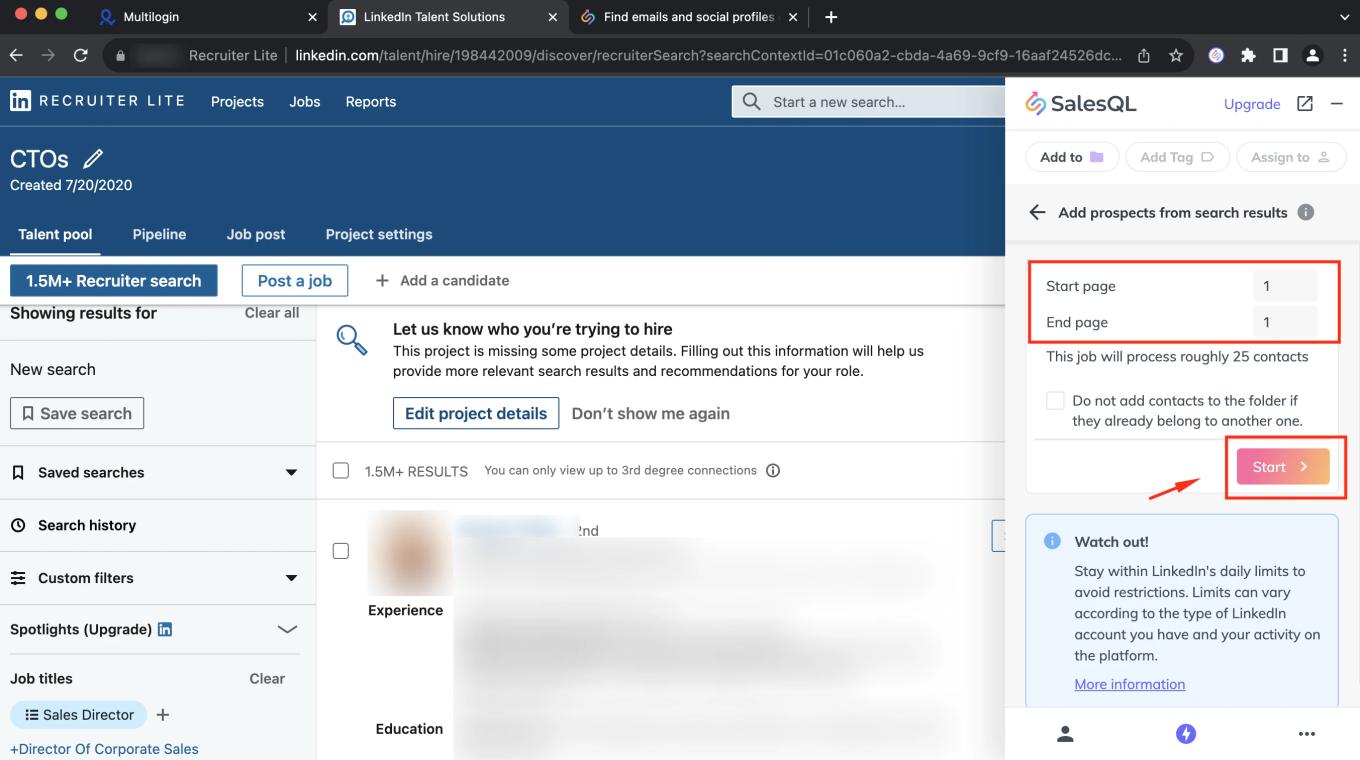
    SalesQL "Add prospects from search results" form on Recruiter Lite set to page 1 to 1, with "Start" highlighted

    We can see that the extension is downloading those contacts, so it is very important to let the extension finish downloading and not to do any other work until it is finished.
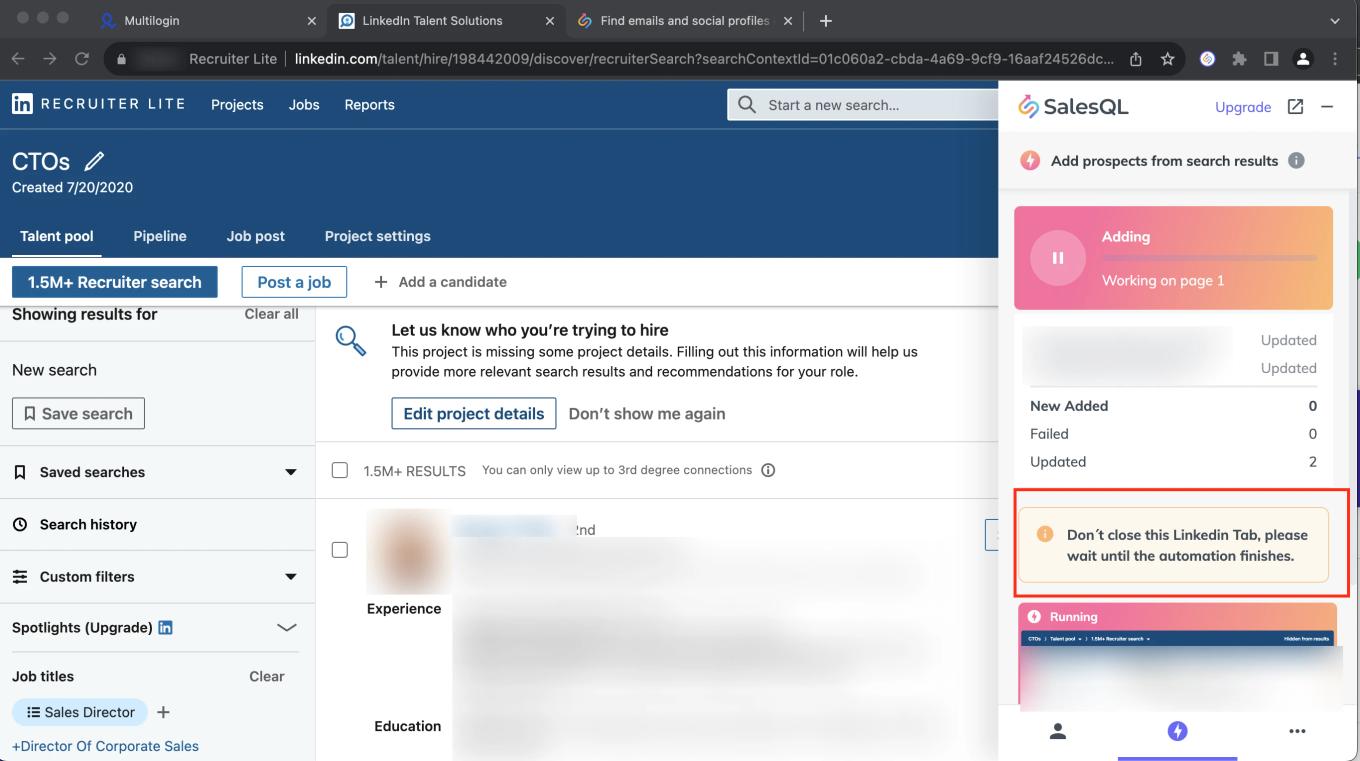
    SalesQL automation adding Recruiter Lite contacts on page 1, with the "Don't close this Linkedin Tab" warning highlighted
  5. Once the extension finishes processing the pages, we will see a sign that the job was completed. And now to go directly to the folder to find those contacts, we will click on "See contacts".
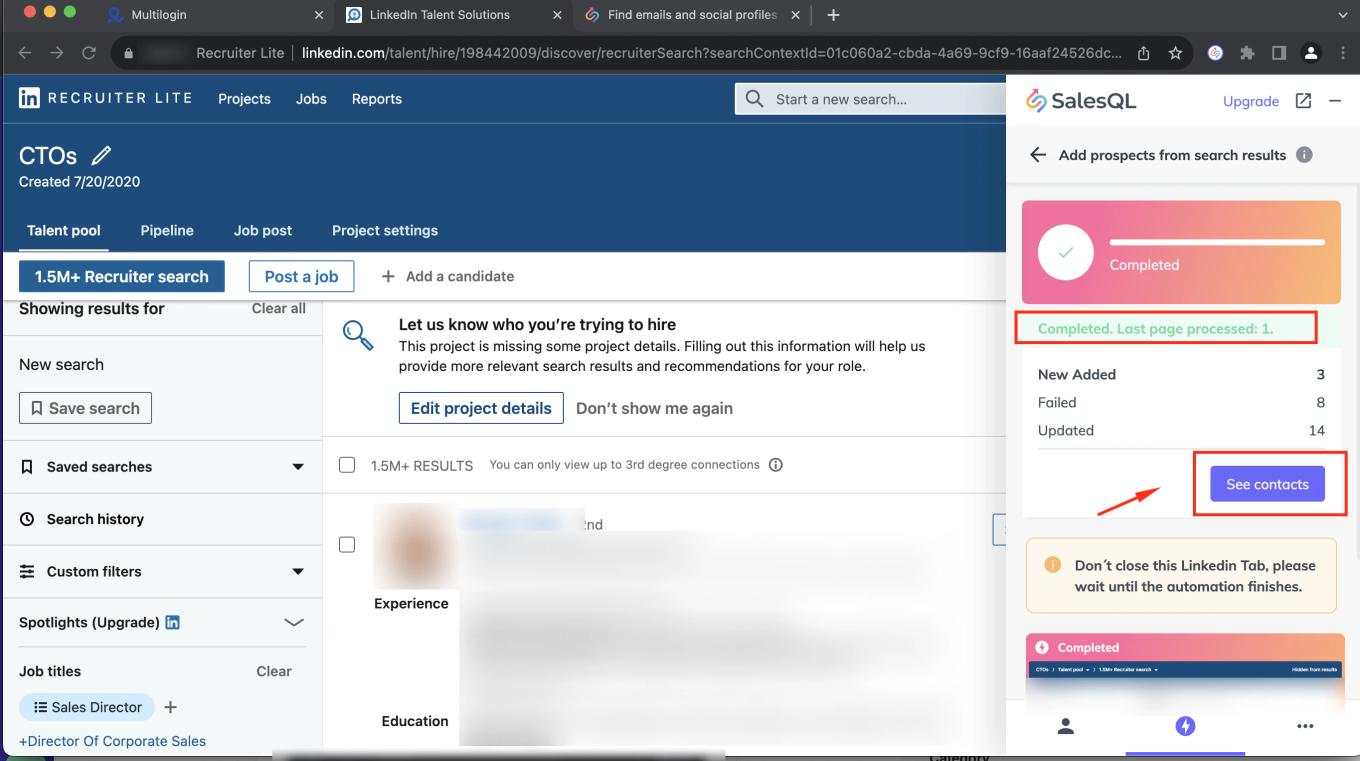
    SalesQL automation "Completed. Last page processed: 1." on Recruiter Lite with the "See contacts" button highlighted

    This last action will bring us directly to our dashboard to the selected folder, where we can manage all those contacts we downloaded.
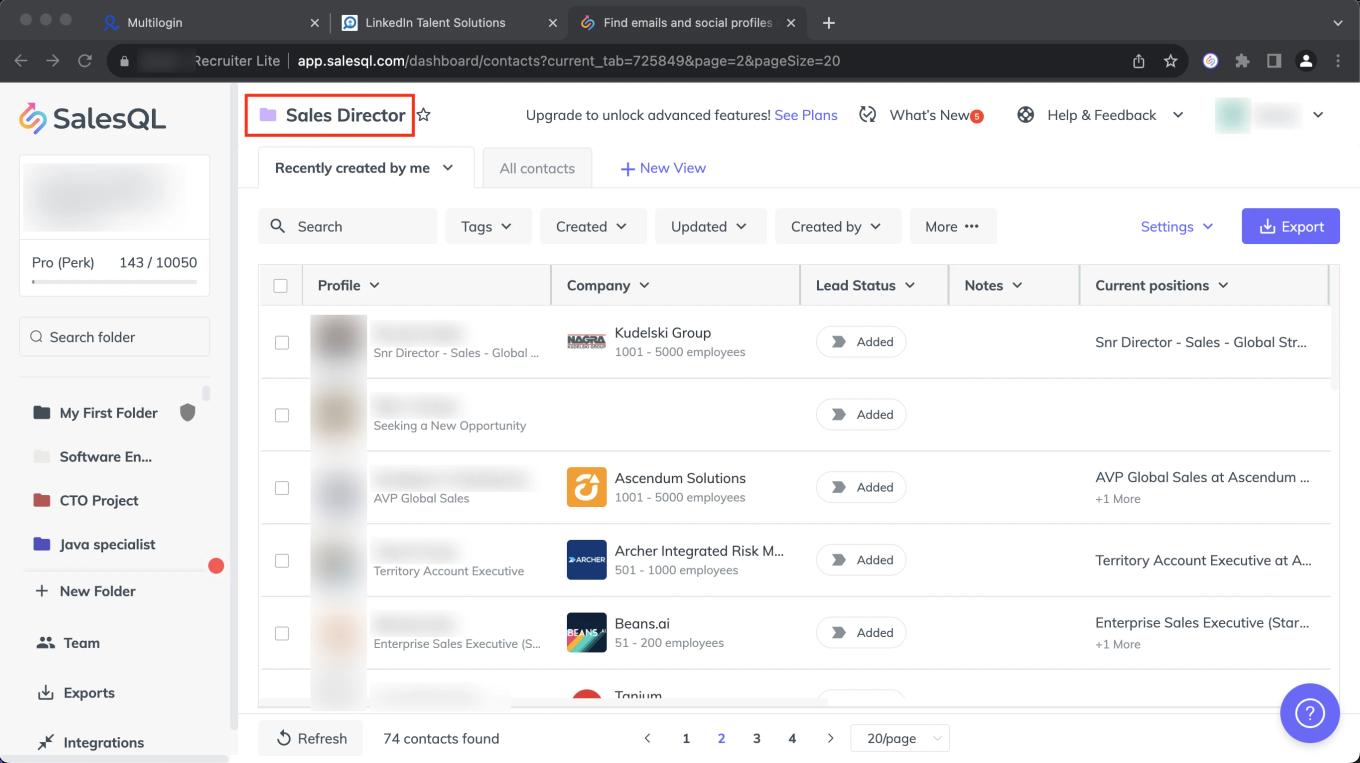
    SalesQL dashboard showing the "Sales Director" folder with its list of downloaded contacts

Please be aware that the feature to automatically add multiple pages is not available in Pipelines. To download contacts in Pipelines, you must utilize the bulk function SalesQL Bulk Download Guide. ๐Ÿ“ฅ๐Ÿ“‹๐Ÿ”—

More in Browser extension

  • Auto enrichment

    Downloading Your LinkedIn Connections on SalesQL

    Download your direct LinkedIn connections, with emails and phone numbers, into a SalesQL folder by choosing how many to add and which block to start from.

  • Auto enrichment

    Auto Enrichment over LinkedIn

    Add contacts from multiple LinkedIn search result pages to a SalesQL folder at once with the extension's Add prospects from search results automation.

  • Auto enrichment

    Auto Enrichment over Sales Navigator

    Download multiple pages of Sales Navigator search results, lead lists, and LinkedIn group members into a SalesQL folder with the extension's automation.

  • Auto enrichment

    Auto Enrichment over LinkedIn RPS

    Download multiple pages of LinkedIn RPS search results into a SalesQL folder with Add prospects from search results; Pipelines need the bulk function.

  • Getting started

    Your first contact - SalesQL on LinkedIn

    Add your first LinkedIn contact with the SalesQL extension: choose a folder, click Reveal info & Add, and open the contact in your dashboard.

  • Getting started

    Your first contact - SalesQL on Sales Navigator

    Add a single Sales Navigator profile to a SalesQL folder from the extension, then open Current work folder to find the saved contact.

See all 16 articles in Browser extension