Auto enrichment

Downloading Your LinkedIn Connections on SalesQL

Download your direct LinkedIn connections, with emails and phone numbers, into a SalesQL folder by choosing how many to add and which block to start from.

In short

  • Click the lightning icon and choose Add prospects from search results to start downloading your connections.
  • Each block equals 40 contacts, and the extension remembers the last block you worked on for your next download.
  • Stay on the page until the download finishes; with fewer than 1000 connections you can filter and download them in bulk instead.

This article covers how to download your LinkedIn first connections, complete with emails 📧 and phone numbers 📞. 📄🔍

How to extract my direct LinkedIn connections

  1. First, you have to click on the lightning icon and then "Add prospects from search results"
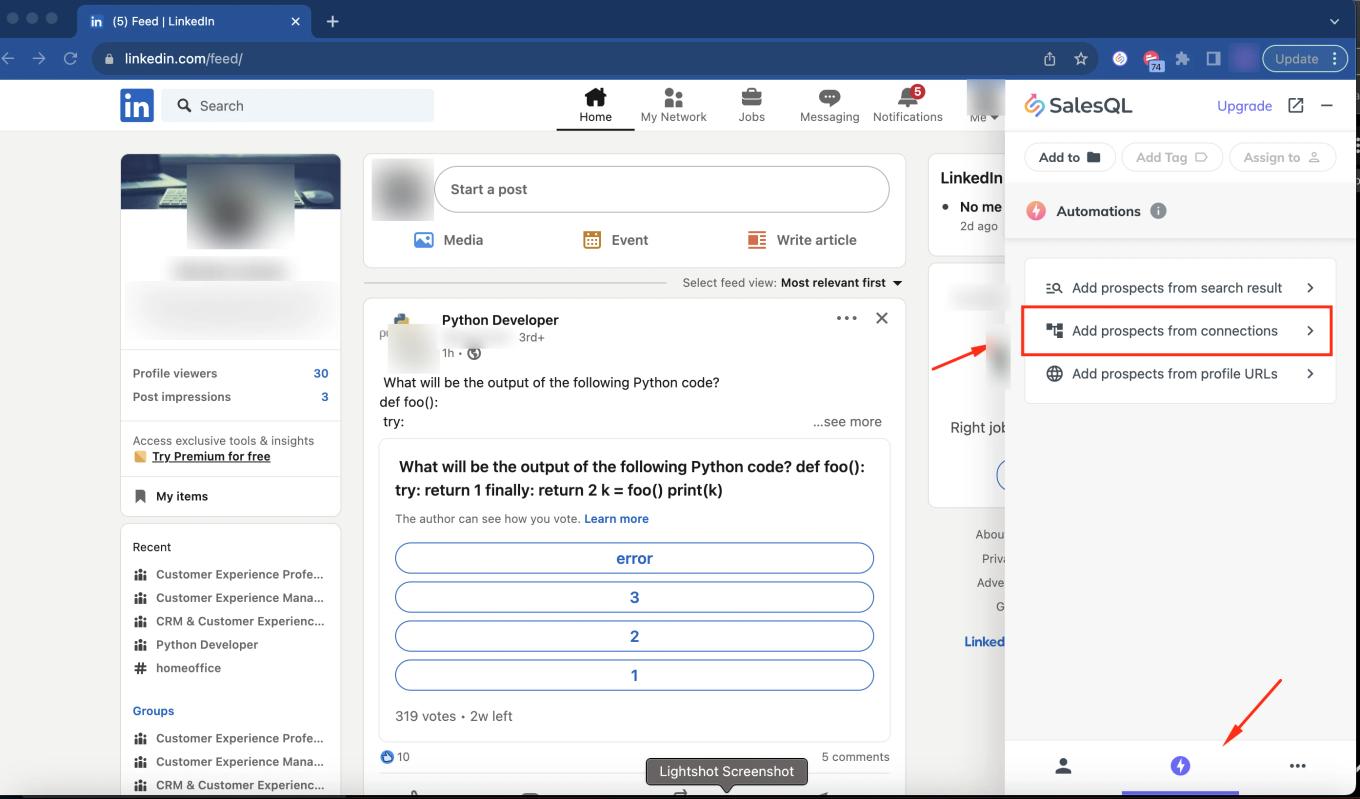
    SalesQL extension on the LinkedIn feed with the lightning icon tab open and "Add prospects from connections" highlighted
  2. You will be redirected to the LinkedIn page where you can see your connections. Before downloading the new contacts, we will create a folder called “LinkedIn Connections”. The connections are going to be saved under this folder:
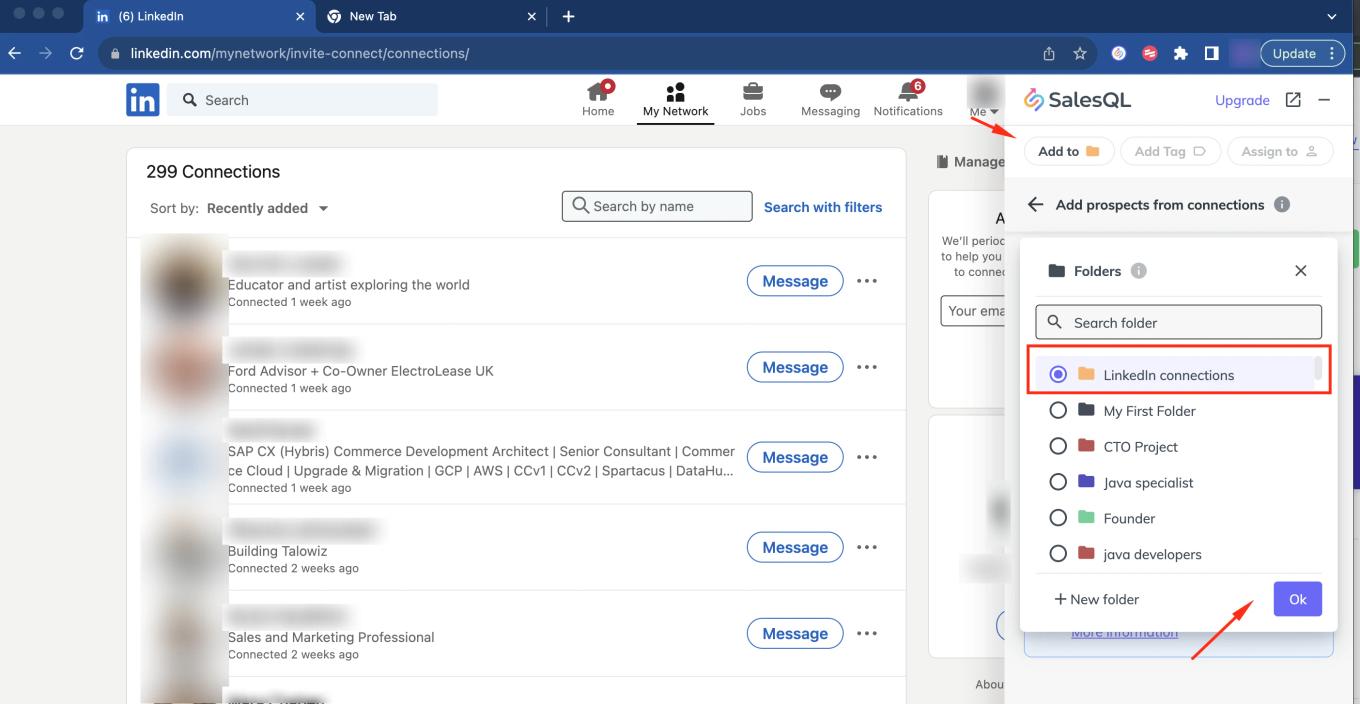
    SalesQL extension on the LinkedIn connections page with "Add to" open and the "LinkedIn connections" folder selected

    You will now be prompted to specify two details: the total number of contacts you wish to download and the starting block from which to initiate this download. Let's break it down for clarity:

    • 🔢 Each block corresponds to 40 contacts, resembling a LinkedIn page.
    • For example, if you choose to start the download from block number 2, you'll begin downloading contacts starting from the 40th person on your connection list, and this will continue until you reach your desired total number of contacts to add. 📊👥
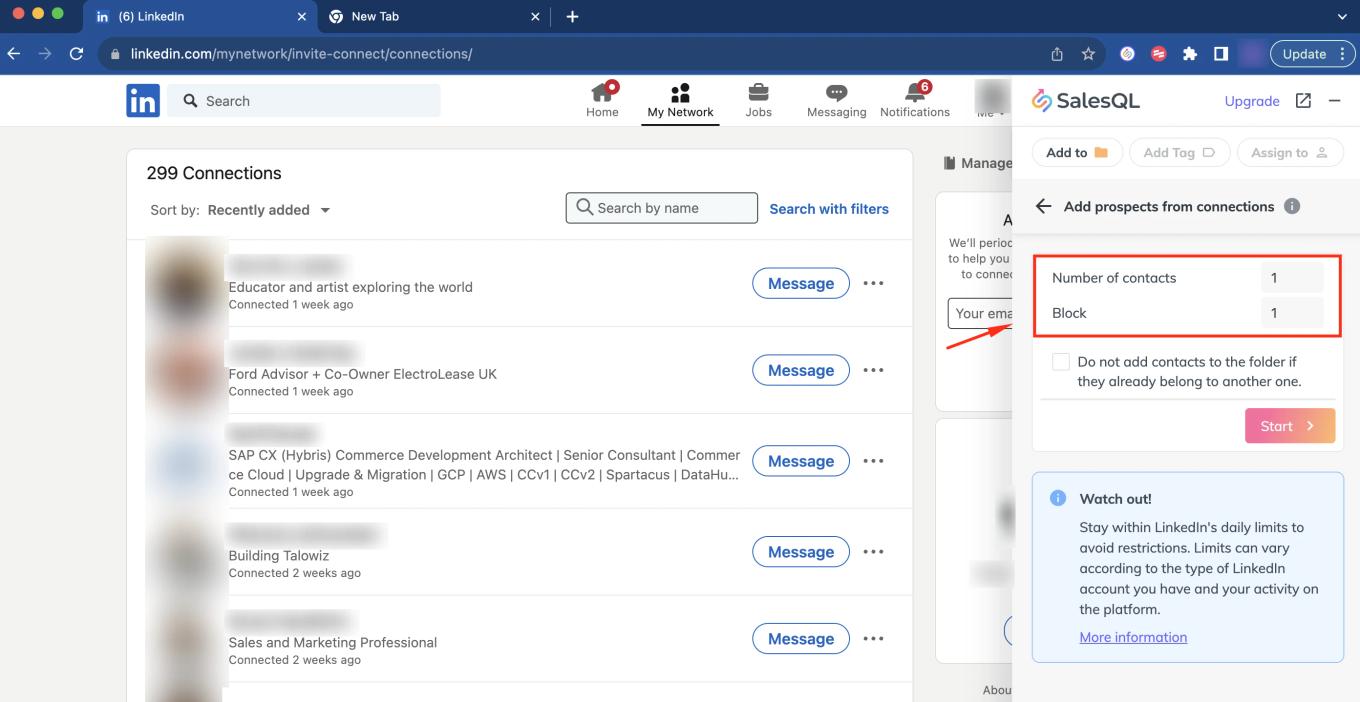
    SalesQL "Add prospects from connections" form with the "Number of contacts" and "Block" fields highlighted
  3. In this scenario, I aim to add only 14 contacts, commencing from block number two. Therefore, the download will initiate at contact 40 and proceed until it reaches contact 54, encompassing just the targeted 14 contacts from the list.
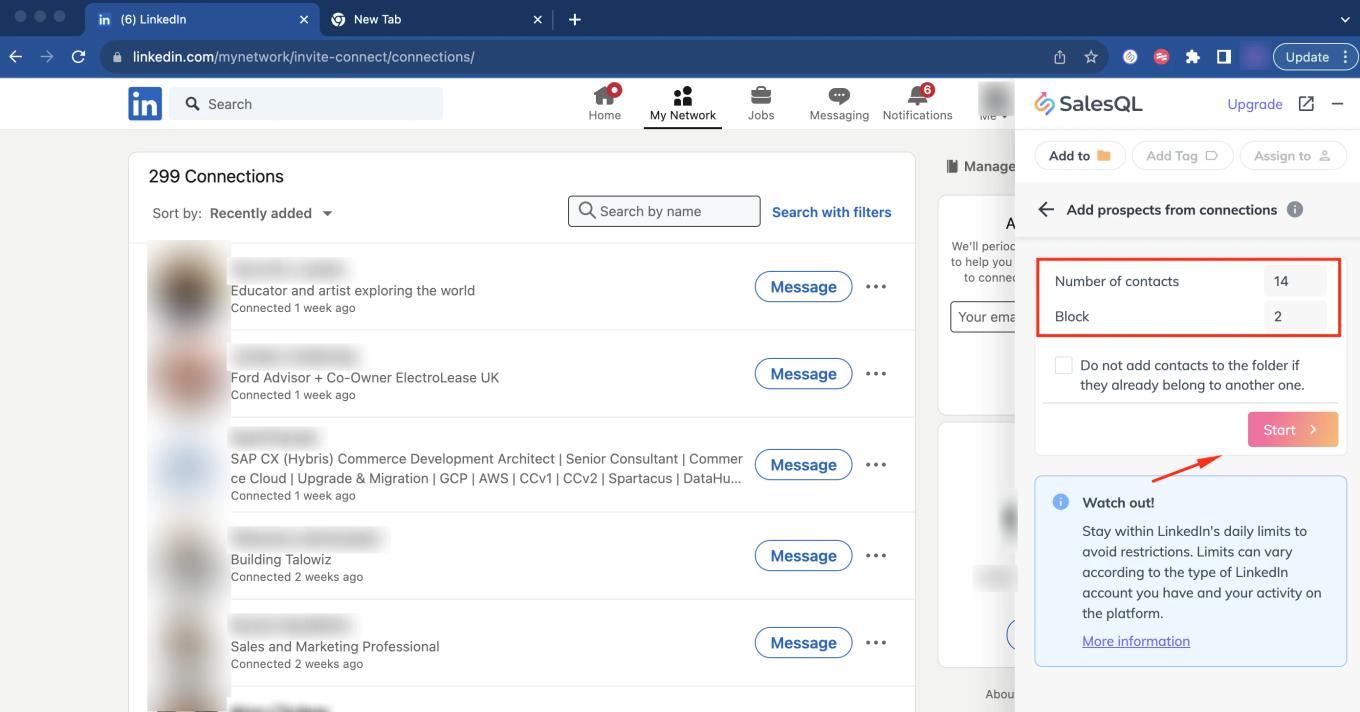
    SalesQL "Add prospects from connections" form set to 14 contacts from block 2, with an arrow to "Start"

    Once you've clicked the "Start" button, the download process will commence. It is crucial to refrain from navigating to other pages or engaging in additional tasks; instead, please wait patiently until the download is complete.
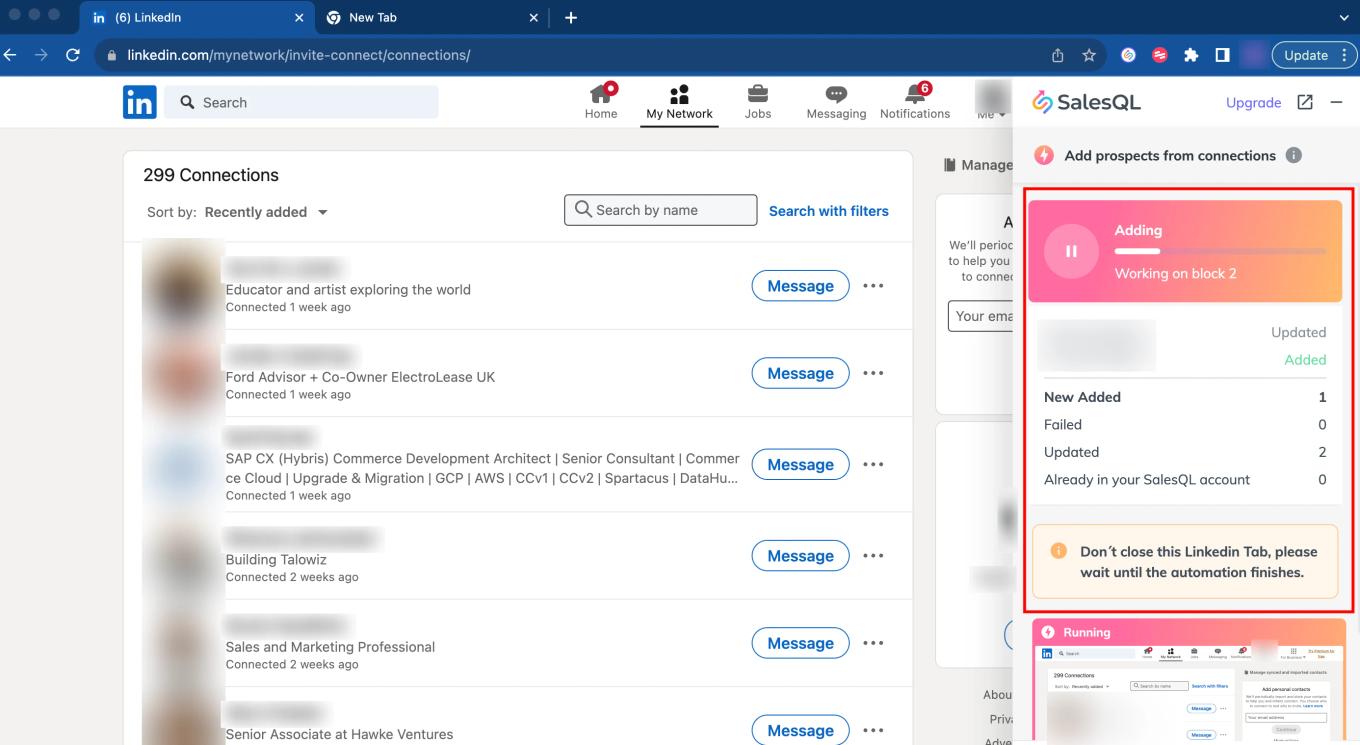
    SalesQL extension downloading connections, with an "Adding" progress bar on block 2 and running totals
  4. At the end of the download, we can see that the number of contacts (14) were successfully downloaded.
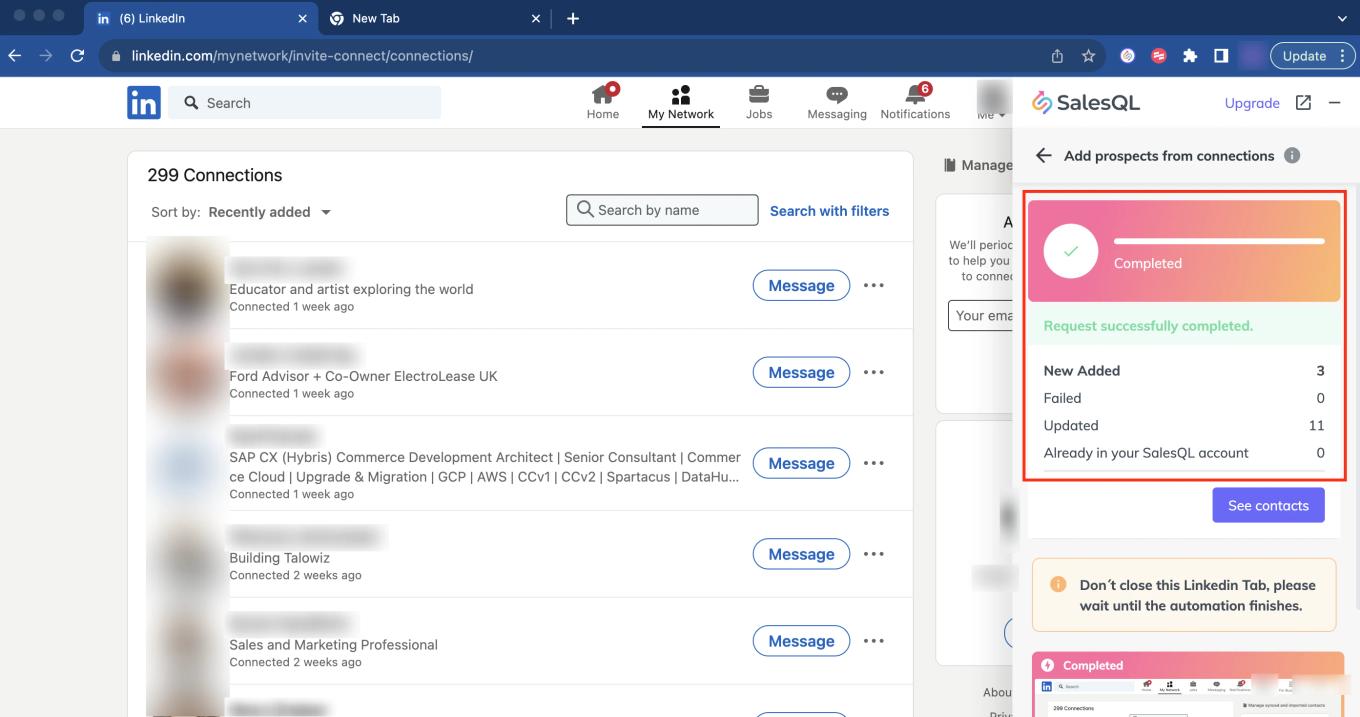
    SalesQL extension showing the connections download "Completed" with "Request successfully completed." and totals
  5. If you want to see all your connections downloaded, you have to click on "See all”
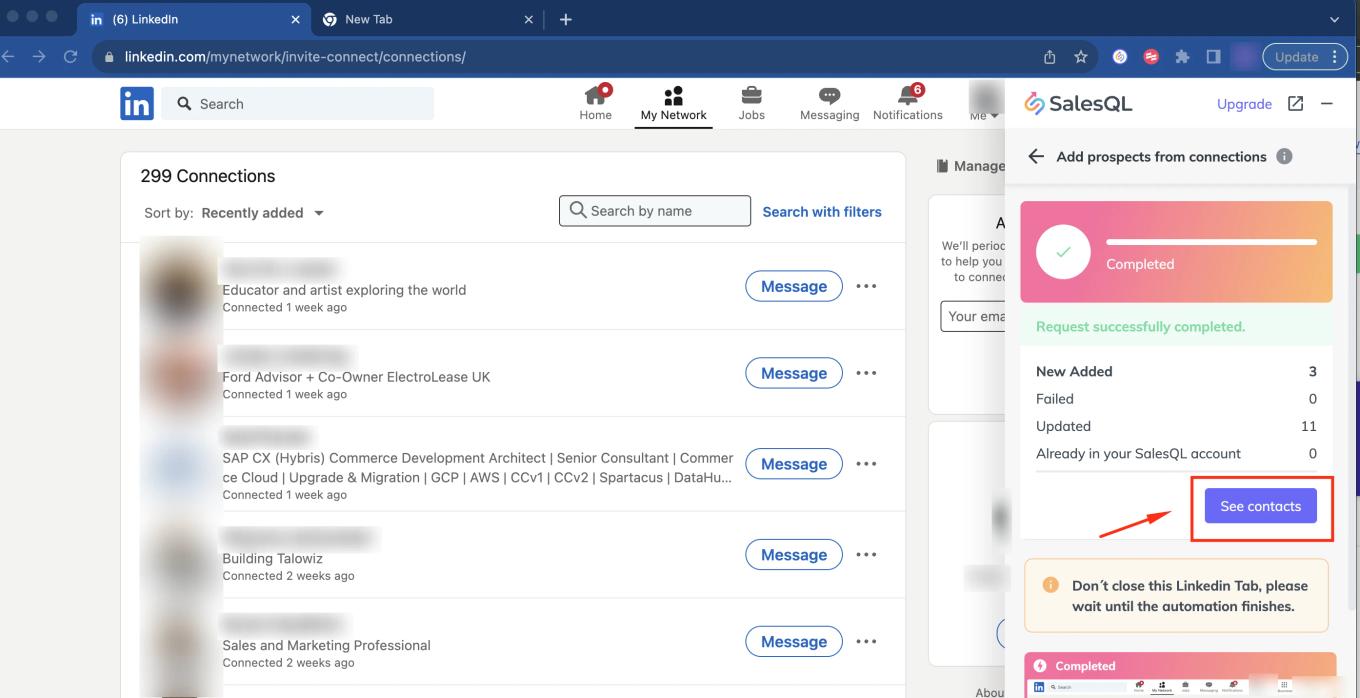
    Completed connections download in the SalesQL extension with the "See contacts" button highlighted

    Here you can see the connections are now extracted to my SalesQL account, under the “LinkedIn Connections”:
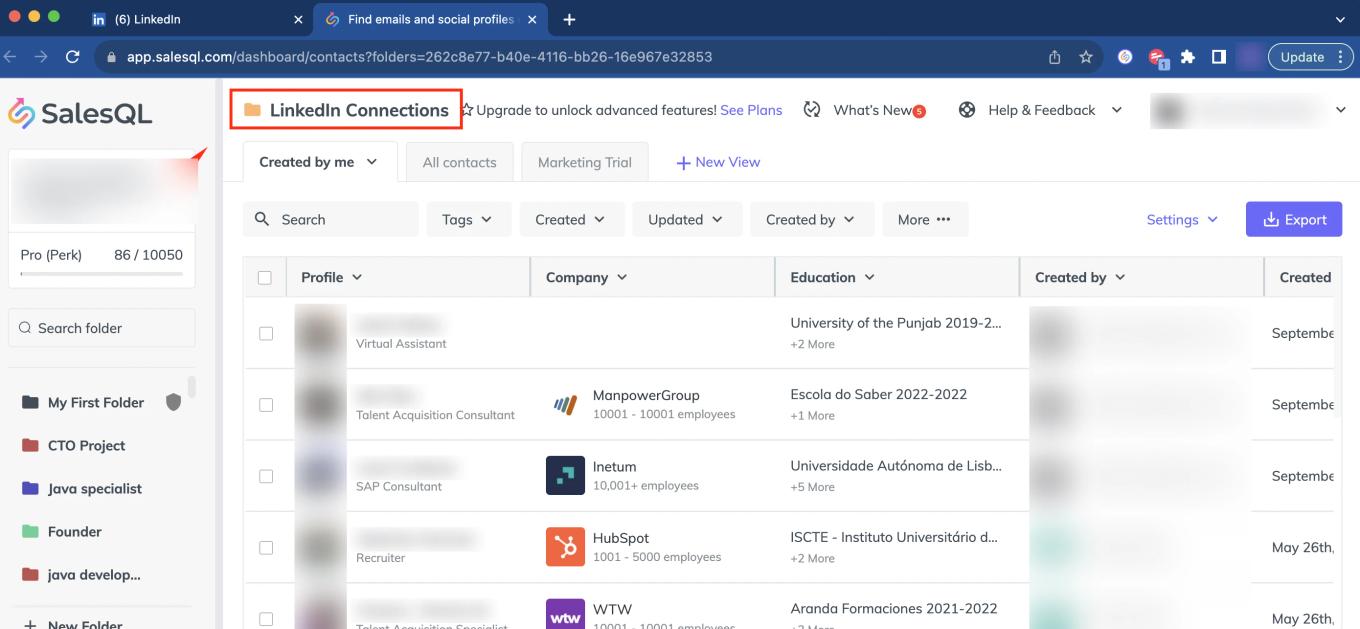
    SalesQL dashboard showing the downloaded connections inside the "LinkedIn Connections" folder

The extension saves your last worked block, so for your next download, you won't need to remember which block you left off on 🔄

Important Points to Note About Downloading Connections

Right now the extension searches blocks of 40 contacts, to see if there are any new contacts, if it is not able to find any new contacts (all contacts are part of your account), the process stops, which may result in an error message.

Unfortunately, there is no way to change this behavior at this time. We are working to add the ability to ignore already downloaded contacts and extract everything. In the meantime, you have a solution: Identify where the new contacts are by scrolling vertically in 'My Connections' to find out where the missing contacts are. They are probably a few pages ahead from the beginning. You can download them one by one or select them in bulk:

SalesQL extension prospect list on the LinkedIn connections page, with the contact checkboxes highlighted

Alternate Method to Download Your Connections

If you prefer not to work in blocks and have fewer than 1000 connections, you can easily apply a filter to your connections and download them in bulk, just like conducting a regular LinkedIn search. 🧐📄👥📦

1. On the page of your connections, just click “search with filters”

LinkedIn connections page with the "Search with filters" link highlighted

To simplify the process of extracting your connections, you can utilize the "extract multiple pages" feature, treating it as a regular search. This allows you to effortlessly retrieve and organize your connections across multiple pages with ease.

LinkedIn 1st-degree connections search with SalesQL "Add prospects from search results" set to pages 1 to 11
LinkedIn connections "Sort by" menu with "Recently added" highlighted, next to the SalesQL connections form

More in Browser extension

  • Auto enrichment

    Auto Enrichment over LinkedIn

    Add contacts from multiple LinkedIn search result pages to a SalesQL folder at once with the extension's Add prospects from search results automation.

  • Auto enrichment

    Auto Enrichment over Sales Navigator

    Download multiple pages of Sales Navigator search results, lead lists, and LinkedIn group members into a SalesQL folder with the extension's automation.

  • Auto enrichment

    Auto Enrichment over Recruiter Lite

    Use SalesQL Auto Enrichment in Recruiter Lite to add several pages of LinkedIn search results to a folder, then review them in your dashboard.

  • Auto enrichment

    Auto Enrichment over LinkedIn RPS

    Download multiple pages of LinkedIn RPS search results into a SalesQL folder with Add prospects from search results; Pipelines need the bulk function.

  • Getting started

    Your first contact - SalesQL on LinkedIn

    Add your first LinkedIn contact with the SalesQL extension: choose a folder, click Reveal info & Add, and open the contact in your dashboard.

  • Getting started

    Your first contact - SalesQL on Sales Navigator

    Add a single Sales Navigator profile to a SalesQL folder from the extension, then open Current work folder to find the saved contact.

See all 16 articles in Browser extension