Bulk enrichment

Bulk Enrichment over Recruiter Lite

Add Recruiter Lite contacts in bulk with SalesQL from Talent Pool search results or project pipelines, choosing single profiles or full pages.

In short

  • In Talent Pool, scroll to the end of the results page so the extension can read all the contacts.
  • Pick a folder with Add to, then select contacts or the whole page (25 contacts) and click Reveal and Add.
  • Pipelines support selecting all loaded contacts, but automatic multi-page adding is not available there.

In this article, we will guide you through using SalesQL bulk enrichment in the Recruiter Lite. ๐Ÿ“ˆ๐Ÿ”๐Ÿ‘ฅ

Adding contacts directly from the search results- Talent Pool

When you start a search in Talent Pool and open the extension, you will see that the first contacts are displayed in the extension. To continue and view the entire contact page in the extension, you will have to scroll the LinkedIn page to the end so that the extension can read those contacts.

SalesQL extension on a Recruiter Lite talent pool showing the "Scroll-down on Linkedin to load more contacts" notice

In this way, when you reach the end of the page, the extension will read all of these contacts.

SalesQL extension listing the contacts loaded after scrolling to the end of the Recruiter Lite results page

Before you start extracting these contacts, it is essential that you choose a folder to which you want them to be sent. ๐Ÿ“‚๐Ÿ“ฉ๐Ÿ‘

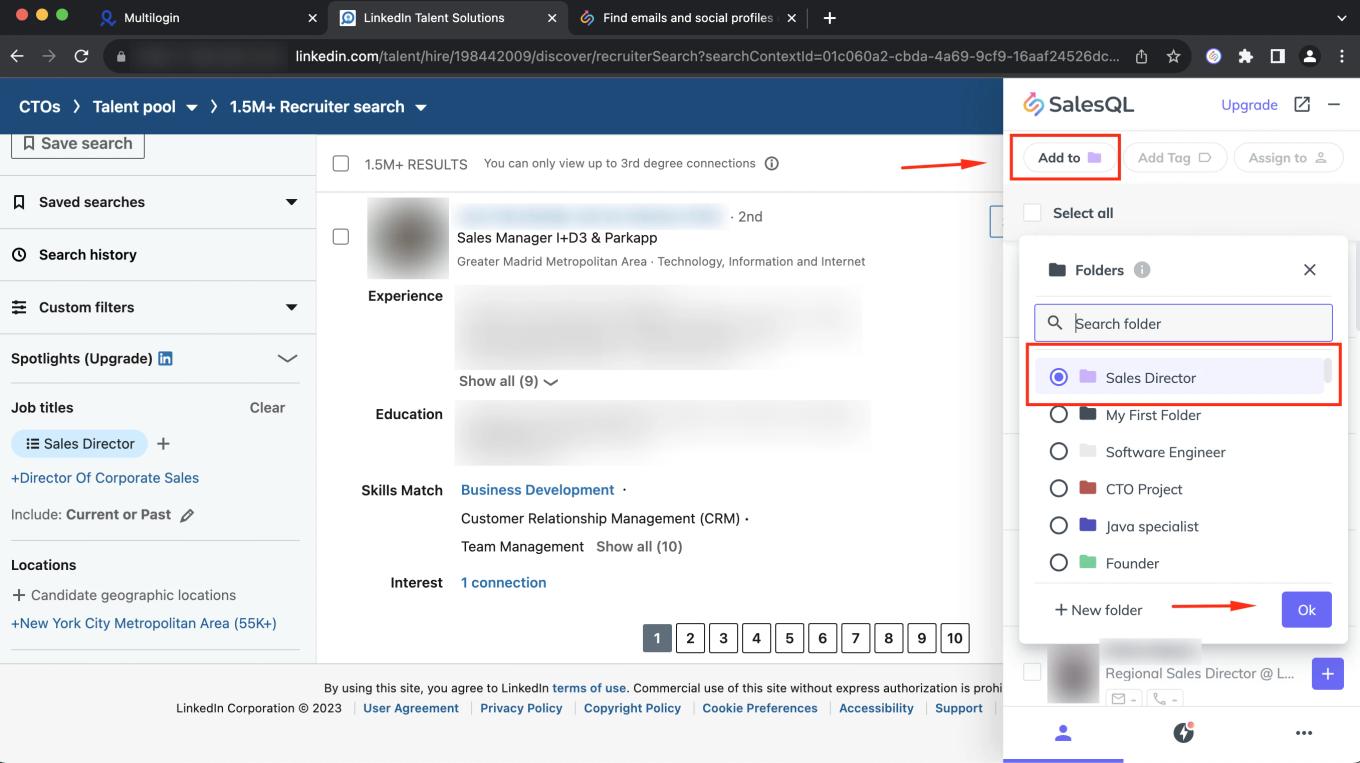
  1. Go to the extension and click on โ€œAdd toโ€ and the folder.

    SalesQL extension on Recruiter Lite with "Add to" open and the "Sales Director" folder selected
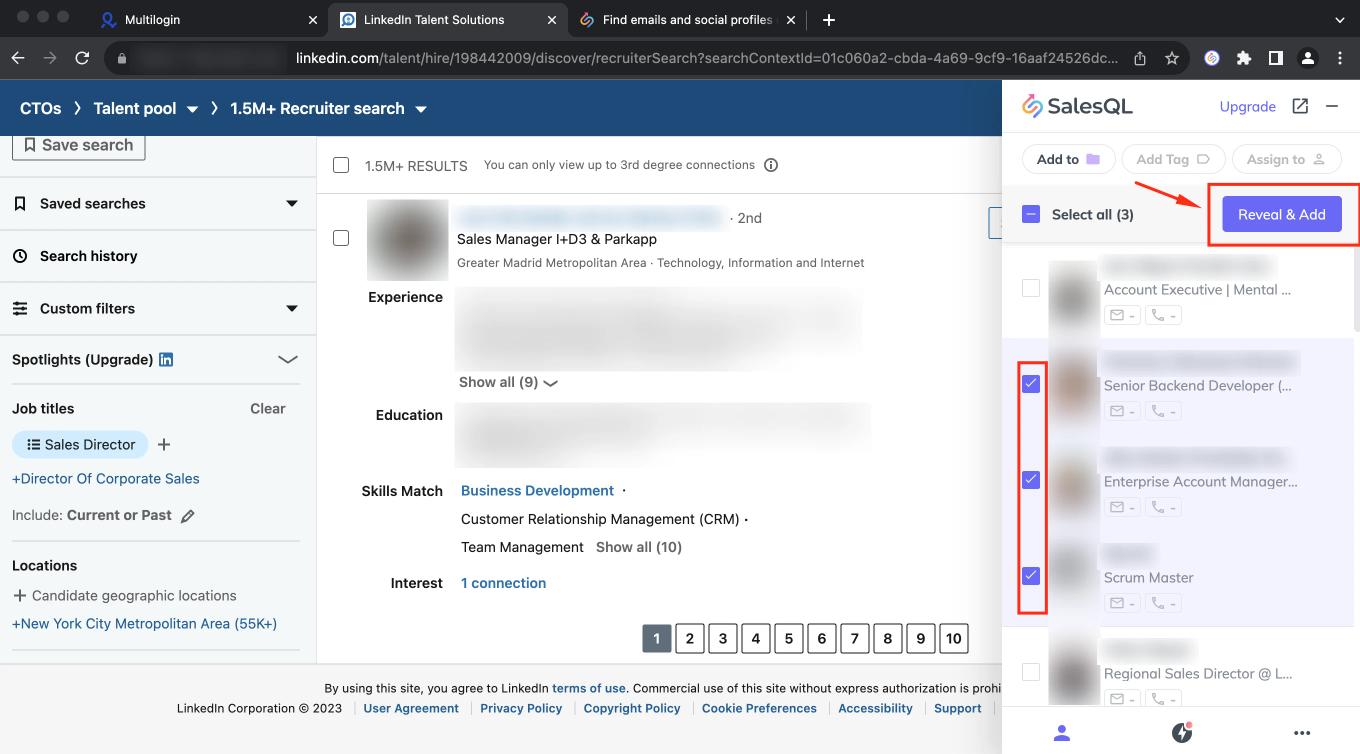
  2. Now, you can selectively choose a group of preselected contacts by clicking on their profile field and after that click on โ€œReveal and Addโ€.

    Three contacts checked in the SalesQL extension on Recruiter Lite, with the "Reveal & Add" button highlighted

    Alternatively, if you find that all the contacts on the page are relevant to your business, you can simply click on the field at the top of the contacts to add the entire page (25 contacts per page)
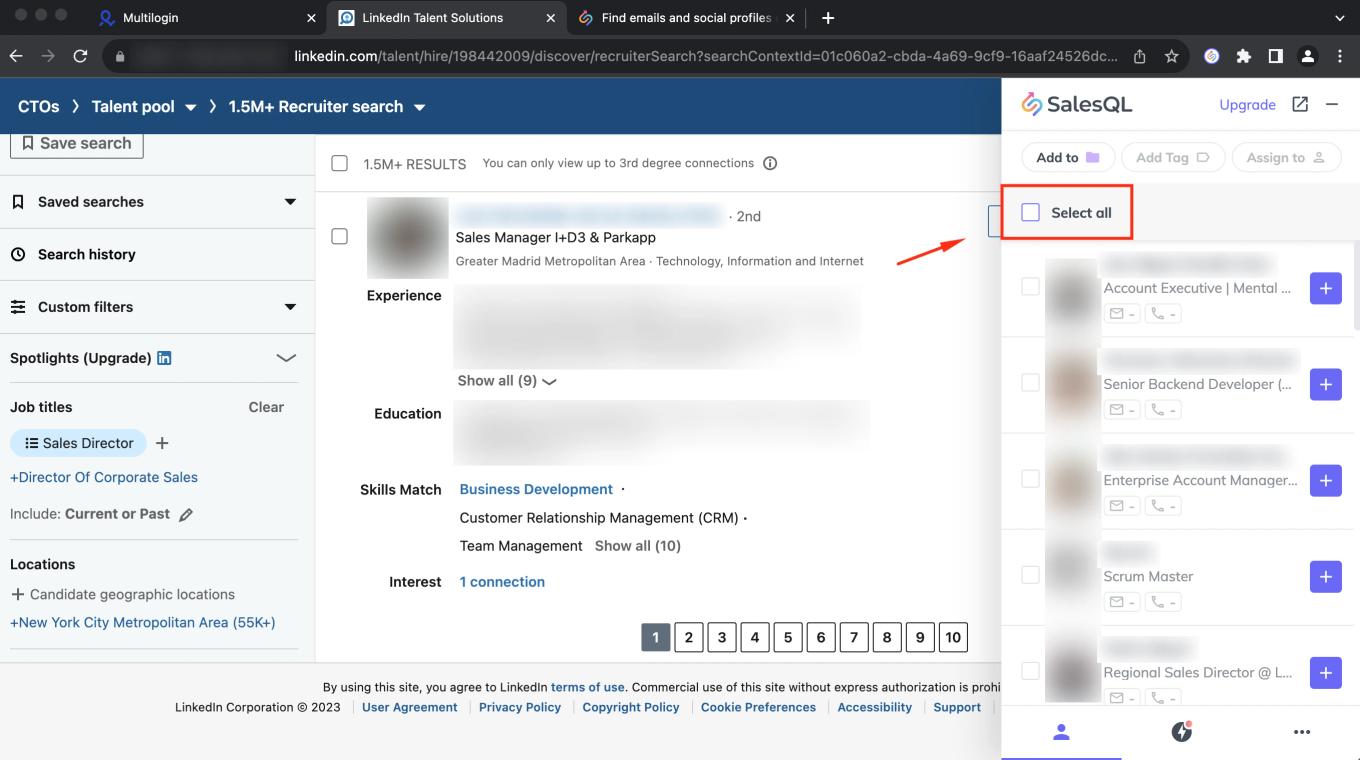
    SalesQL extension on Recruiter Lite with the "Select all" checkbox highlighted above the contact list

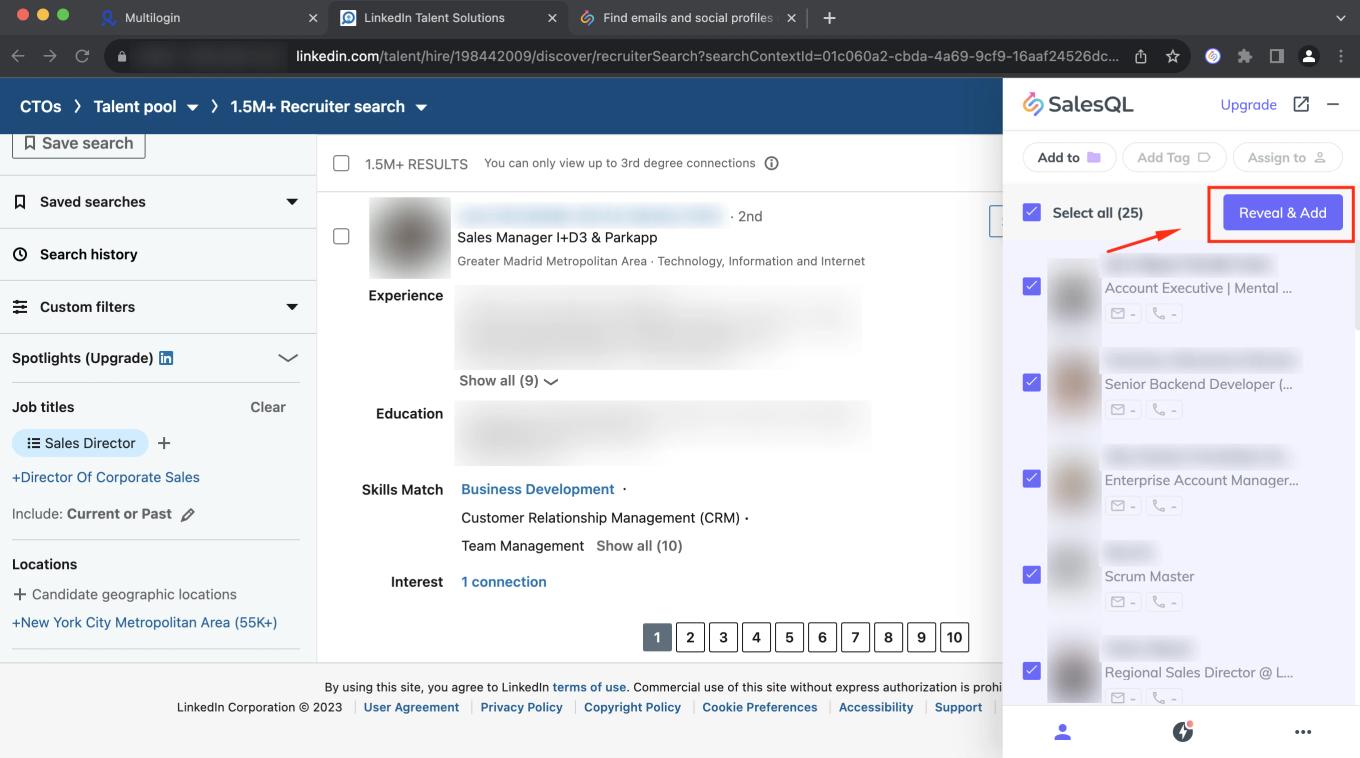
    and click on "Reveal and Add"

    SalesQL extension with all 25 Recruiter Lite contacts selected and the "Reveal & Add" button highlighted

    To locate those contacts, simply click on the "..." and then select "Current work folder."
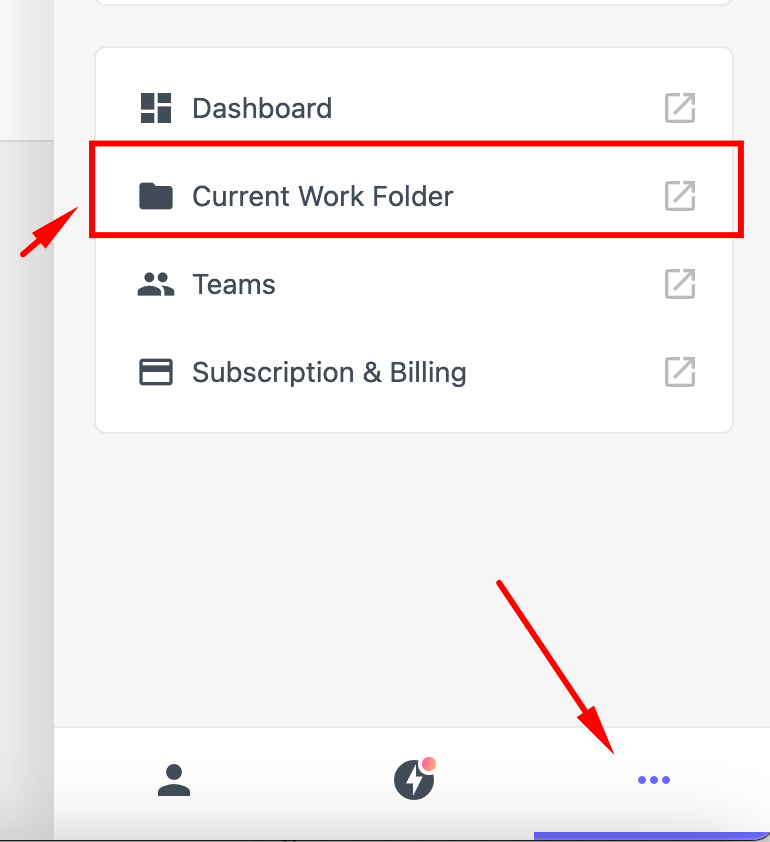
    SalesQL extension "..." menu open with the "Current Work Folder" option highlighted

Extracting profiles from LinkedIn Lite project pipelines

If you have saved profiles under projects in Lite, you can also add profiles (and search for email addresses and phone numbers) directly from pipeline pages.

You can add them manually until this shows up, now you have to scroll down on LinkedIn, so we can see the results that are not loaded.

SalesQL extension on a Recruiter Lite pipeline showing the "Scroll-down on Linkedin to load more contacts" notice

Another option is to scroll down to the end of the page, then click the button next to the contacts to select them all

SalesQL extension on a Recruiter Lite pipeline with the "Select all (25)" checkbox highlighted

and add them by clicking on "Reveal and Add"

SalesQL extension on a Recruiter Lite pipeline with 25 contacts selected and the "Reveal & Add" button highlighted

Please be aware that the feature to automatically add multiple pages is not available in Pipelines. Therefore, you should utilize the options provided above to download contacts from this page. ๐Ÿšซ๐Ÿ“„๐Ÿ”„

To comprehend how to automate actions by pages on Sales Navigator, we recommend you to explore this enlightening article: "Auto Enrichment over LinkedIn Lite" ๐Ÿค–๐Ÿ‘๐Ÿ“ฐ

More in Browser extension

  • Bulk enrichment

    Bulk Enrichment on Sales Navigator

    Add Sales Navigator contacts in bulk with SalesQL from search results, full result pages, lead lists, and LinkedIn groups, without opening each profile.

  • Bulk enrichment

    What are LinkedIn limits?

    Understand LinkedIn profile view limits, how to avoid account restrictions while using SalesQL, and which features work without LinkedIn.

  • Bulk enrichment

    Import Data from a List of URLs using SalesQL

    Add contacts to your SalesQL dashboard by pasting a list of LinkedIn profile URLs into the extension's Add prospects from profile URLs option.

  • Bulk enrichment

    Bulk Enrichment over LinkedIn RPS

    Add LinkedIn RPS contacts in bulk with the SalesQL extension, from search results or project pipelines, and find them in your current work folder.

  • Bulk enrichment

    Bulk Enrichment over LinkedIn

    Add multiple contacts from basic LinkedIn search results with the SalesQL extension, selecting individual profiles or the whole page at once.

  • Getting started

    Your first contact - SalesQL on LinkedIn

    Add your first LinkedIn contact with the SalesQL extension: choose a folder, click Reveal info & Add, and open the contact in your dashboard.

See all 16 articles in Browser extension