Bulk enrichment

Import Data from a List of URLs using SalesQL

Add contacts to your SalesQL dashboard by pasting a list of LinkedIn profile URLs into the extension's Add prospects from profile URLs option.

With SalesQL, searching for contacts through URLs consumes the same amount of credits as a simple download. SalesQL uses only 1 credit per contact, consuming 1 credit for every email address it finds for a LinkedIn profile. For more information on this topic, please follow this article "Understanding how credits are charged" ℹ️🔗

How to import contacts from a list of URLs This article covers how to add contacts to your dashboard using URLs.

  1. To begin, the first step entails compiling a list of URLs. In this particular case, a colleague shared an export of their SalesQL contacts, making it convenient for me to locate the necessary URLs within the provided data.
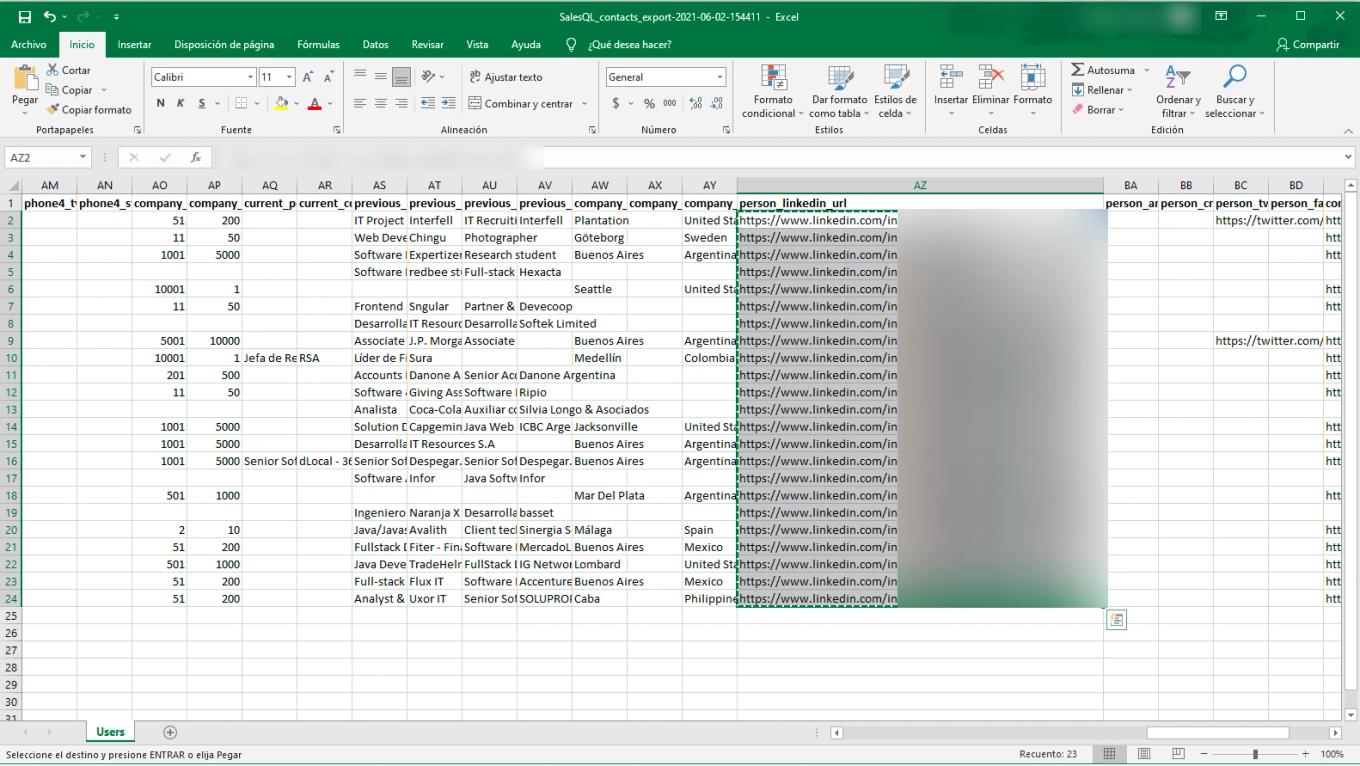
    SalesQL contacts export open in Excel with the "person_linkedin_url" column of profile URLs selected
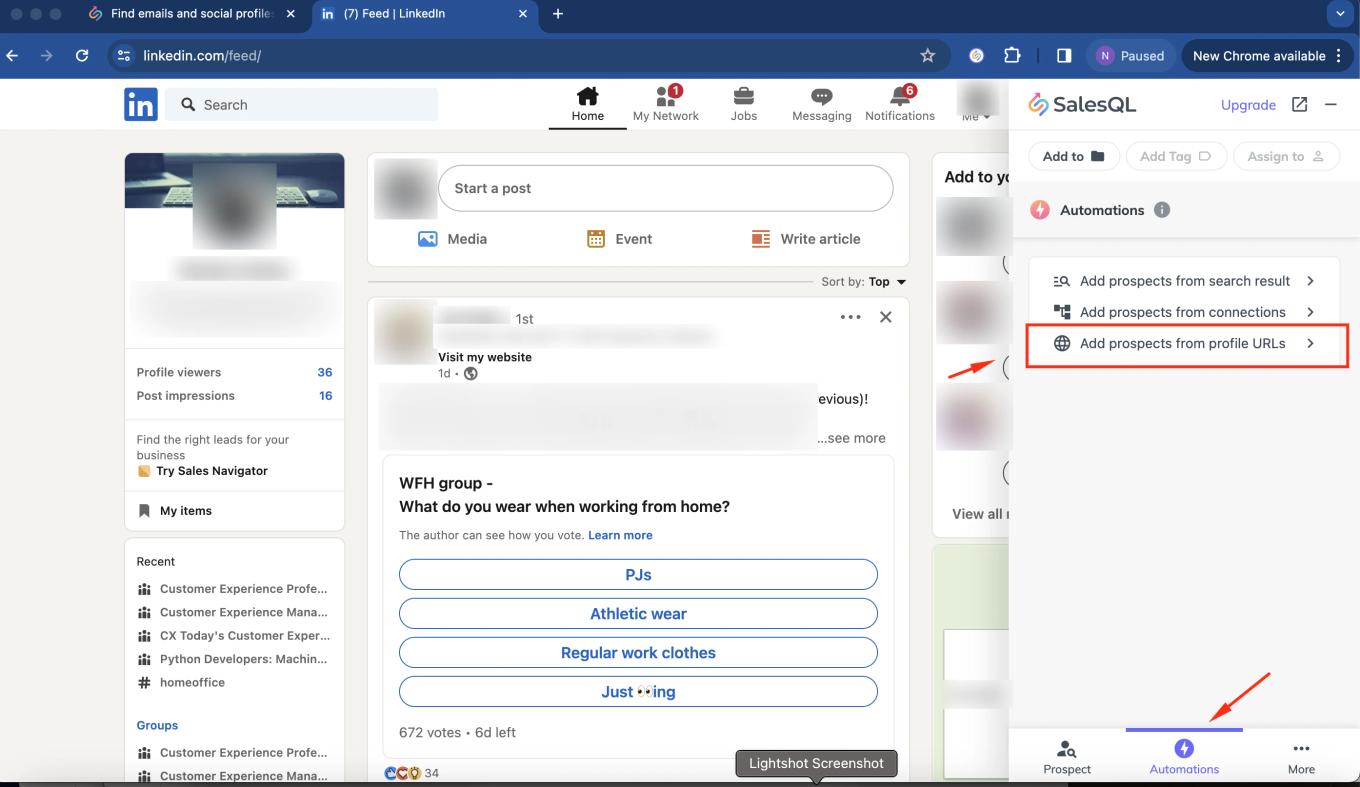
  2. After obtaining the list, proceed by clicking on the SalesQL extension icon, followed by selecting the lightning icon, and then choosing "Add prospects from profile URLs."
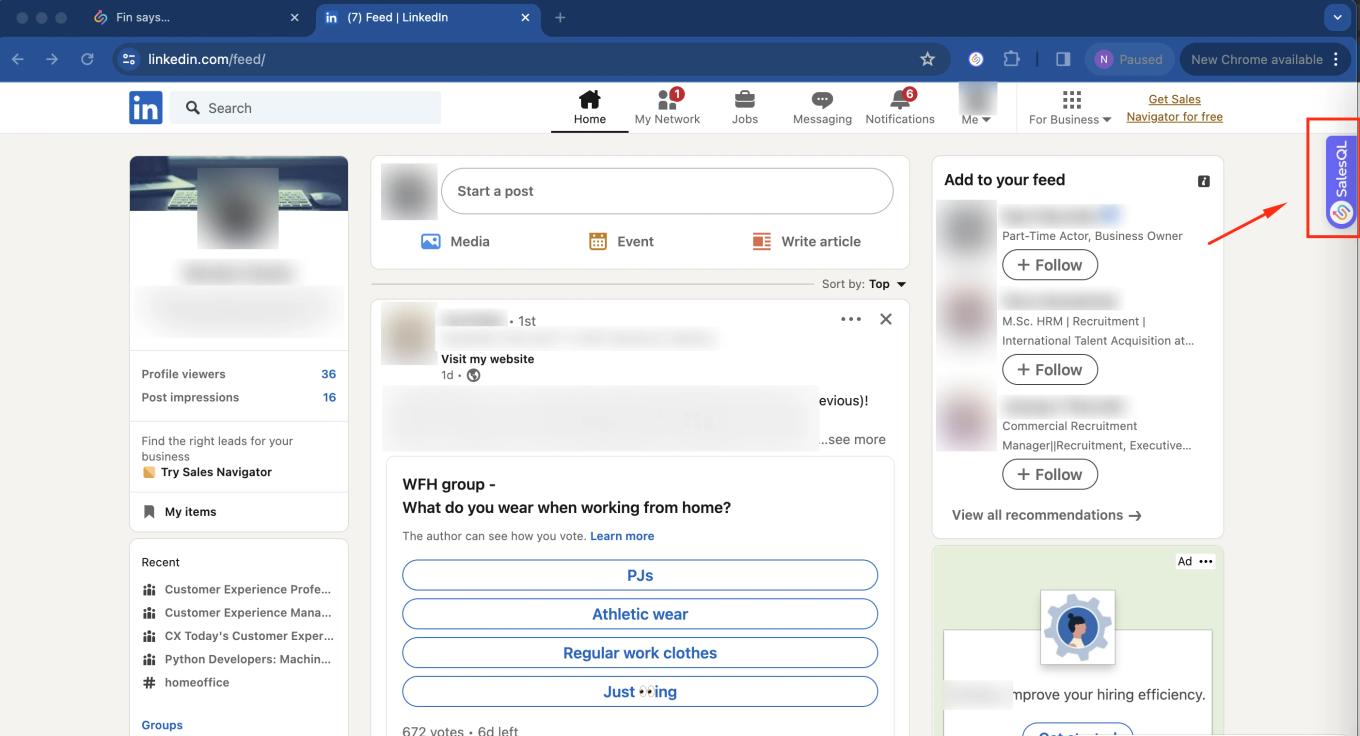
    LinkedIn feed with an arrow pointing to the SalesQL extension tab on the right edge of the page
    SalesQL Automations tab on the LinkedIn feed with "Add prospects from profile URLs" highlighted
  3. Now, we copy and paste those URLs profiles
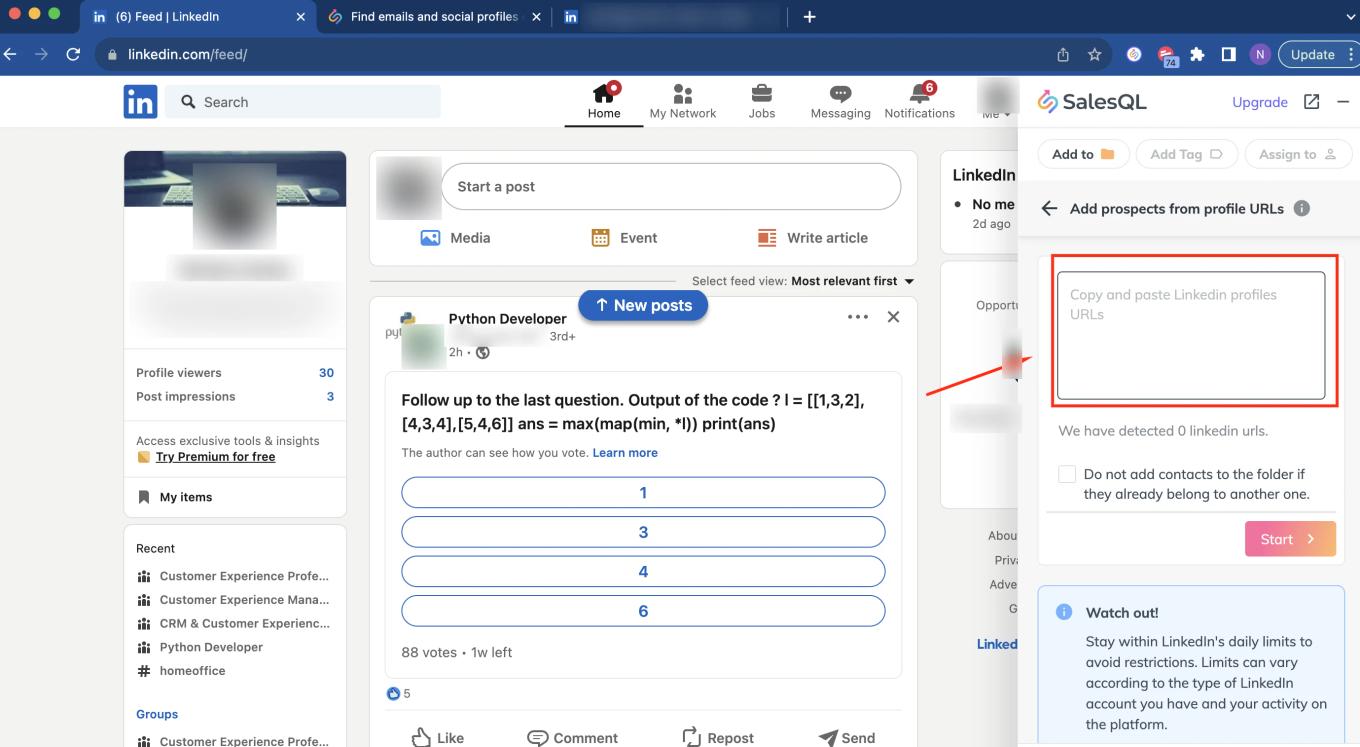
    SalesQL "Add prospects from profile URLs" screen with the empty box for pasting LinkedIn URLs highlighted
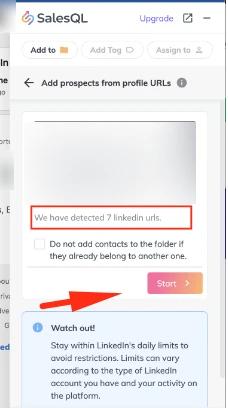
  4. We will see that the extension recognized those URLs and the exact number is displayed before starting the download.
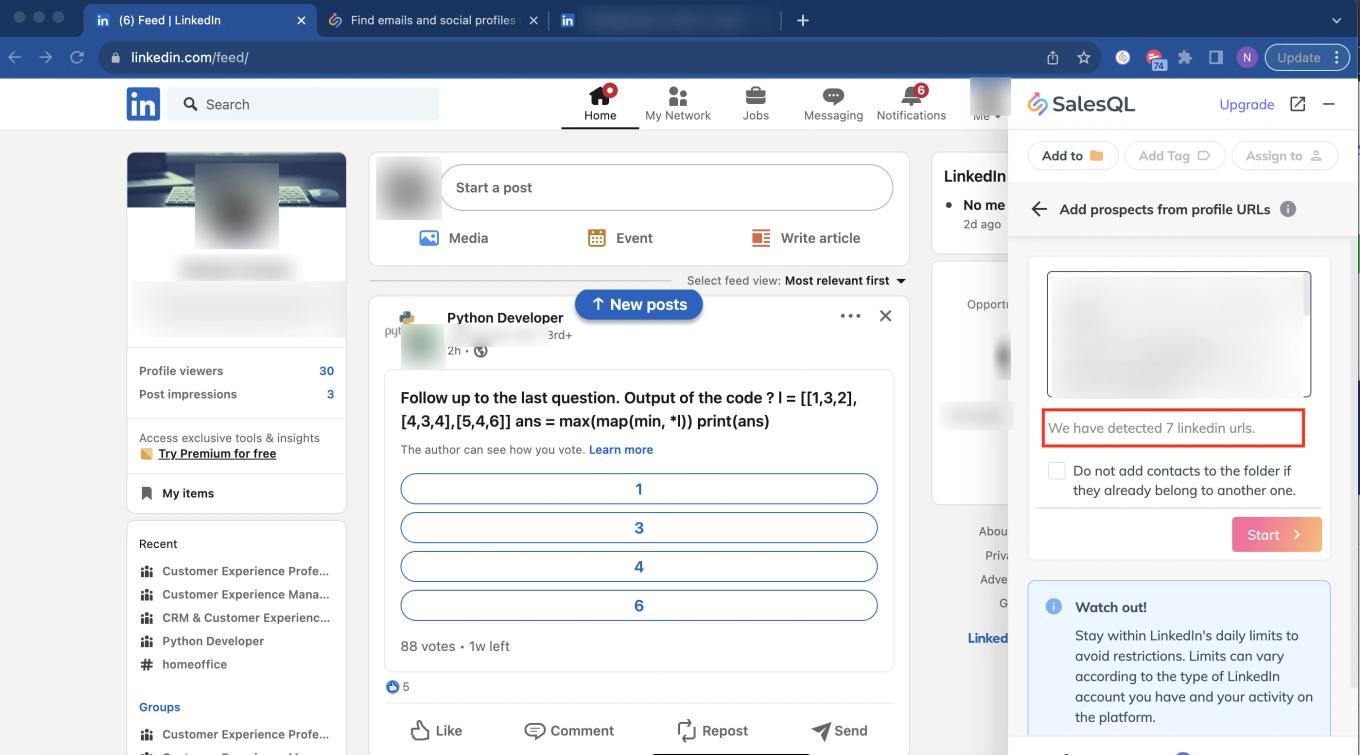
    SalesQL URL import with pasted LinkedIn URLs and the message "We have detected 7 linkedin urls" highlighted
  5. We click on "Start"

    SalesQL URL import panel with 7 LinkedIn URLs detected and an arrow pointing to the "Start" button
  6. Once the download has been completed, we will see that these contacts were added correctly
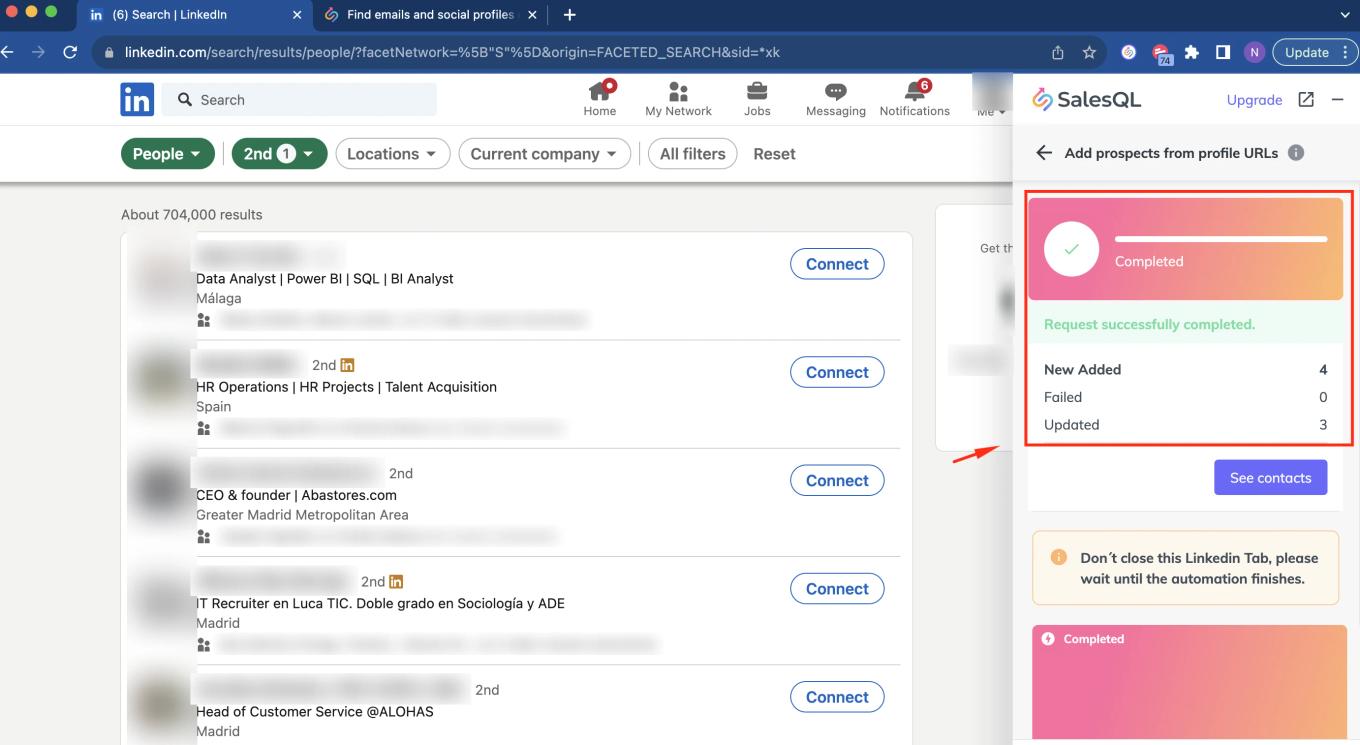
    SalesQL import marked "Completed" with a summary of 4 new added, 0 failed and 3 updated contacts
  7. To effortlessly locate and access these contacts on my dashboard, simply click on "See contacts" for direct redirection.
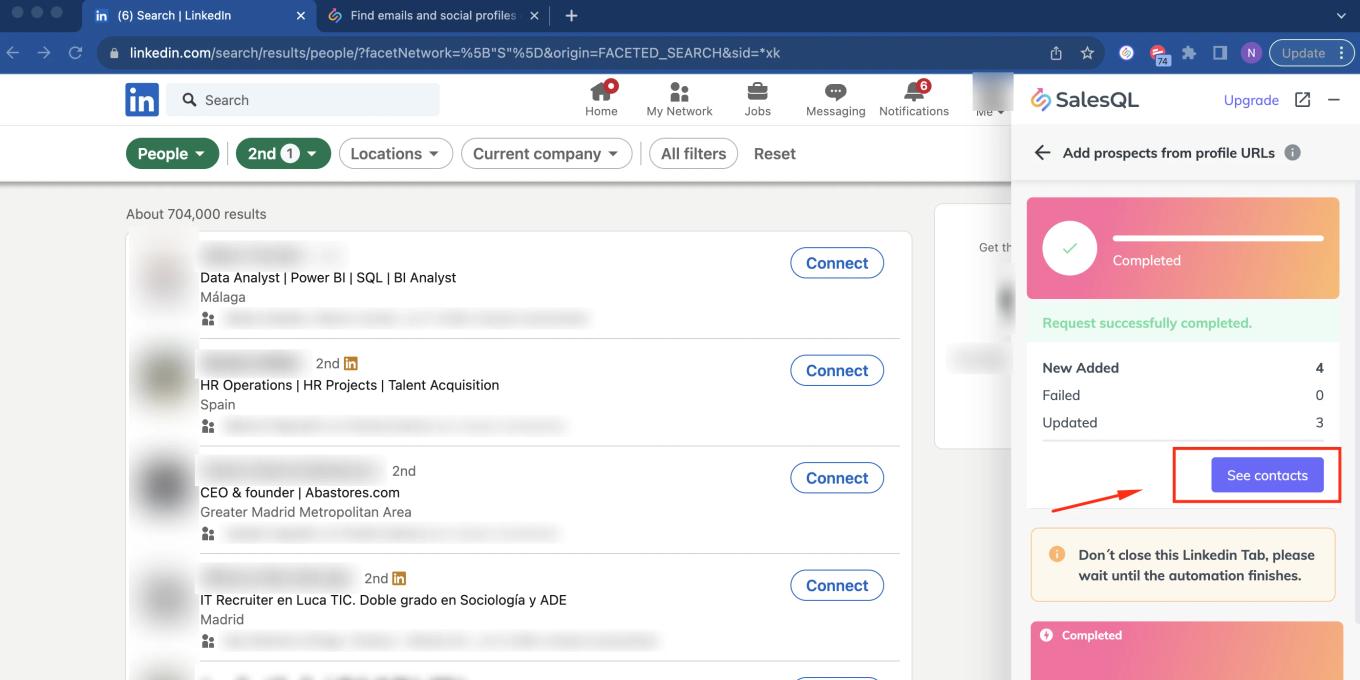
    Completed SalesQL URL import with the "See contacts" button highlighted

Kindly note that our support is limited to profile URLs from the basic version of LinkedIn. Unfortunately, we are unable to assist with secondary URLs, such as those generated from Sales Navigator. 🚫🌐🔗

More in Browser extension

  • Bulk enrichment

    Bulk Enrichment on Sales Navigator

    Add Sales Navigator contacts in bulk with SalesQL from search results, full result pages, lead lists, and LinkedIn groups, without opening each profile.

  • Bulk enrichment

    What are LinkedIn limits?

    Understand LinkedIn profile view limits, how to avoid account restrictions while using SalesQL, and which features work without LinkedIn.

  • Bulk enrichment

    Bulk Enrichment over LinkedIn RPS

    Add LinkedIn RPS contacts in bulk with the SalesQL extension, from search results or project pipelines, and find them in your current work folder.

  • Bulk enrichment

    Bulk Enrichment over LinkedIn

    Add multiple contacts from basic LinkedIn search results with the SalesQL extension, selecting individual profiles or the whole page at once.

  • Bulk enrichment

    Bulk Enrichment over Recruiter Lite

    Add Recruiter Lite contacts in bulk with SalesQL from Talent Pool search results or project pipelines, choosing single profiles or full pages.

  • Getting started

    Your first contact - SalesQL on LinkedIn

    Add your first LinkedIn contact with the SalesQL extension: choose a folder, click Reveal info & Add, and open the contact in your dashboard.

See all 16 articles in Browser extension