
SalesQL supercharges LinkedIn profiles with precise contact information, including emails and phone numbers. Our approach combines cutting-edge data techniques and publicly available sources to pinpoint employment details and validate real-time contact information. Effortlessly enrich your lead data, streamline your outreach efforts, and boost your deal closures. Rely on our accurate and dependable information, backed by sophisticated algorithms, to maximize your productivity.
🎥 Discover how to find leads on LinkedIn with our quick video tutorial (less than 1 minute) 📈📹👀
Detailed steps on how to add your first contact 📝👥📲
Go to the profile of the contact you wish to add, and click on the extension icon. Next, select the folder to which you intend to send the contact.
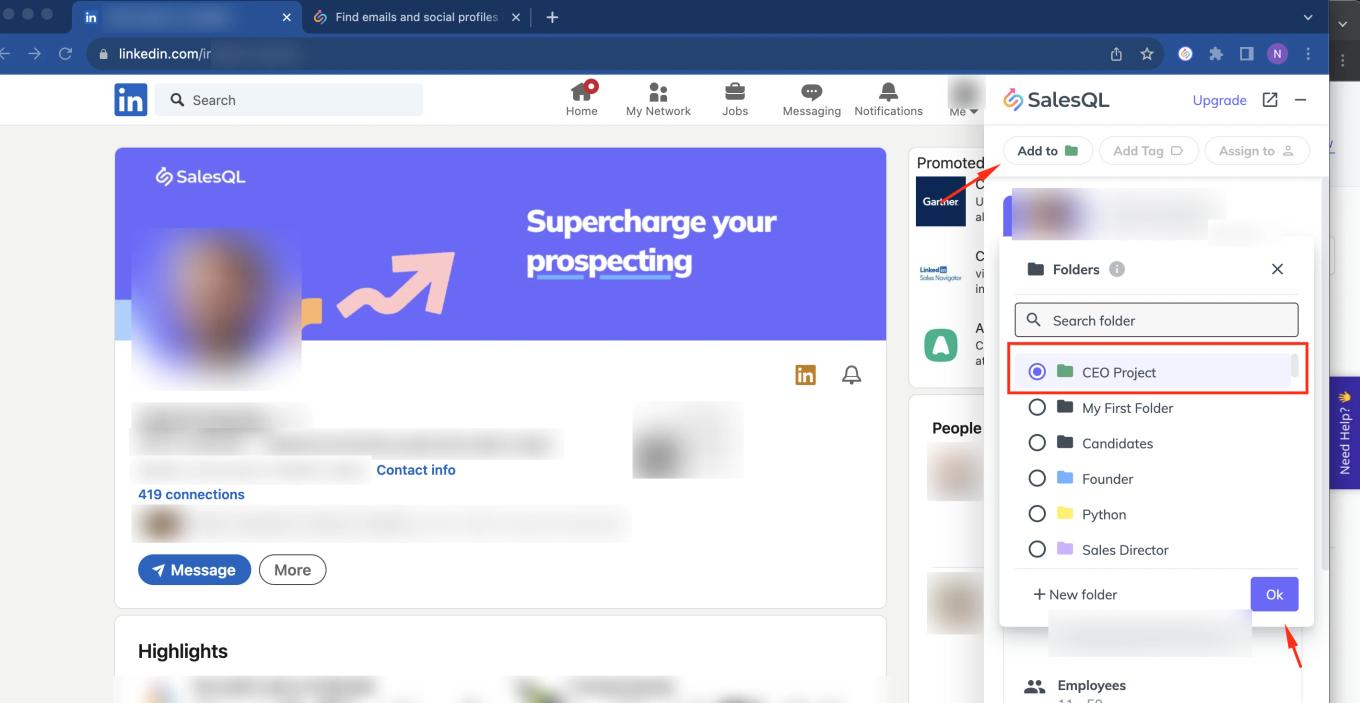
Now, that you have the folder selected, click on the "Reveal info & Add” button.
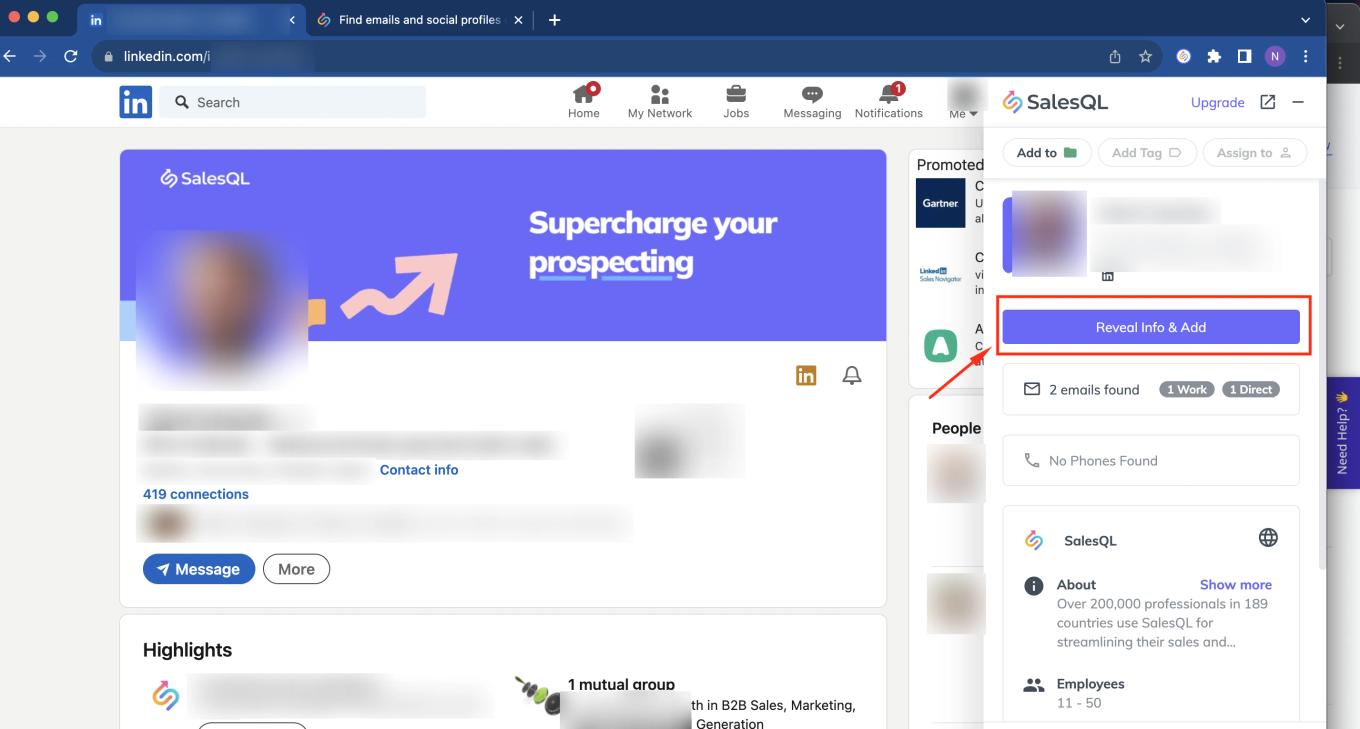
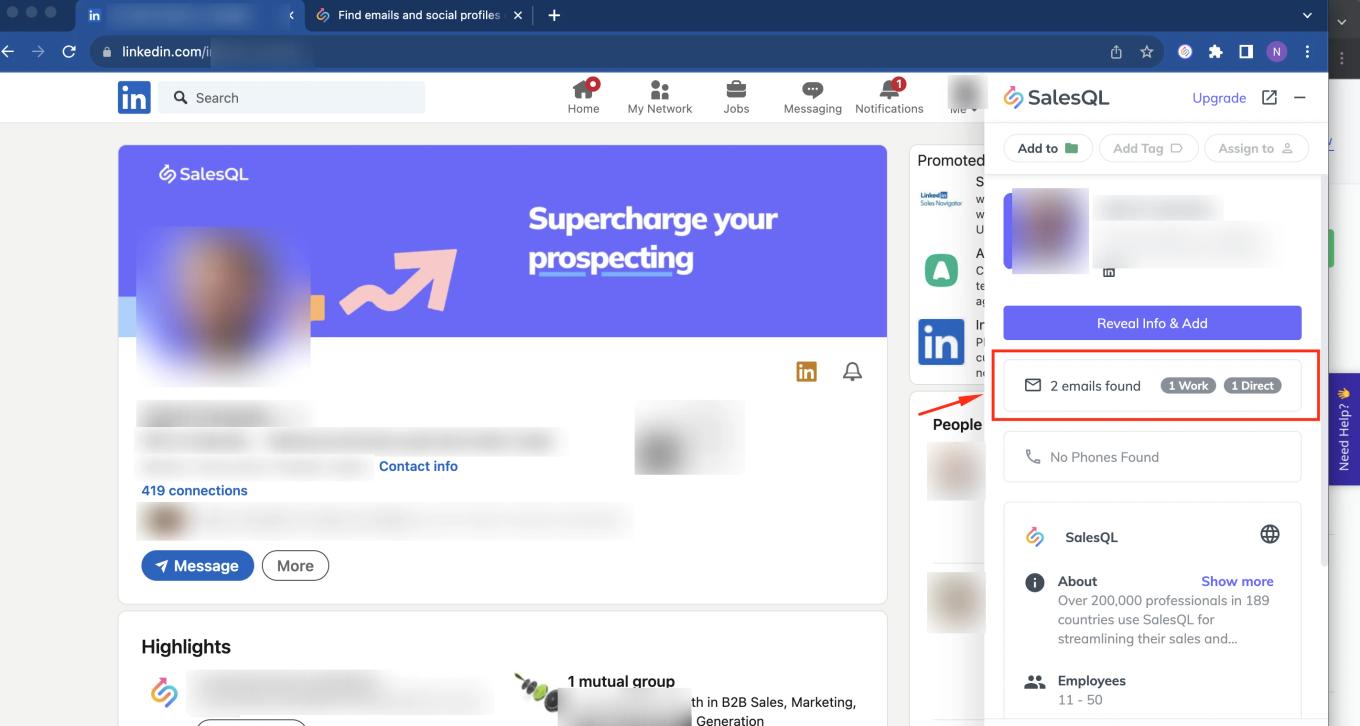
Once you've added the contact, you should be able to see all email or phone numbers we were able to find, no matter whether it's a 1st, 2nd, or 3rd connection:
🔍 One thing that will help you make a better decision if you want to add a contact is that you have the ability to view the emails 📧 and phone numbers 📞 we could find before they are revealed! 👀📊🔒
For an easier way to locate the contact folder, simply proceed to the extension profile and click on "Open in Dashboard"
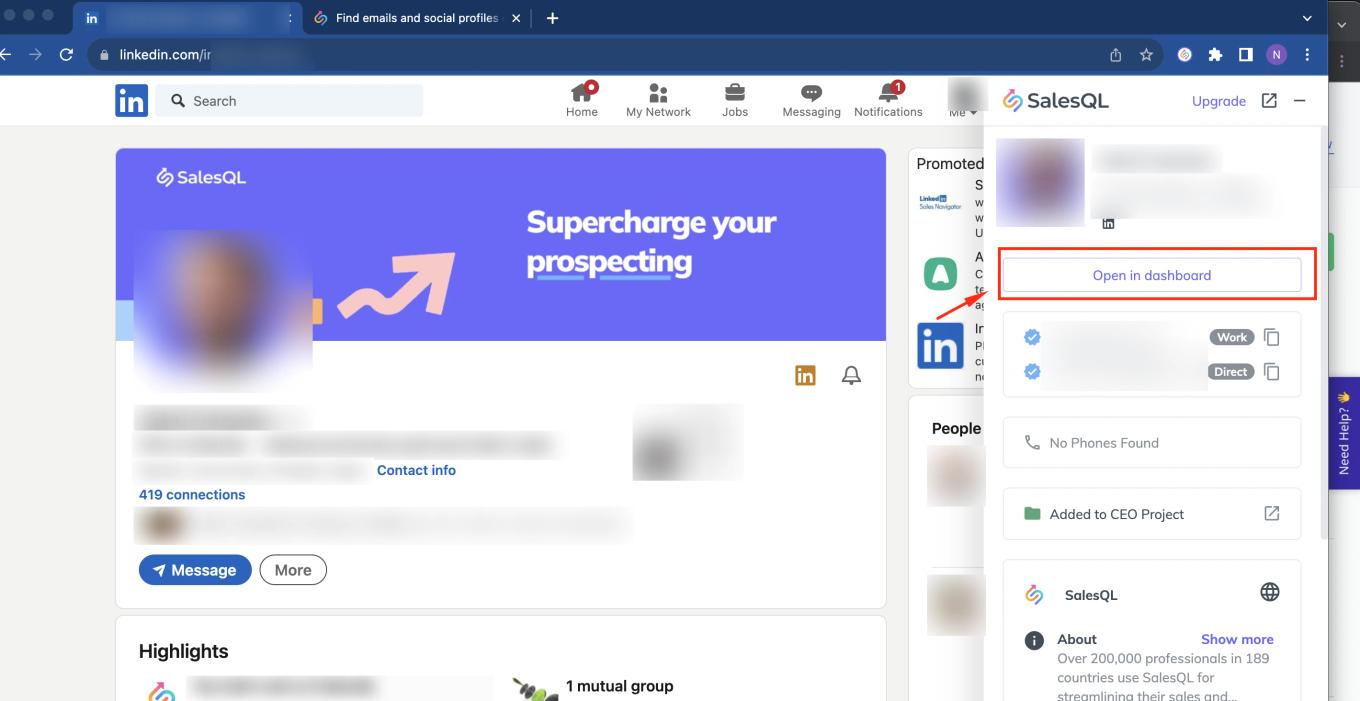
and it will redirect you directly to the folder showing the contact:
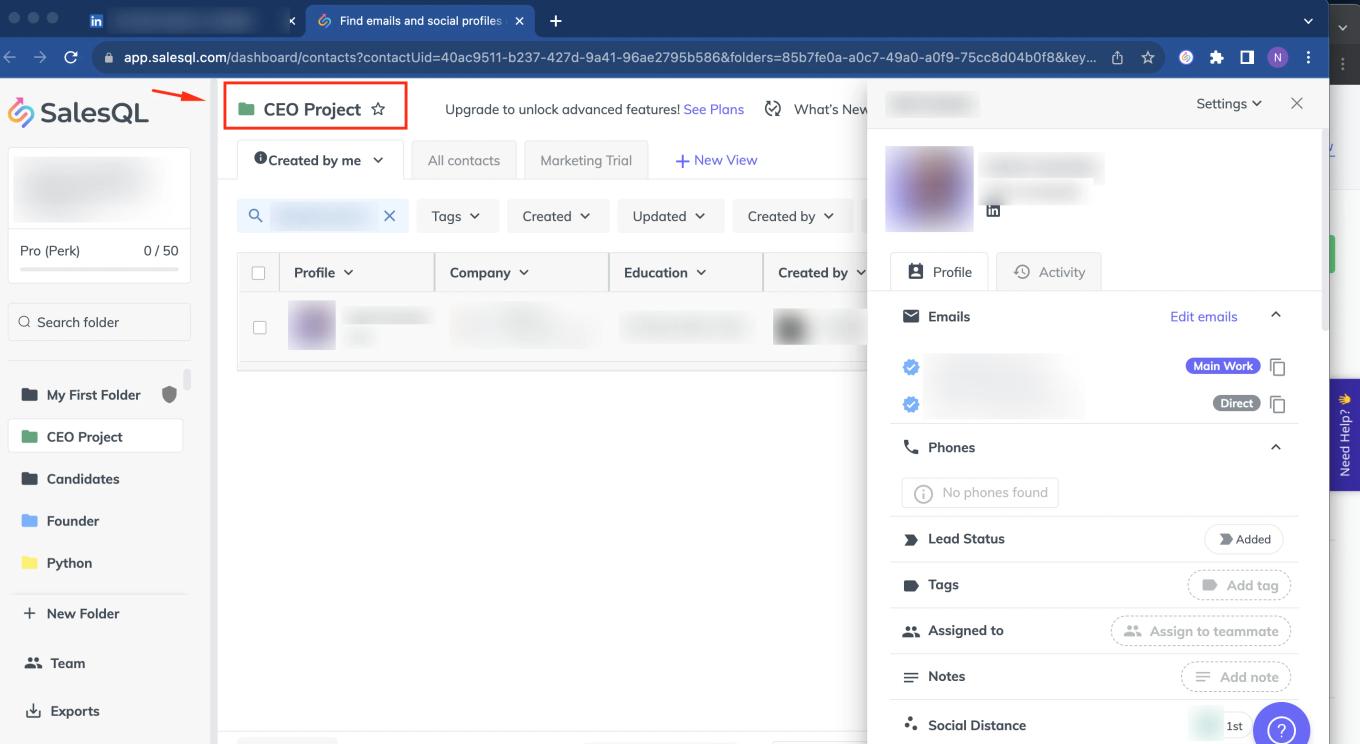


You can find and manage your saved contacts on the SalesQL dashboard
This tutorial covers the basic or free version of LinkedIn. If you need to know how to perform these steps for the premium versions of LinkedIn, please visit the following links:
If you still have any questions, check out our Help Center.